Your Galaxy phone is a powerhouse of hidden tricks. Beyond the headline features and familiar apps, Samsung’s One UI is packed with clever, lesser-known tools that can simplify your day, protect your privacy, and make you wonder how you ever lived without them. Here are 10 hidden Samsung Galaxy features you should start using today.
🔒 1. Privacy Display: Hide Your Screen from Prying Eyes
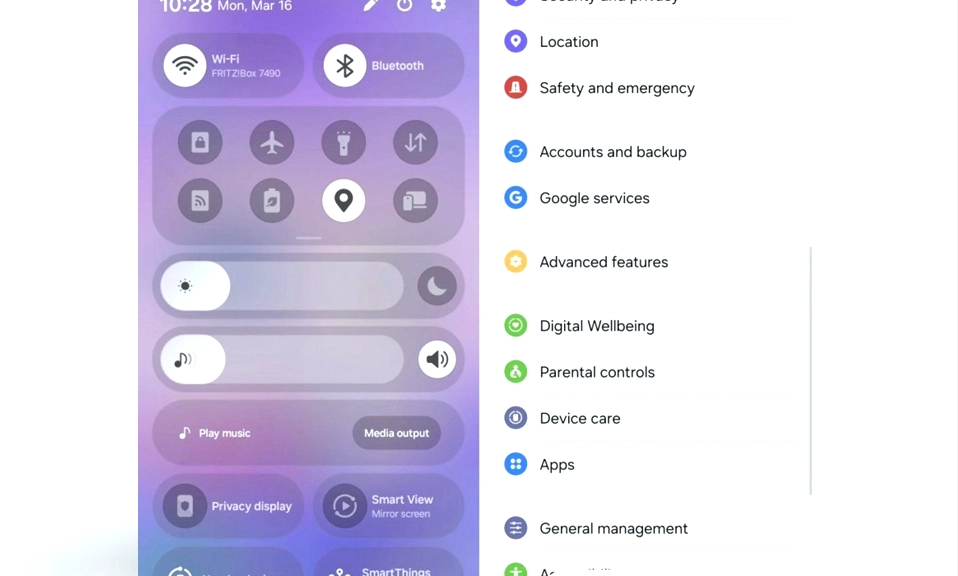
If you’ve ever angled your phone away from the person next to you on the train, this one is for you. The Galaxy S26 Ultra features an integrated Privacy Display that reduces side-angle visibility at the pixel level, making it nearly impossible for anyone but you to read your screen. You can activate it from settings and even bind it to a double-tap of the side button for instant privacy on demand.
How to use it: Go to Settings, search for Privacy Display, and choose your activation method. On supported models, you can also assign it to a side-button gesture for quick toggling.
🎥 2. Dual Recording: Film Yourself and the World at Once
Dual Recording lets you capture video from the front and rear cameras simultaneously, combining both perspectives into a single video file. It’s perfect for reaction videos, travel vlogs, or documenting an event while showing your live commentary. On compatible devices, the footage from each camera can also be saved separately for editing.
How to use it: Open the Camera app, switch to Video mode, and look for the Dual Recording toggle (often in the mode carousel or settings). Frame your shot and start recording.
⚡ 3. App Pair: Open Two Apps with One Tap
If you constantly switch between two apps—like a browser and a notes app, or YouTube and a messaging app—App Pair is a game-changer. It creates a single home-screen shortcut that launches both apps in split-screen view instantly.
How to use it: Open two apps in split-screen mode, tap the screen divider, then tap the star icon. Save the pair to your home screen or Edge Panel for one-tap access.
⌨️ 4. Two-Finger Swipe: Delete and Undo Text Instantly
Typing on a phone can be fiddly, especially when you need to correct a mistake. Samsung’s keyboard supports a hidden gesture: swipe two fingers left across the keyboard to delete text, and swipe two fingers right to bring it back. It’s faster than tapping backspace repeatedly and works in any text field.
How to use it: Just start typing in any app. When you need to delete, place two fingers on the keyboard and swipe left. To undo, swipe right.
📸 5. Cleaner Screenshots: Hide the Status and Navigation Bars
Screenshots often include the time, battery icon, and navigation buttons—clutter you might not want when sharing an image. Samsung lets you hide the status bar and navigation bar in screenshots, giving you a clean, professional-looking capture.
How to use it: Go to Settings > Advanced features > Screenshots and screen recordings, and enable Hide status bar and Hide navigation bar.
✋ 6. Palm Swipe to Screenshot: The Gesture You Forgot
Taking a screenshot usually means pressing buttons, but Samsung supports a much easier method: swipe the edge of your hand across the screen to capture what’s on display. It’s fast, intuitive, and works on most Galaxy devices.
How to use it: Go to Settings > Advanced features > Motions and gestures, and toggle on Palm swipe to capture.
👆 7. Supercharge Your Fingerprint Unlock
If your fingerprint unlock feels sluggish, a few hidden settings can make it nearly instant. Disable the unlock animation, register your most-used fingers multiple times (using all four fingerprint slots for one or two fingers), and keep the fingerprint scanner always on so you can unlock without waking the screen first.
How to use it: Go to Settings > Security and privacy > Screen lock and biometrics > Fingerprints. Uncheck Show animation when unlocking, re-register your primary fingers, and enable Fingerprint always on.
🖼️ 8. Change Album Covers in Gallery
Your gallery albums always show the most recent photo as their cover—which can be awkward if that photo is personal or sensitive. You can manually set a cover image for any album, so only the photo you choose appears on the folder.
How to use it: Open the Gallery app, long-press an album, tap the three-dot menu, and select Change cover image. Pick your preferred photo and apply.
⏰ 9. The Alarm “Turn Back On For Tomorrow” Lifesaver
Ever turned off your alarm for a day off, then forgot to re-enable it and overslept the next day? Samsung’s alarm app includes a subtle but brilliant feature: when you dismiss an alarm, a toast notification asks if you want to “Turn back on for tomorrow”. One tap and your recurring alarm is restored.
How to use it: Simply dismiss your alarm as usual. When the prompt appears, tap Turn back on for tomorrow. No need to dig through the alarm settings.
🤫 10. Mute with Gestures: Silence Calls Without Looking
When your phone rings in a meeting or a quiet room, fumbling for the volume button is stressful. Samsung lets you silence incoming calls or alarms by placing your hand over the screen or flipping the phone face down. It’s discreet, fast, and works without touching a single button.
How to use it: Go to Settings > Advanced features > Motions and gestures, and enable Mute with gestures.