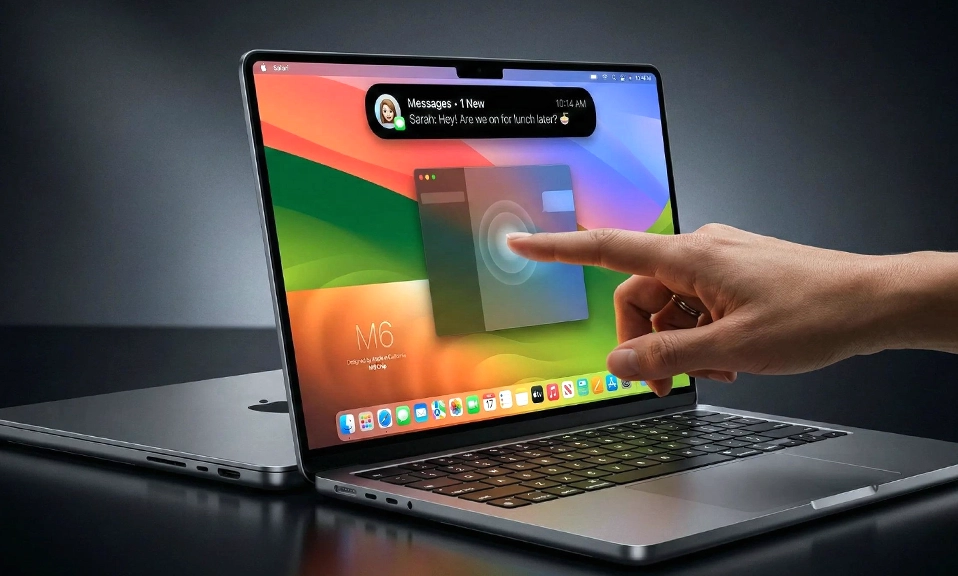
Apple spent fifteen years insisting it would never make a touchscreen Mac. On October 28, 2026, at the “Pro and Tell” event in Los Angeles, Apple finally did exactly that—and the result is not an iPad with a keyboard. It’s a MacBook that happens to have a touchscreen, and that distinction matters more than any spec sheet.
The new 14-inch and 16-inch MacBook Pro models start at $2,899 and $3,399, respectively, and they ship on November 6. They feature a PROLED XDR tandem OLED display that is brighter, sharper, and more vivid than anything Apple has put in a laptop before. The notch is gone, replaced by a Dynamic Island. The hinge has been redesigned so the screen doesn’t wobble when you tap it. And the whole machine is lighter—the 16-inch model weighs 4 pounds, compared to 4.7 pounds for the non-touch M5 Pro version.
But the touchscreen is the story. And after spending time with hands-on impressions from The Verge, The New York Times, heise, MacRumors, and 9to5Mac, a picture emerges of a laptop that adds touch without abandoning the trackpad, the keyboard, or the Mac experience you already know. Here are eight tricks that could change how you use it.
1. The Dynamic Island Becomes a Pull-Down Control Center
The notch is gone. In its place is a Dynamic Island, the same idea Apple introduced on the iPhone, and it is more useful on the Mac than you might expect. Spotlight, Live Activities, and Siri AI live there. You can pull down on the Dynamic Island to open an expanded version that floats on the screen like a widget, giving you direct access to Siri responses and Spotlight search.
Why it changes things: On a phone, the Dynamic Island is a passive notification hub. On a Mac, with touch, it becomes an active control surface. You can tap it to pause music, accept an AirDrop, or check a Live Activity without reaching for the menu bar or a keyboard shortcut. It is the first time the Mac has a persistent, touch-friendly interface element that is always within reach.
2. Menu Bar Items Expand Under Your Finger
Apple’s solution to the “tiny menu bar” problem is elegant. The menu bar looks exactly the same as it always has. But when you move a finger over a menu item, it expands—the spacing between items increases, and the target becomes easier to tap. Once you switch back to the trackpad or mouse, everything returns to its normal density.
Why it changes things: This is the trick that makes touch on a Mac feel intentional rather than bolted on. You do not have to relearn the menu bar. You just have to reach for it. The interface meets you where you are, and then gets out of the way when you are not using touch. It is a small detail with a large impact on how natural the experience feels.
3. The Traffic Light Buttons Grow When You Tap Them
The red, yellow, and green window controls in the top-left corner have always been small. On a touchscreen, they are a genuine challenge—too tiny for a fingertip, too important to miss. Apple’s fix: the buttons expand when you tap them, and then you tap again to make your selection. They briefly enlarge for fingers, then return to normal.
Why it changes things: It is not perfect—Bloomberg’s Chris Welch found the animation “a bit sluggish”—but it solves a real problem without redesigning the window chrome. You can close, minimize, or maximize a window with a fingertip, without accidentally hitting the wrong button. It is the kind of small quality-of-life change that makes touch feel like a genuine addition rather than a compromise.
4. Swipe Up from the Bottom to Reveal the Dock
The Dock is normally hidden until you move your cursor to the bottom of the screen. With touch, you can swipe up from the bottom edge to reveal it, just like you would on an iPhone or iPad.
Why it changes things: The Dock is the most important interface element on macOS. Making it reachable with a gesture—rather than a precise cursor movement—is a small but meaningful shift. It makes the Mac feel more like a device you handle and less like a device you point at. And it is one of the easiest gestures to learn, which matters for anyone who is new to touch on a laptop.
5. Pinch, Swipe, and Scroll Like It’s an iPad
The core gestures are exactly what you would expect: pinch to zoom in photos and web pages, two-finger scroll up and down documents, three-finger swipe between virtual desktops, and pull-to-refresh in Safari, Mail, and Calendar. The touch sensor is built into the OLED panel itself, rather than layered on top, which is why the responsiveness is as good as an iPhone or iPad—there is no latency penalty for the touch layer.
Why it changes things: These are the gestures you already know. You do not have to learn a new interaction language. You just have to break the habit of reaching for the trackpad. Once you do, scrolling a webpage or zooming into a photo with your fingers feels obvious—the kind of thing you wonder why you ever did differently.
6. Double-Tap a Window to Go Full Screen
A simple double-tap on a window fills the screen. It is the touch equivalent of the green traffic light button, but faster and more intuitive. You can also drag a window corner to resize it, just like you would with a mouse.
Why it changes things: Window management on macOS has always been a bit fiddly. Double-tapping to maximize is the kind of gesture that feels natural the first time you try it. It is not a replacement for the trackpad—you will still use Mission Control and Split View—but it is a faster way to get a window out of the way when you are working with your hands on the screen.
7. Touch Comes to Pro Apps—Colour Grading, Piano Keys, and Pixel Painting
This is where the touchscreen stops being a novelty and starts being a tool.
In DaVinci Resolve, you can colour grade with your fingers, adjusting the wheels directly on the screen. In Logic Pro, you can play the piano keyboard with multiple fingers at once—something that is impossible with a mouse. In Pixelmator Pro, you can draw directly on the image with your fingertip. And in Xcode, developers can now test iOS apps with realistic touch input on the Mac itself, without relying on a trackpad to simulate gestures.
Why it changes things: These are the use cases that justify the touchscreen. For creative professionals, reaching out and touching the timeline, the colour wheel, or the piano keys is faster and more expressive than any indirect input method. Apple is pitching touch as being most important for creative types—and in these apps, that pitch lands.
8. Touch Settings Let You Customise the Gestures—and Turn It Off Entirely
In System Settings > Touch Display, you can enable or adjust the gestures: Mission Control, Show Apps, Show Desktop, and more. You can turn individual gestures on or off. And if you decide you do not want touch at all, you can disable it entirely—though the toggle is buried in Accessibility settings.
Why it changes things: This is the trick that makes the touchscreen optional in the best sense. You are not forced to use it. You are not forced to relearn macOS. You can adopt the gestures that work for you, ignore the ones that do not, and fall back to the trackpad whenever you want. The Mac does not change when you are not using touch—and that is the point.
The new touchscreen
MacBook Pro is not an iPad. It is not a Surface. It is a Mac that happens to have a touchscreen, and Apple has been careful to keep it that way. The menu bar still looks the same. The trackpad still works. The keyboard is still there. Touch is an addition, not a replacement—and the eight tricks above are the ones that make that addition feel worth the $400 premium over the non-touch model.
It is not perfect. The traffic light buttons are still a weak spot. The screen can wobble if you tap it firmly. And some apps will need to be updated before they feel truly touch-native. But for creative professionals, for developers, and for anyone who has ever wanted to reach out and touch a Mac screen, the new MacBook Pro is the first laptop that makes that impulse feel natural rather than awkward.
Touch is here. And it is more Mac than you might expect.