You upgrade your internet, you buy a shiny new Wi-Fi 6 router, and life is good. But then you remember the old router sitting in a closet, gathering dust.
Before you throw it in the trash or let it collect dust in a drawer, stop. That “obsolete” piece of plastic is actually a secret weapon.
With a few simple clicks, you can repurpose your old router to eliminate Wi-Fi dead zones, extend your network’s reach, and save yourself the $50 to $150 you would have spent on a dedicated Wi-Fi extender.
Whether you want to run an Ethernet cable for maximum speed (Access Point mode) or go completely wireless (Repeater mode), here is your complete, step-by-step guide to giving your old router a second life.
🆚 First, Know the Difference: Access Point vs. Repeater
Before you start clicking, you need to choose your method. They do similar things, but in very different ways.
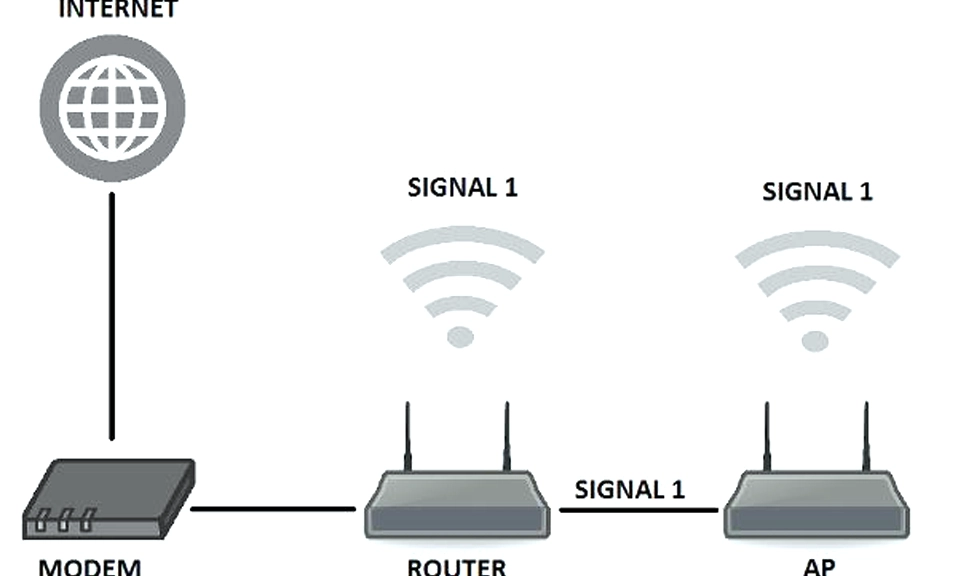
- Access Point (AP) Mode (The Gold Standard): You connect the old router to your main router using an Ethernet cable. The old router broadcasts a fresh, full-speed Wi-Fi signal in a dead zone. Pros: Zero speed loss, maximum stability. Cons: Requires running a cable through your house.
- Repeater / Extender Mode (The Wireless Hack): The old router connects to your main router wirelessly, catches the signal, and rebroadcasts it further. Pros: No cables required, easy to place anywhere. Cons: Cuts your Wi-Fi speed roughly in half (because the radio has to receive and transmit data sequentially) and can add slight latency.
Rule of Thumb: If you can run an Ethernet cable, always choose Access Point mode. If you absolutely cannot, use Repeater mode.
🛠️ Method 1: Setting Up Access Point (AP) Mode (Recommended)
This method turns your old router into a wired extension of your main network. It is the most reliable way to get fast Wi-Fi to a distant room.
Step 1: Factory Reset the Old Router Before doing anything, wipe the old router’s memory. With the router plugged in, use a paperclip to press and hold the tiny “Reset” button on the back for 10–15 seconds until the lights flash.
Step 2: Connect and Log In (Offline) Do not connect the old router to your main internet yet. Plug your computer into the old router via Ethernet (or connect to its default Wi-Fi). Open a browser and log into its admin panel (usually
192.168.1.1 or 192.168.0.1—check the sticker on the bottom).Step 3: Change the LAN IP Address To prevent the old router from fighting with your main router, it needs a different address.
- If your main router is
192.168.1.1, change the old router’s LAN IP to192.168.1.2(or.250to be safe). - Save the settings. Note: You will now need to type this new IP address into your browser to log back in.
Step 4: DISABLE the DHCP Server (Crucial!) This is the #1 mistake people make. DHCP is the service that hands out IP addresses to devices. Your main router should be the only one doing this.
- Find the DHCP settings in the old router’s menu and select Disable. Save the changes.
Step 5: Configure the Wi-Fi Settings Go to the Wireless settings.
- Pro Tip: For seamless roaming, set the Network Name (SSID) and Password to be exactly the same as your main router. Your phone will automatically switch to whichever signal is stronger as you walk through the house. (Alternatively, name it
MyWiFi_APif you want to manually control which devices connect to it). - Ensure security is set to WPA2 or WPA3.
Step 6: The Final Connection Take an Ethernet cable. Plug one end into a LAN port on your main router. Plug the other end into a LAN port on your old router. (If your old router has a dedicated “AP Mode” toggle in its software, you can use the WAN/Internet port instead, but LAN-to-LAN is the universal fallback).
Power it on, and you now have a blazing-fast Wi-Fi access point!
📡 Method 2: Setting Up Wireless Repeater Mode
If running a cable is impossible, you can configure the old router to catch your main Wi-Fi signal and boost it. Note: Not all older routers support this. Look for “Repeater,” “Bridge,” or “Extender” mode in the settings.
Step 1: Factory Reset and Log In Just like Method 1, factory reset the old router and log into its admin panel while disconnected from the main internet.
Step 2: Find the Operating Mode Look in the admin menu for Operation Mode, Wireless Mode, or Internet Settings. Change the mode from “Router” to “Repeater,” “Range Extender,” or “Wireless Bridge.”
Step 3: Scan and Connect The router will now scan for nearby Wi-Fi networks. Select your main home Wi-Fi network from the list and enter your main Wi-Fi password. This tells the old router which signal to grab.
Step 4: Configure the Extended Wi-Fi You can set the old router to broadcast the same name and password as your main network, or a different one (like
MyWiFi_EXT).- Warning: If you use the same name, older devices might stubbornly cling to the weak main signal instead of switching to the stronger repeater signal. Using a distinct name (e.g.,
_EXT) gives you manual control.
Step 5: Relocate the Router Unplug the old router and move it to its final location.
- The Golden Rule of Placement: Do not put the repeater in the dead zone. Put it halfway between your main router and the dead zone. It needs to be close enough to the main router to catch a strong, clean signal, so it has something powerful to rebroadcast.
💡 3 Pro Tips for Success
- Update the Firmware First: Before you start configuring, check the old router’s admin panel for a firmware update. Manufacturers often release patches that improve wireless stability and repeater performance. are notoriously vulnerable to hacking.
- The “LAN-to-LAN” Rule: If you are using the Access Point method and your old router doesn’t have a dedicated “AP Mode” software toggle, always plug the Ethernet cable into a LAN port, not the WAN/Internet port. The WAN port expects to be the “boss” of the network, which will cause conflicts if DHCP is disabled.
The Bottom Line: Don’t Trash It, Repurpose It
Buying a new Wi-Fi extender is easy, but repurposing hardware you already own is deeply satisfying (and great for the environment).
By taking 15 minutes to log into an old router’s admin panel, you can transform a piece of electronic waste into a powerful tool that banishes dead zones and extends your network’s reach.
Whether you choose the bulletproof stability of an Access Point or the cable-free convenience of a Repeater, you’ve just leveled up your home network for free.
Have you ever repurposed an old router? Did you go with the wired Access Point method or the wireless Repeater method? Share your setup wins (or any hiccups you faced) in the are notoriously vulnerable to hacking. 3. The “LAN-to-LAN” Rule: If you are using the Access Point method and your old router doesn’t have a dedicated “AP Mode” software toggle, always plug the Ethernet cable into a LAN port, not the WAN/Internet port. The WAN port expects to be the “boss” of the network, which will cause conflicts if DHCP is disabled.
Don’t Trash It, Repurpose It
Buying a new Wi-Fi extender is easy, but repurposing hardware you already own is deeply satisfying (and great for the environment).
By taking 15 minutes to log into an old router’s admin panel, you can transform a piece of electronic waste into a powerful tool that banishes dead zones and extends your network’s reach.
Whether you choose the bulletproof stability of an Access Point or the cable-free convenience of a Repeater, you’ve just leveled up your home network for free.