Windows 11’s most frustrating recovery scenario has always been the same: your PC won’t boot, and the only fix is to find another computer, download the Windows installer, and create a bootable USB drive. Microsoft’s new Cloud Rebuild feature finally eliminates that headache. It lets you perform a full, clean reinstall of Windows 11 and your device drivers directly from Windows Update—no USB stick, no ISO, and no second machine required.
Here is everything you need to know about Cloud Rebuild, how it works, and when you should (and should not) use it.
What Is Cloud Rebuild?
Cloud Rebuild is a new recovery option that reinstalls Windows 11 by downloading a fresh copy of the operating system and the drivers your specific device needs directly from Microsoft’s servers. It runs inside the Windows Recovery Environment (WinRE) , which means it can work even when your main Windows installation is completely unbootable.
This is the key distinction from every recovery tool that came before it. Cloud Rebuild does not depend on the health of your existing Windows files. If the OS is corrupted beyond repair, Cloud Rebuild does not care. It simply downloads a clean image and starts over.
How It Differs From “Reset This PC”
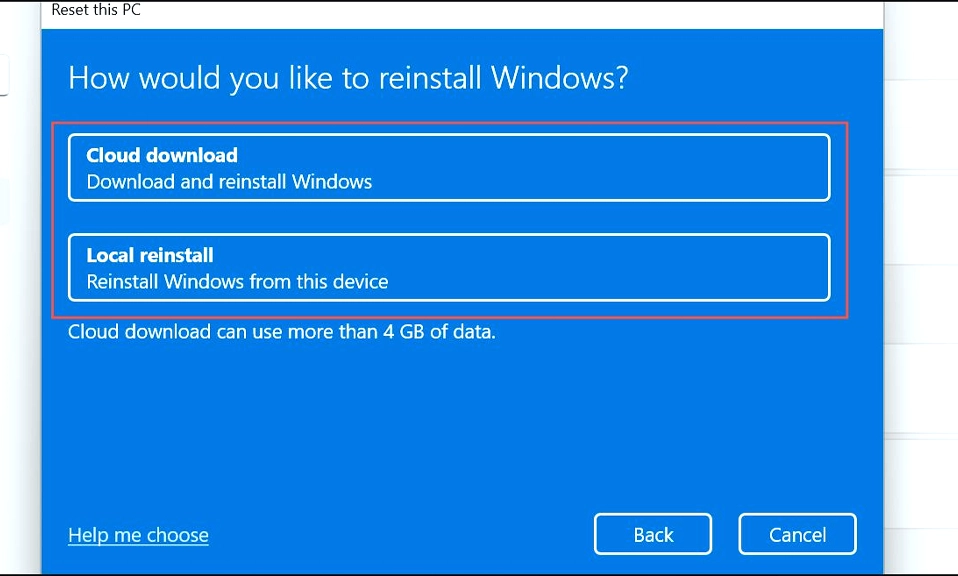
Windows 11 already offers a “Reset this PC” option with a cloud download feature, so the obvious question is: what is actually new? The answer comes down to three things.
First, Cloud Rebuild downloads both the Windows image and the device drivers. Reset this PC’s cloud download pulls Windows files, but it does not guarantee that the correct drivers will be restored. Cloud Rebuild specifically retrieves the drivers your hardware needs from Windows Update, so the device comes back fully functional without you having to hunt for drivers afterward.
Second, Cloud Rebuild works when Reset this PC cannot. Reset this PC requires a functioning Windows session to initiate. If your PC won’t boot at all, Reset this PC is unavailable. Cloud Rebuild is designed precisely for that scenario—it launches from WinRE, which Windows enters automatically after repeated boot failures.
Third, Cloud Rebuild never keeps your files. This is the critical trade-off. Reset this PC has a “Keep my files” option. Cloud Rebuild has no equivalent. It always reformats the system disk and removes all locally stored files, accounts, apps, and settings. The only data that survives is what is already synced to OneDrive or another cloud service.
What You Need Before You Start
Cloud Rebuild is not available on every Windows 11 PC yet. Before you attempt it, confirm you meet the following requirements:
| Requirement | Details |
|---|---|
| Windows Version | Windows 11 25H2 or 26H2 with the October 2026 non-security update (KB5127936) or later installed |
| WinRE | A healthy Windows Recovery Environment. Check with reagentc /info in an elevated Command Prompt |
| Internet Connection | Required from within WinRE. Ethernet is automatic; Wi-Fi must be WPA2-Personal (many office networks are incompatible) |
| Hardware | Must meet Windows 11 minimum requirements, including TPM enabled. If TPM is off, the rebuild fails with error 0xc1900200 |
| Network Driver | Your PC maker must have included a compatible network driver in WinRE. If the required driver is not published on Windows Update, the rebuild fails with error 0xc1900224 |
| Backup & Power | Back up everything you need. Plug the PC into power and do not interrupt the process |
A practical note on bandwidth: the download is between 4GB and 6GB, and a normal rebuild takes around 20 minutes. Microsoft lists a minimum connection speed of 25 Mbit/s, though 100 Mbit/s or faster is recommended. If errors occur, the process can take up to an hour.
Step-by-Step: How to Run Cloud Rebuild
There are two entry points, depending on whether Windows still starts.
If Windows Still Starts
Open Settings > System > Recovery.
Next to Rebuild this PC, select Rebuild PC.
Your PC restarts into the Windows Recovery Environment and begins the Cloud Rebuild process.
If Windows Will Not Boot
After several failed boot attempts, Windows should automatically enter WinRE. If it does not, you can force it by interrupting the boot process three times in a row.
On the Choose an option screen, select Troubleshoot.
Select Cloud rebuild (on some builds, this is nested under Recovery and uninstall).
Connect to the internet. Ethernet connects automatically; for Wi-Fi, select a WPA2-Personal network and enter the passkey. WinRE can reuse saved Wi-Fi profiles from Windows, so you may not need to re-enter a password.
Review the target Windows build, edition, and language. Confirm they match what you expect.
Choose how to remove your files (see the next section).
Confirm the data-loss warning and select Continue to begin the rebuild. The device may restart once or multiple times. Do not power it off manually.
When the rebuild finishes, the PC boots into the out-of-box experience (OOBE) —the same setup screens you see on a brand-new computer.
The Two Data Removal Options
Cloud Rebuild gives you a choice between two levels of destruction, and the difference matters.
Remove files reformats the system disk and reinstalls Windows. Microsoft warns that files deleted this way may still be recoverable using specialized recovery tools. This is the appropriate choice if you are keeping the PC and simply need a clean slate.
Remove & sanitize files instructs your storage hardware to perform a secure erase before Windows is reinstalled. This is irreversible. Microsoft’s own documentation is careful to note that Windows requests the erase and reports what the drive returns, but cannot independently verify that the drive actually performed it. If your drive does not support hardware sanitization, the option may fail or not appear. This is the right choice if you are recycling, returning, or selling the PC.
On systems with multiple drives, you can choose to sanitize only the Windows volume or all installed drives.
The Limitations You Need to Understand
Cloud Rebuild is a powerful new tool, but it is not a universal replacement for a recovery USB drive.
It is still a destructive clean install. There is no “keep my files” option, no Windows.old folder, and no way to roll back to the previous installation afterward. Every locally stored file, app, and setting is gone.
It depends on WinRE and network drivers. If your WinRE partition is corrupted, or your PC maker has not included a compatible network driver, Cloud Rebuild will not work. Microsoft’s fallback advice in those cases is to use the manufacturer’s recovery media or a USB installer.
It is rolling out gradually. Even if you have the KB5127936 update installed, the feature may not appear immediately on every PC. Microsoft lists it under gradual rollout. To get it sooner, enable “Get the latest updates as soon as they’re available” in Windows Update and check for updates.
It is not available on Windows 11 24H2. The preview update that introduced Cloud Rebuild is for 25H2 and 26H2 only. If you are still on 24H2, you will need to upgrade to access it.
A Recovery Safety Net Worth Having—With a Backup
Cloud Rebuild is the most meaningful improvement to Windows recovery in years. It addresses a real and common failure mode—a PC that will not boot—and it removes the single biggest barrier to fixing that failure: the need for another working computer and a USB drive.
But its usefulness is inseparable from its destructiveness. It is not a gentle repair tool. It is a last-resort reset that wipes everything and starts fresh. The value it delivers depends entirely on whether you have a backup. If your important files are already in OneDrive or on an external drive, Cloud Rebuild is a fast, reliable path back to a working PC. If they are not, Cloud Rebuild will fix your computer and erase your data in the same operation.
The feature is rolling out now via KB5127936 for Windows 11 25H2 and 26H2. Check your update status, verify that WinRE is healthy, and—above all—make sure your backup is current before you ever need to use it.
Have you tried Cloud Rebuild on your Windows 11 PC—did it save you from a boot failure, or did you hit the network-driver error?