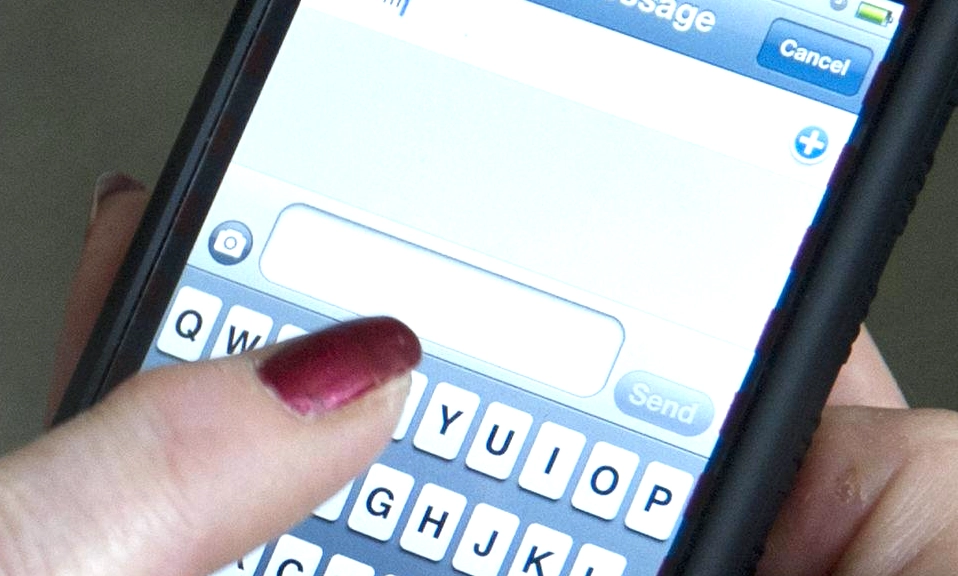
Let’s be honest: typing on a flat piece of glass will never feel as satisfying as clicking a physical mechanical keyboard.
We’ve all been there. You’re trying to type a quick, important message, but your thumb keeps hitting the wrong letter. You spend more time tapping the tiny backspace key than actually writing. It’s frustrating, and it slows you down.
But your smartphone’s keyboard is actually a powerhouse of hidden features designed to make glass feel a little more magical. Whether you use an iPhone or an Android, you’re probably only using about 20% of your keyboard’s capabilities.
Ready to banish typos and type at the speed of thought? Here are 8 smartphone keyboard tricks that will instantly make your life easier.
🖱️ 1. Turn Your Spacebar Into a Trackpad
The Trick: Need to fix a typo in the middle of a sentence without blindly tapping the screen? Don’t use your finger to poke at the tiny cursor.
How to do it:
How to do it:
- iOS: Press and hold the spacebar. The letters will fade away, and the keyboard becomes a giant, sensitive trackpad. Slide your thumb to move the cursor exactly where you need it.
- Android (Gboard): Press and hold the spacebar, then slide your finger left or right to glide the cursor with pinpoint precision.
Why it works: It gives you mouse-like control over your text, eliminating the frustration of accidentally deleting the wrong letter.
⚡ 2. Text Replacement (Your Personal Autocorrect)
The Trick: Stop typing out your long email address, home address, or common phrases from scratch.
How to do it:
How to do it:
- iOS: Go to Settings > General > Keyboard > Text Replacement. Tap the “+” icon. Set the “Phrase” to your full email, and the “Shortcut” to something like “myeml”.
- Android: Go to Settings > System > Languages & input > Personal dictionary (or in Gboard: Settings > Dictionary > Personal dictionary). Add your phrase and shortcut.
Why it works: Now, whenever you type “myeml” and hit space, your phone will instantly expand it to your full email address. You can set these up for your address, phone number, or even standard work replies.
🛑 3. The Double-Space Period
The Trick: Never hunt for the period key at the end of a sentence again.
How to do it: Simply tap the spacebar twice at the end of a sentence.
Why it works: Your phone will automatically insert a period and a space, capitalizing the first letter of the next sentence. (This is usually on by default, but you can verify it in Settings > General > Keyboard > “.” Shortcut on iOS, or Gboard Settings > Text correction > Double-space period on Android).
How to do it: Simply tap the spacebar twice at the end of a sentence.
Why it works: Your phone will automatically insert a period and a space, capitalizing the first letter of the next sentence. (This is usually on by default, but you can verify it in Settings > General > Keyboard > “.” Shortcut on iOS, or Gboard Settings > Text correction > Double-space period on Android).
🔣 4. Long-Press for Hidden Characters
The Trick: Access special characters, accents, and symbols without switching to the numbers/symbols keyboard.
How to do it: Press and hold any letter or punctuation key.
How to do it: Press and hold any letter or punctuation key.
- Hold “e” to get é, è, ê, or ë.
- Hold “y” to get the yen (¥) symbol.
- Hold the “.com” key in Gboard to instantly swap it to .org, .net, or .edu.
- Hold the number “1” to get ¹, ½, or ⅓.
Why it works: It keeps your thumbs on the main keyboard, maintaining your typing flow without awkward menu-hopping.
🤏 5. One-Handed Keyboard Mode
The Trick: Modern phones are massive. If you’re trying to type with one hand while holding a coffee or a grocery bag, the far side of the keyboard is a no-man’s-land.
How to do it:
How to do it:
- iOS: Long-press the globe (or emoji) key in the bottom-left corner and select the keyboard icon that shifts to the left or right.
- Android (Gboard): Long-press the comma (,) key and tap the one-handed keyboard icon (a keyboard with an arrow pointing left or right).
Why it works: It shrinks and docks the keyboard to the side of the screen closest to your thumb, making one-handed typing comfortable and accurate again.
📋 6. Unlock Clipboard History
The Trick: Copying a new piece of text usually erases the last thing you copied. Clipboard history lets you copy multiple things in a row and paste them individually.
How to do it:
How to do it:
- Android (Gboard): Tap the clipboard icon above the keyboard. You’ll see a history of your recent copies. You can even “pin” frequently used text (like your Wi-Fi password or address) so it never disappears.
- iOS: While iOS doesn’t have a native multi-item clipboard, you can use the “Universal Clipboard” if you have a Mac (copy on your Mac, paste on your iPhone), or use a trusted third-party keyboard app like Microsoft SwiftKey, which includes a robust clipboard manager.
Why it works: It eliminates the annoying copy-paste-copy-paste dance when you’re gathering information from different apps.
📳 7. Turn On Haptic Feedback (The “Click”)
The Trick: Make your glass screen feel like it’s actually clicking when you type.
How to do it:
How to do it:
- iOS: Go to Settings > Sounds & Haptics > Keyboard Feedback and turn on Haptic.
- Android (Gboard): Go to Settings > Preferences and turn on Haptic feedback on keypress. You can even adjust the vibration strength.
Why it works: The tiny vibration provides tactile confirmation that you’ve successfully registered a keystroke. This subconscious feedback actually improves typing speed and reduces the urge to press the keys harder than necessary.
🗣️ 8. Voice Dictation Punctuation
The Trick: Your phone’s voice-to-text is incredibly accurate now, but many people don’t know you can dictate punctuation and formatting, too.
How to do it: Tap the microphone icon and speak naturally, but include your formatting commands.
How to do it: Tap the microphone icon and speak naturally, but include your formatting commands.
- Say: “Hey are we still on for lunch question” → “Hey, are we still on for lunch?”
- Say: “New line Make sure to bring the documents period” → “Make sure to bring the documents.”
Why it works: It’s often much faster to speak a long paragraph and dictate the punctuation than to type it out and manually hunt for the comma and question mark keys.
Work Smarter, Not Harder
Your smartphone is the device you interact with more than any other object in your life. Spending 10 minutes customizing your keyboard isn’t just a tech tweak; it’s an investment in your daily sanity.
You don’t have to implement all 8 of these tricks at once. Pick two that solve your biggest frustrations (like the Spacebar Trackpad and Text Replacement) and try them out today. Once your muscle memory adapts, you’ll wonder how you ever typed without them.