Artificial Intelligence is no longer just a buzzword for Silicon Valley tech giants. It’s the new standard for how we build, manage, and grow websites.
But here is the catch: whenever small business owners and bloggers hear “AI integration,” they immediately picture massive development budgets, complex Python scripts, and hiring an expensive tech agency.
Take a deep breath. You don’t need any of that.
Because WordPress powers nearly half the internet, its massive plugin ecosystem has already done the heavy lifting for you. Today, you can add powerful, cutting-edge AI features to your website using nothing but a credit card, an API key, and a few clicks.
Here is your complete, no-code guide to adding AI features to your WordPress website and putting your site on autopilot.
🧠 1. Upgrade to AI-Powered “Smart” Search
The Problem: The default WordPress search bar is notoriously terrible. It only looks for exact keyword matches. If a user searches for “canine nutrition” but your article is titled “How to Feed Your Dog,” the default search will return zero results. The AI Fix: Semantic search. AI understands the intent and context behind a query, not just the exact letters typed. How to do it without code:
- SearchWP: While primarily a smart search plugin, its advanced algorithms and AI add-ons understand synonyms and context, instantly fixing broken search experiences.
- Algolia: If you want enterprise-level AI search, Algolia offers a WordPress plugin that connects your site to their lightning-fast, AI-driven search API. It learns from user behavior and delivers instant, highly relevant results.
🤖 2. Deploy a 24/7 AI Customer Support Chatbot
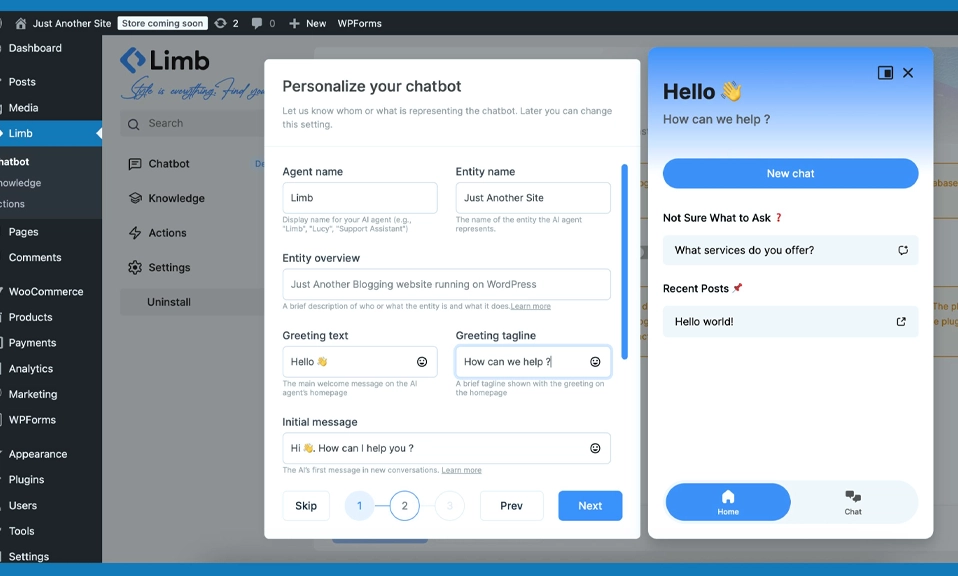
The Problem: Your customers have questions at 2:00 AM on a Sunday. You are asleep. They leave your site and go to a competitor who answers instantly. The AI Fix: An AI chatbot that is trained specifically on your website’s content, FAQs, and policies. It doesn’t just give canned responses; it reads your site and answers complex questions in real-time. How to do it without code:
- Tidio (Lyro AI): Tidio’s Lyro AI automatically reads your website’s content and can resolve up to 70% of customer support queries instantly. It looks beautiful, installs via a simple plugin, and seamlessly hands off to a human (you) if the customer needs more help.
- ChatBot.com: Integrates perfectly with WordPress. You can build conversational flows using a visual drag-and-drop builder, or let their AI auto-generate responses based on your site’s data.
✍️ 3. Generate Content and SEO Meta Data in the Dashboard
The Problem: Staring at a blank screen is the hardest part of blogging. Furthermore, writing SEO-optimized meta descriptions and title tags for hundreds of pages is mind-numbing. The AI Fix: In-dashboard AI writing assistants that generate drafts, outlines, and SEO metadata in seconds. How to do it without code:
- RankMath SEO: The absolute must-have SEO plugin. Its built-in AI content generator (powered by OpenAI) allows you to generate full blog post outlines, paragraphs, and perfect SEO meta descriptions right inside the WordPress editor. You just provide your OpenAI API key.
- GetGenie or 10Web AI Assistant: These plugins act as your in-dashboard AI copywriter. They can generate full blog posts, product descriptions for WooCommerce, and social media captions without you ever leaving WordPress.
🎨 4. Generate Custom Images and Auto-Write Alt Text
The Problem: You need a unique featured image for your blog post, but stock photos are boring and hiring an illustrator is expensive. Also, you keep forgetting to add “Alt Text” to your images, which hurts your SEO and accessibility. The AI Fix: AI image generation and automated image optimization. How to do it without code:
- 10Web AI Image Generator: This plugin lets you generate unique, copyright-free images directly inside your WordPress media library using text prompts.
- AltText.ai or Image SEO: These plugins connect to AI vision models. The moment you upload an image, the AI analyzes it and automatically writes highly accurate, SEO-friendly Alt Text and descriptions. It saves hours of manual data entry.
🎧 5. Turn Your Text into Professional Audio (Text-to-Speech)
The Problem: Many users prefer listening to content while commuting or working out. Hiring a voiceover artist to read your blog posts is incredibly expensive. The AI Fix: Ultra-realistic AI voiceovers that automatically convert your text into podcast-quality audio. How to do it without code:
- Play.ht or ElevenLabs (via WordPress plugins): Both of these industry-leading AI voice platforms offer WordPress integrations. You simply install their plugin, connect your account, and the AI will automatically generate a high-quality audio version of every blog post you publish. You can choose from hundreds of hyper-realistic voices in dozens of languages.
⚙️ The “Secret Sauce”: How to Connect the AI (API Keys)
You might notice that many of these plugins ask for an “API Key” (usually from OpenAI, Anthropic, or the specific service).
Don’t panic. You don’t need to code to get one.
- Go to the provider’s website (e.g., platform.openai.com).
- Create a free account.
- Go to the “API Keys” section and click “Create New Secret Key.”
- Copy that long string of text and paste it into your WordPress plugin’s settings.
Pro Tip: Most AI services operate on a “pay-as-you-go” model. You might spend $5 a month for thousands of AI generations. It’s pennies on the dollar compared to hiring a developer.
⚠️ 3 Golden Rules for AI on Your Website
Adding AI is powerful, but it can backfire if you aren’t careful. Follow these three rules:
- Never Publish AI Blindly: AI can “hallucinate” (confidently state false information). Always use AI to generate drafts, but always have a human read, edit, and fact-check before hitting publish.
- Keep the Human Touch: AI is great for the heavy lifting, but your audience connects with you. Inject your personal anecdotes, unique opinions, and brand voice into the AI-generated content.
- Don’t Over-Automate the Chatbot: AI chatbots are amazing, but they can frustrate users if they get stuck in a loop. Always ensure your chatbot has a clear, easy-to-find “Talk to a Human” button.
AI is Your New Intern
You don’t need a computer science degree to leverage the AI revolution. Through the magic of WordPress plugins, you can now hire a team of tireless, brilliant “digital interns” to handle your search, support, SEO, and content generation.
Start small. Pick one area of your website that is currently a bottleneck (like customer support or SEO meta descriptions) and install a plugin to fix it this week.
Once you see how much time and money AI saves you, you’ll wonder how you ever ran your website without it.