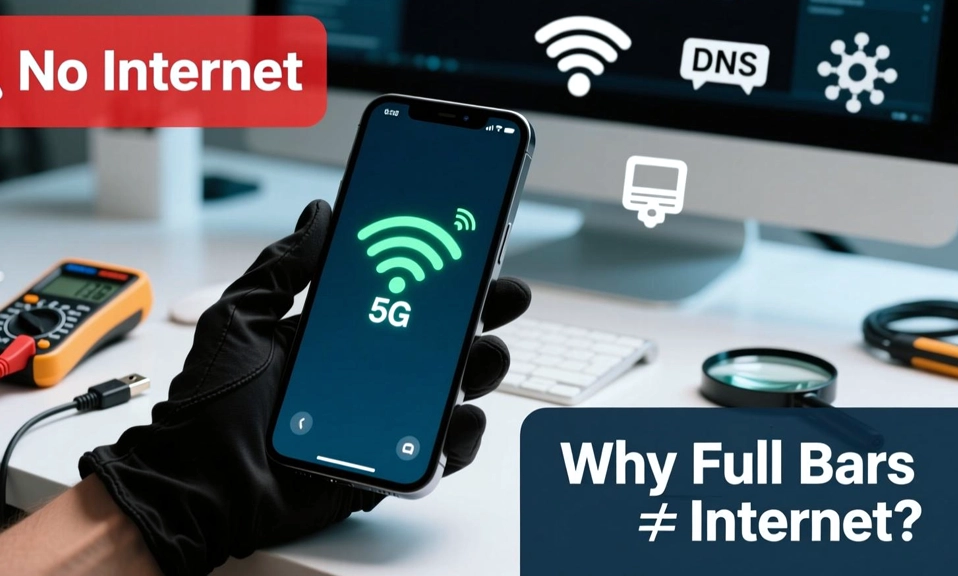
You are staring at your phone. Four bars. Full signal. 5G.
You tap Instagram. Nothing. You tap WhatsApp. Spinning circle. You tap Google. “No internet connection.”
You want to throw your phone across the room.
Here is the secret your phone is not telling you: Signal bars lie.
Signal bars measure the strength of your connection to a cell tower, but they don’t guarantee data throughput or network accessibility.
Full bars show that the phone receives a strong signal, not that the cell has available capacity or a clean radio link.
This situation usually means the phone is connected to a cellular tower, but data traffic itself isn’t working properly. Signal strength only shows radio connection, not whether internet routing, carrier authentication, or network data sessions are functioning correctly.
Think of it like this: Signal bars mean you are standing in front of a restaurant. Internet means the kitchen is actually serving food. You can be right in front of the door, with full signal, and still starve if the kitchen is closed, the line is too long, or your payment card is declined.
Mobile data can stop working even when your phone still shows signal bars, 4G, LTE or 5G.
Signal bars can show radio coverage while mobile data is blocked by the plan, SIM provisioning, APN, roaming, data limit, outage, or phone network settings.
Here are the 10 real reasons this happens, from most common to most sneaky, and how to fix each one in under a minute.
The 30-Second Test First
Before you read the whole list, do this:
- Turn Wi-Fi OFF, so you are testing mobile data only.
- Turn Airplane Mode ON for 15 seconds, then OFF.
- Try to load google.com, not an app.
Turn Wi-Fi off so you are testing mobile data only. Confirm that Mobile Data or Cellular Data is enabled and that the correct SIM is selected for data. Then turn Airplane Mode on for about 15 seconds, turn it off, and restart the phone.
The simplest fix is to turn Airplane Mode on, wait about 10 seconds, and then turn it off again.
Toggle Airplane Mode for 30 seconds (fixes 60-70% of issues).
Why does this work? In most cases, the issue comes from a stalled data session between the iPhone and your carrier. Airplane Mode forces your phone to re-establish a fresh connection with the nearest tower.
If that fixes it, you had Problem #6. If not, keep reading.
1. Network Congestion: The Tower Is Full
What it feels like: Full bars at a concert, stadium, festival, traffic jam, or during a football match. Everything loads slowly, then stops.
Why it happens: Network Congestion: Even with excellent signal, too many users on one tower can slow or block data transmission.
Bars do not measure usable network capacity.
Imagine 5,000 people trying to use one Wi-Fi router. The router is right next to you, full signal, but it cannot serve everyone. Same with a cell tower. Your phone is shouting, “I hear you!” The tower is shouting back, “I hear you too, but I have 5,000 other people to serve first.”
Mobile users may experience a loss of internet connectivity despite having full signal bars due to factors such as heavy data traffic, cable theft and wildlife-related disruptions.
Fix: Wait 10 minutes, walk 100 meters to another tower, switch from 5G to 4G/LTE in Settings, it is often less congested, or turn on Wi-Fi if there is any. Congestion is not your phone’s fault. It is physics.
2. You Ran Out Of Data, Or You Are Throttled
What it feels like: Internet worked this morning, died at 3pm. Full bars, but nothing loads. Or it loads at snail speed, like 0.1 Mbps.
Why it happens: First, ensure that your daily mobile data allowance hasn’t been exhausted.
Many plans in Africa, India, and Asia have a daily limit. You get 1GB or 2GB at full speed, then you are cut off or throttled to 64 Kbps, which feels like no internet.
Signal bars or 5G/LTE, but nothing loads. Data plan exhausted, carrier outage, APN or provisioning problem, VPN or DNS failure.
When a travel eSIM shows signal but data crawls, the five usual causes, most likely first, are: the phone is attached to a weaker local partner network, the network type is stuck on 3G or LTE, you have passed the plan’s daily throttling threshold, cell sites are congested by crowds, or Low Power Mode is limiting data.
Fix: Check your balance in your carrier app, or dial your carrier’s USSD code. Buy a top-up or wait until midnight when your daily limit resets. Also check Settings > Mobile Data > Data Limit. You may have set a limit yourself and forgotten.
3. Carrier Outage Or Fiber Cut Behind The Tower
What it feels like: Everyone around you has no internet too. Your friend on the same carrier also has full bars and no internet. Your friend on a different carrier is fine.
Why it happens: A tower has two connections: wireless to your phone, and wired fiber to the internet. If the fiber is cut, the tower can still talk to your phone, full bars, but it cannot talk to the internet.
The Communications Ministry explains why users can have full mobile signal bars but no internet, citing congestion, cable theft and network failures.
Cable theft is a real problem in many countries. Thieves steal copper or fiber cables. The tower stays on battery, shows full signal, but has no backhaul.
Fix: Nothing you can do on your phone. Check your carrier’s Twitter / X or Downdetector. Switch to Wi-Fi. If it is a long outage, your carrier will usually send an SMS when it is fixed.
4. Wrong APN Settings
What it feels like: You just inserted a new SIM, or switched carriers, or updated your phone. Full bars, but no internet at all. Ever.
Why it happens: APN stands for Access Point Name.
APN stands for Access Point Name. It’s the setting your phone uses to connect to your mobile carrier’s network.
Think of APN as the address your phone uses to find the internet door at your carrier. If the address is wrong, your phone knocks on the wrong door. It has signal, but it cannot get in.
APN Settings: Incorrect APN settings cause 30% of data connection issues.
Fix: Go to Settings > Mobile Network > Access Point Names > Reset to default. Or search Google for “[Your Carrier] APN settings 2026” and enter them manually. Restart. This fixes 1 in 3 cases.
5. Data Roaming Is OFF, Or You Are On The Wrong SIM
What it feels like: You just landed in another country, or you crossed a border. Full bars, new carrier name, no internet.
Why it happens: Additionally, if you are roaming and the ‘Data Roaming’ option is turned off in your phone’s settings, you won’t be able to use the internet.
You can have full signal but no data access.
If you have dual SIM, your phone may be trying to use SIM 1 for data, but SIM 1 has no data plan. SIM 2 has the data, but it is not selected.
Fix: Settings > Mobile Data > Data Roaming > ON, only if you want to pay roaming charges. And Settings > Mobile Data > Default SIM for Data > Choose the SIM with the data plan. If you are using a travel eSIM, make sure the travel eSIM is selected for data, and your home SIM is only for calls.
6. Stalled Data Session: Your Phone Is Stuck
What it feels like: You were on Wi-Fi, you walked out, phone switched to mobile data, but nothing loads. Or you were in a tunnel, came out, full bars, still nothing.
Why it happens: In most cases, the issue comes from a stalled data session between the iPhone and your carrier.
Your phone thinks it is connected to Tower A, but Tower A thinks you left. They are out of sync. Both show full signal, but no data flows.
Temporary carrier outages, corrupted network settings, VPN conflicts, or switching between Wi-Fi and cellular can cause this.
Fix: Toggle Airplane Mode On and Off. Turn Airplane Mode on for 15 seconds, then disable it. This forces your phone to re-establish a fresh connection with the nearest tower.
If that does not work, restart your phone. If that does not work, Reset Network Settings, Settings > General > Reset > Reset Network Settings on iPhone, Settings > System > Reset > Reset Wi-Fi, Mobile & Bluetooth on Android. You will lose saved Wi-Fi passwords, but it clears the stuck session.
7. VPN, DNS, Or Private DNS Is Broken
What it feels like: Some apps work, some do not. WhatsApp works, but Chrome says “DNS server not found.” Or everything worked until you turned on your VPN.
Why it happens: When people say their internet connection is being “blocked,” it usually means one of four things: the network can’t establish a path to the internet, the name lookup (DNS) is failing, a router/Wi-Fi setting is preventing connectivity, or something on your device (VPN, proxy, firewall, parental controls) is intercepting traffic.
DNS translates website names into IP addresses. A VPN connection may be active while websites fail to load because the device cannot complete this translation.
If literally every site fails while the tunnel reports connected, jump to the DNS section, that is the cause the large majority of the time.
A VPN client can show “Connected” while browsers, messaging apps, and other programs cannot reach the internet. That status usually confirms that the client established a tunnel or proxy connection; it does not prove that DNS is resolving, that the operating system is routing traffic through the tunnel correctly, or that the selected route can reach the destination.
If a domain name cannot be resolved, your device never even attempts to reach the destination.
DNS failures are another critical form of network degradation. When DNS fails, users often report that websites will not load or return messages like “DNS server not found.”
Fix: Turn OFF your VPN for 10 seconds. Does internet come back? If yes, your VPN is the problem. Change VPN server, or turn off Kill Switch, or change VPN protocol.
Turn OFF Private DNS, Settings > Network > Private DNS > Off on Android, or Settings > Wi-Fi > i > DNS on iPhone. Then try again. If it works, your Private DNS provider is down.
8. SIM / eSIM Problem: Not Provisioned, Damaged, Or Locked
What it feels like: You just got a new SIM, or you transferred your eSIM to a new phone. Full bars, but “No Service” for data, or “SIM Not Provisioned.” Or it worked yesterday, stopped today after you dropped your phone.
Why it happens: “No Service” can be caused by several factors, including a damaged SIM card, network outages, and SIM provisioning issues.
Your SIM may not be activated yet by the carrier. Your eSIM profile may be half-downloaded. Your physical SIM may be scratched. Your phone may be carrier-locked to another network.
Signal bars show radio coverage, but the carrier has not yet said, “Yes, this SIM is allowed to use data.”
Fix: Remove physical SIM, clean it gently, re-insert. For eSIM, delete the profile and re-scan the QR code from your carrier. Call your carrier and ask, “Is my SIM provisioned for data?” Often they need to activate it on their side.
9. Phone Settings Are Blocking Data Without You Knowing
What it feels like: Internet works for some apps, not others. Or it works on Wi-Fi, not on mobile. Or it worked until you turned on Battery Saver.
Why it happens: Phones have 5 hidden switches that can kill data:
- Low Data Mode / Data Saver: Blocks background data, and sometimes foreground data.
- Low Power Mode: Limits data, especially for eSIM.
- App Data Permission: You turned off Mobile Data for Instagram, and forgot.
- Date & Time Wrong: If your phone’s date is wrong, HTTPS certificates fail, and nothing loads. It shows full bars, but every site says “Your connection is not private.”
- 5G Stuck: Your phone is stuck on a weak 5G band, when 4G would be faster.
Fix: Check Settings > Mobile Data > Check if Mobile Data is ON for the specific app. Turn OFF Low Power Mode and Data Saver. Set Date & Time to Automatic. Try switching Network Mode from 5G/4G/3G Auto to 4G Only, then back.
10. Captive Portal, App Bug, Or Carrier Blocking
What it feels like: You are at a hotel, airport, or university. Full signal, but a login page never appears. Or one app, like TikTok, never loads, but everything else works.
Why it happens: Some networks have a captive portal, a login page you must accept before you get internet. If the portal does not pop up, you have signal but no internet.
Some carriers block certain apps, or throttle video apps, or block tethering. Some apps have a bug after an update and cannot use mobile data until you clear cache.
Fix: Open Chrome and go to 1.1.1.1. If a login page appears, accept it. If one app is broken, go to Settings > Apps > That App > Clear Cache, and check if it has Mobile Data permission. If you are tethering, your carrier may have blocked it on your plan.
The Quick Diagnosis Flowchart
Do this in order, 10 seconds each:
1. Is everyone around you on the same carrier also down? Yes = Carrier outage. Wait.
2. Turn Airplane Mode ON 15 sec, OFF. Fixed? Yes = Stalled session.
3. Turn VPN OFF. Fixed? Yes = VPN / DNS.
4. Turn Wi-Fi OFF, check Mobile Data is ON. Fixed? Yes = Wi-Fi stealing connection.
5. Check data balance. 0 MB left? Yes = Out of data.
6. Check APN > Reset to default. Fixed? Yes = APN.
7. Restart phone. Fixed? Yes = Software bug.
8. Try a different SIM in your phone, or your SIM in another phone. Which one fails tells you if it is your phone or your SIM/carrier.
Despite having full signal bars, data often stops working unexpectedly. Most Common Issue: Mobile data stops working despite full signal bars.
You are not crazy. Your phone is not broken. Your bars are just telling you half the story.
Full signal means your
phone can hear the tower. It does not mean the tower can hear the internet, or that your carrier will let you use it, or that your phone is actually asking correctly.
Next time you see full bars and no internet, do not restart your phone 10 times. Do the 30-second test first: Airplane Mode, VPN off, data balance check. That fixes 70% of cases.
If it does not, you now know the other 9 reasons, and you can tell your carrier exactly what is wrong instead of just saying, “My internet is not working.”