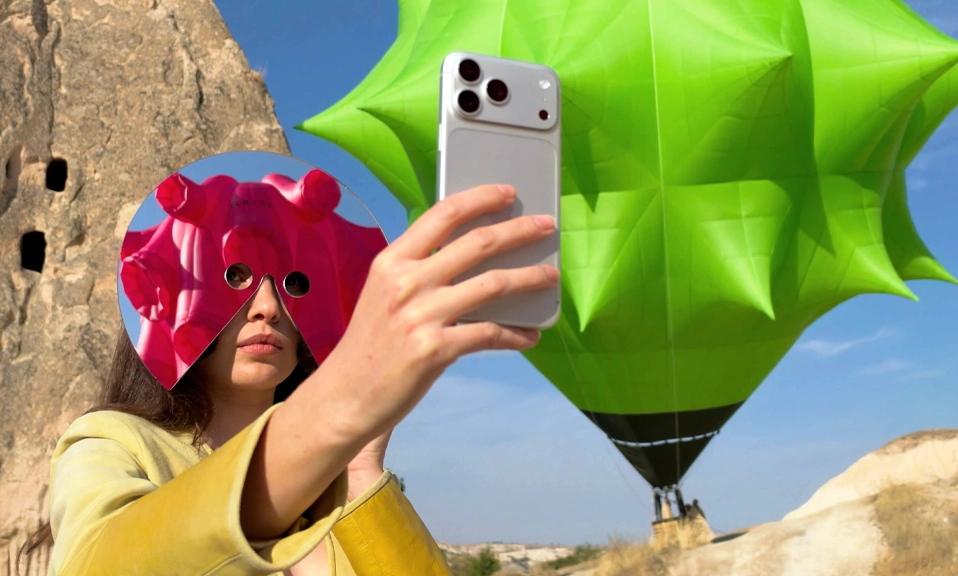
Yes, really. On the back of your iPhone, right where the Apple logo is.
It’s not just a logo. It’s a button.
It’s called Back Tap, and it allows you to trigger actions, shortcuts, or accessibility features simply by tapping the back of your phone two or three times. You can use it to quickly turn on your flashlight, take a screenshot, or even launch your favorite app without swiping through your home screens.
Apple】 added it in iOS 14 and almost nobody knows it’s there. TikTok found it and lost its mind: “You’re using your iPhone wrong if you’re not using the back tap feature. Yes, there’s a secret button on the back of your iPhone.”
Here’s how to turn it on in 15 seconds:
How to Unlock The Secret Button
1. Update
Make sure you’ve updated your iPhone to at least iOS 14. Then it works on iPhone 8 and newer.
2. Open Settings
Go to Settings > Accessibility > Touch > Back Tap.
To turn the Apple logo on the back of your iPhone into a secret button when you double-tap or triple-tap it, follow the steps: Tap Back Tap at the bottom.
3. Pick Your Taps
You’ll see two options:
- Double Tap
- Triple Tap
Tap either one and you’ll get a huge list of things it can do.
As you see above, you can customize Double Tap or Triple Tap to do any of the following commonly used functions.
What Should You Set It To? The Best Uses
Don’t waste it on something dumb. Here are the setups people actually love:
For Normal People:
- Double Tap = Screenshot — No more Volume + Power finger gymnastics
- Triple Tap = Flashlight — Tap the back when you’re in the dark
- Double Tap = Shazam — One woman has blown minds by sharing a rarely known tech hack… which she says helps her Shazam songs easily. Perfect for when a song is playing and you can’t unlock fast enough.
For Power Users:
- Double Tap = Control Center / Notification Center
- Triple Tap = Camera — Instant camera without swiping
- Double Tap = Lock Screen / Mute / AssistiveTouch
- Triple Tap = Run a Shortcut — This is the cheat code. You can make Back Tap run any Shortcut: open Instagram, start a voice memo, call your partner, translate what’s on screen, turn on low power mode.
My personal setup:
Double Tap = Screenshot
Triple Tap = Flashlight
It has saved me at least 20 awkward button presses a day.
Pro Tips
- It works with a case on. Even a thick OtterBox — you just need to tap firmly where the Apple logo is.
- Don’t set Double Tap to something destructive like “Lock Screen” — you’ll trigger it in your pocket. Keep Double Tap for useful, Triple Tap for rare.
- If it triggers too often, turn off Double Tap and only use Triple Tap. Triple Tap almost never misfires.
- You can set it to launch Accessibility features too — Magnifier, Live Speech, Background Sounds.
Have you ever noticed the Apple logo on the back of your iPhone? It might look like just a logo, but it’s actually a secret button!
Go try it now: Settings > Accessibility > Touch > scroll all the way down > Back Tap.
Once you turn it on, you’ll never go back.