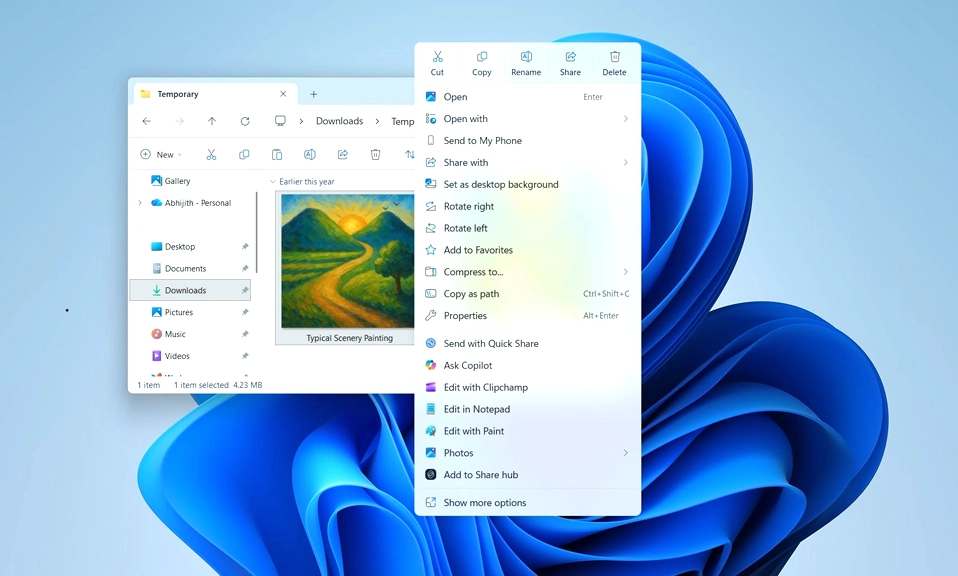
The Windows 11 right-click menu has long been a source of frustration. It was slow to open, cluttered with options you never used, and often required a second click into “Show more options” just to find the command you actually needed. That changed with the November 2026 Patch Tuesday update (KB5132061), which finally gives you direct control over the menu’s contents and makes it genuinely faster. Whether you want to trim the built-in menu, restore the classic Windows 10 style, or use a third-party tool for total control, here is how to make the right-click menu work for you.
🛠️ The New Native Way: Customizing the Modern Menu
If you are running Windows 11 version 25H2 or 26H2 and have installed the November 2026 update, you now have a built-in “Customize menu” option. This is the safest and most direct way to speed up the menu without touching the registry.
How to access it:
Right-click any file or folder and select Customize menu at the bottom of the context menu.
Alternatively, go to Settings > Personalization > Context menu.
What you can change once you are there:
Trim the clutter: Toggle off built-in commands you never use, such as Send to or Create shortcut. You can also add commands you do use, like Print, to the main menu.
Manage app extensions: Choose whether third-party app extensions appear in the main menu or are tucked away in a submenu. You can even hide the extensions submenu entirely if you prefer a minimalist look.
Switch to text labels: Replace the row of icons for Cut, Copy, Paste, Rename, Delete, and Share with standard text entries, which can feel faster and more intuitive for some users.
Move Properties: Relocate the Properties option to the bottom of the menu, where it sat in Windows 10.
If you want to keep the default experience, no action is required—the menu will still work as before, just faster. Microsoft is rolling this feature out gradually, so if you do not see the “Customize menu” option immediately after updating, it should arrive on your device soon.
🔙 The Classic Method: Restoring the Windows 10 Menu
If you prefer the full, unadulterated list of options that Windows 10 offered, or if your PC has not yet received the new customization feature, you can force Windows 11 to always use the classic context menu via a simple registry tweak. This bypasses the modern menu and the “Show more options” step entirely.
The quickest way (PowerShell):
Open Windows Terminal or PowerShell (you do not necessarily need administrator mode for this per-user change).
Paste the following command and press Enter:
powershellreg.exe add "HKCU\Software\Classes\CLSID\{86ca1aa0-34aa-4e8b-a509-50c905bae2a2}\InprocServer32" /f /ve
Restart Windows Explorer (via Task Manager) or sign out and back in for the change to take effect.
The manual way (Registry Editor):
Press Win + R, type
regedit, and press Enter.Navigate to
HKEY_CURRENT_USER\Software\Classes\CLSID.Right-click CLSID, select New > Key, and name it
{86ca1aa0-34aa-4e8b-a509-50c905bae2a2}.Right-click that new key, select New > Key, and name it
InprocServer32.Double-click the (Default) value inside
InprocServer32, leave the “Value data” field empty, and click OK.Restart Explorer.
To undo this change, simply delete the {86ca1aa0-34aa-4e8b-a509-50c905bae2a2} key from the registry.
A quick, temporary alternative: If you only need the classic menu occasionally, simply hold the Shift key while you right-click (or press Shift + F10) to open the full legacy menu without any registry edits.
⚡ Third-Party Tools for Power Users
If you want more granular control than Microsoft’s built-in settings offer—or if you are on an older Windows 11 build—several respected third-party tools can help.
Nilesoft Shell: This free, open-source tool is the most powerful option. It lets you add, remove, and modify entries, organize them into submenus, and even insert custom commands and scripts. It essentially combines the utility of the classic menu with a design that fits Windows 11.
ShellExView: A classic utility from NirSoft that lists every shell extension installed on your system. You can disable specific extensions (like those added by cloud storage or media apps) to reduce clutter and speed up the menu, which is especially useful if you prefer the modern menu but want to remove slow-loading third-party entries.
Files: An open-source file manager that replaces Windows Explorer entirely. Its context menu is fully configurable, allowing you to add or remove toggles for tasks like opening folders in a new tab or launching Windows Terminal directly.
💎 You no longer have to live
with a slow, cluttered right-click menu. If you are on the latest Windows 11 build, start with the native “Customize menu” option—it is the safest and most integrated solution. If you crave the full Windows 10 experience, the registry tweak is a reliable, one-time fix. And if you want total, script-level control, Nilesoft Shell is the tool of choice. The November 2026 update finally makes the right-click menu a feature you can shape to your workflow, rather than an annoyance you have to endure.