Remember the “bad old days” of setting up a router? You had to drag out a laptop, hunt down a specific Ethernet cable, plug it directly into the router, open a web browser, and type in a confusing string of numbers like
192.168.1.1 just to find a clunky, outdated web portal.Those days are officially over.
In 2026, setting up a high-performance Wi-Fi router is about as difficult as setting up a smart speaker. Manufacturers have completely overhauled the process, moving everything into sleek, user-friendly smartphone apps. You don’t need a laptop, you don’t need an Ethernet cable, and you definitely don’t need an IT degree.
If you just unboxed a new router and only have your phone in your hand, you are in the perfect position. Here is your complete, step-by-step guide to setting up your new Wi-Fi network using nothing but your smartphone.
🔌 1. The Physical Setup (Hardware First)
Even though the configuration happens on your phone, the physical connections still need to be right.
- Plug in the modem: Connect your modem to the wall outlet (coaxial or fiber port) and plug it into power. Wait 2 minutes for the lights to stabilize.
- Connect the router: Take the Ethernet cable included in the box. Plug one end into the modem, and the other into the port on your router labeled “Internet,” “WAN,” or “Network.” (It’s usually a different color or separated from the other ports).
- Power it up: Plug the router into a wall outlet and turn it on. Wait 2 to 3 minutes until the main LED indicator turns solid (usually white, green, or blue).
📱 2. Download the Official App
This is the most crucial step. Do not use generic “Router Setup” or “Network Scanner” apps from the app store. You need the specific app made by your router’s manufacturer.
- Eero -> Eero app
- TP-Link Deco -> Deco app
- Netgear -> Nighthawk app
- Asus -> ASUS Router app
- Linksys -> Linksys app
Download the app, open it, and create an account.
🤝 3. The Digital Handshake (Bluetooth & Wi-Fi)
Modern routers use Bluetooth to introduce themselves to your phone.
- Allow Bluetooth: When the app asks for Bluetooth permissions, say Yes. This is how the app automatically finds your new router without you having to guess which Wi-Fi network to join.
- Add a Device: Tap the “+” icon or “Set Up a New Device” in the app.
- Wait for Discovery: The app will scan for the router. When it pops up on the screen, tap it.
- The Fallback (If Bluetooth fails): If the app can’t find the router via Bluetooth, it will prompt you to go into your phone’s Wi-Fi settings and manually connect to the router’s default network. You’ll find this name and the default password printed on the sticker on the bottom of the router (e.g.,
Netgear-5G-Setup). Once your phone connects to it, go back to the app, and it will take over.
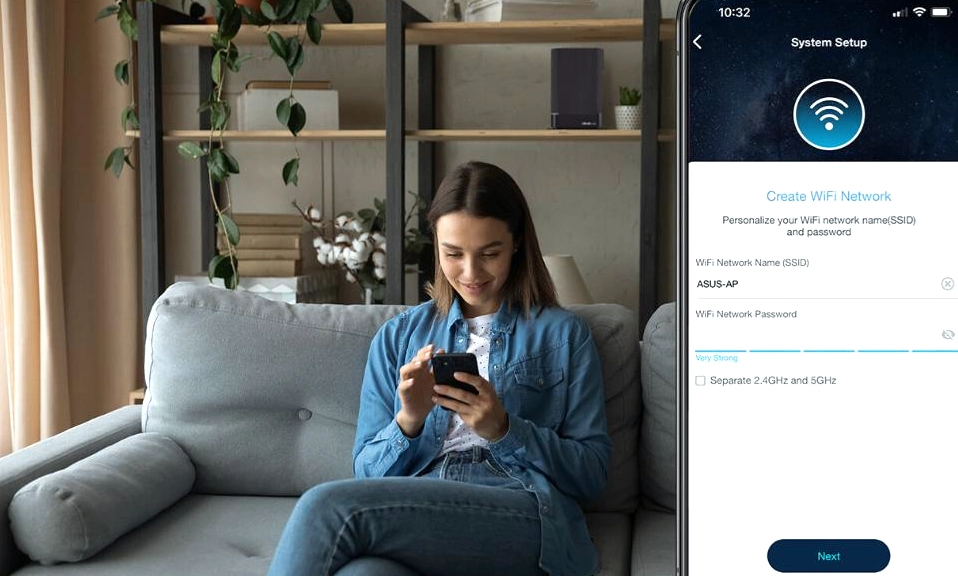
🏷️ 4. Name Your Network and Lock It Down
The app will now walk you through a quick setup wizard.
- Network Name (SSID): This is what your friends and family will see. Have fun with it! Just avoid using your real name or address for privacy reasons.
- Password: Create a strong, unique password. The app will likely generate a random one for you, but feel free to change it to something you can easily remember (but others can’t guess).
- Security: If the app asks, ensure the security protocol is set to WPA3 or WPA2/WPA3 Transitional.
⚙️ 5. The “Pro” Tweaks (Using the App)
Before you close the app and start streaming, take two minutes to use the app’s built-in tools to optimize your network:
- Update Firmware: Look for a “System” or “Settings” tab and check for a firmware update. This patches security holes and boosts performance. (The router will reboot; this is normal).
- Create a Guest Network: Turn this on! It gives your visitors their own Wi-Fi password and keeps them off your main network, protecting your personal computers and smart home devices.
- Set up an IoT/Smart Home Network: Many apps (like Eero and Deco) let you create a dedicated 2.4GHz network just for your smart bulbs, plugs, and vacuums. This keeps your main 5GHz/6GHz network clear for your phones and laptops.
🚨 Troubleshooting: “Help, the App Can’t Find My Router!”
If you are stuck on Step 3, don’t panic. Try these three quick fixes:
- Check your phone’s Wi-Fi band: Some older router apps struggle to communicate if your phone is connected to a 5GHz setup network. Go into your phone’s Wi-Fi settings and ensure you are connected to the 2.4GHz version of the router’s default network.
- Turn off Cellular Data temporarily: Sometimes, your phone gets confused between its 5G cellular connection and the router’s Wi-Fi. Toggle Airplane Mode on for 5 seconds, then turn it off, ensuring you are strictly on the router’s Wi-Fi.
- The Physical Reset: If the router was previously set up or is just being stubborn, use a paperclip to press and hold the tiny “Reset” button on the back of the router for 10 seconds until the lights flash. This wipes it clean and puts it back into “factory setup” mode for the app to find.
Power in the Palm of Your Hand
Setting up a router used to be a chore reserved for the “tech-savvy” person in the house. Today, it’s a seamless, app-guided experience that takes less than 10 minutes.
By using your smartphone, you not only skip the hassle of digging out a laptop, but you also get access to a powerful dashboard. You can now monitor your network speed, pause the internet for the kids’ devices, and manage parental controls right from your couch.
Plug it in, open the app, and enjoy your blazing-fast, perfectly configured Wi-Fi. You’ve got this!