Material 3 Expressive isn’t just a new coat of paint for Android. It’s a fundamental shift in how your phone looks, feels, and responds—and it’s built to be customized. If you’ve updated to Android 16 QPR1 or have a recent Pixel, the tools are already on your device. You just have to know where to find them.
Here is how to make Material 3 Expressive your own, from the wallpaper up.
Start With the Wallpaper: The Engine of Personalization
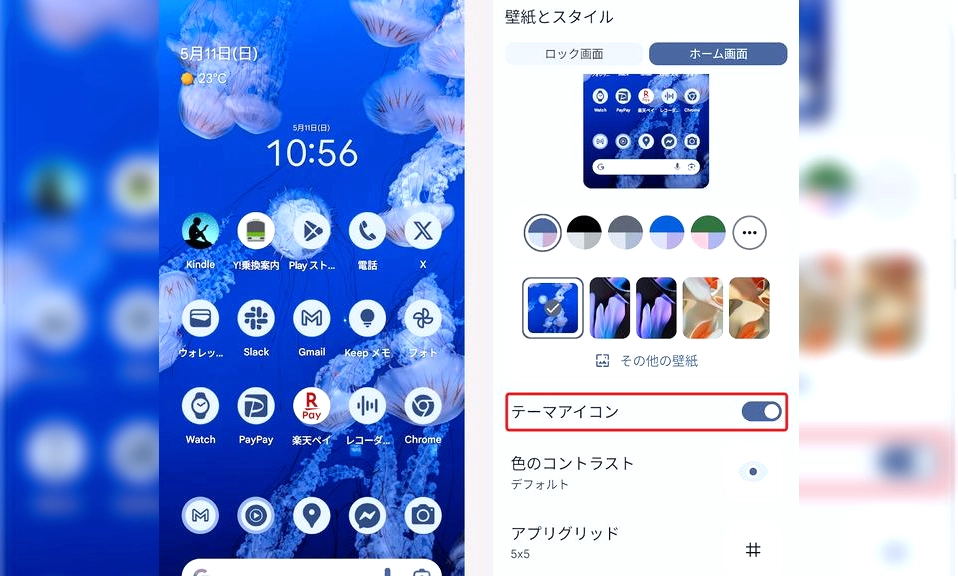
Material 3 Expressive doesn’t impose a fixed color scheme. It derives the entire system’s palette from your wallpaper—icons, keyboard theme, system menus, and all. This is the single most important customization decision you’ll make.
How to set it up:
Long-press on an empty area of your home screen.
Tap Wallpaper and Style.
Scroll down to Colors. Android will present you with five color palettes generated from your current wallpaper.
Pick the one that speaks to you. The palette will permeate the OS instantly.
Once you’ve chosen a palette, take the next step: Themed Icons. In the same Wallpaper and Style menu, tap Icons and toggle on Themed Icons. This applies the same color palette to your app icons, creating a visually consistent home screen where every element feels like it belongs together.
The logic is simple. If you want a bold, expressive look, choose a vibrant wallpaper with strong colors. If you prefer something calmer, a subdued wallpaper will generate a more muted palette. Material 3 Expressive is designed to accommodate both.
Unlock Wallpaper Effects: Shapes, Weather, and Cinematic Motion
This is where Material 3 Expressive gets genuinely fun. Wallpaper Effects is one of the new design language’s most distinctive features, and it’s hidden behind a slightly obscure menu.
How to access it:
Long-press the home screen.
Go to Wallpaper and Style.
Tap More Wallpapers.
Select Wallpaper Studio.
Inside Wallpaper Studio, you’ll find three effects you can toggle:
Shape effects — Makes a clean cut-out of your wallpaper in a specific shape. This is ideal for a minimalist aesthetic and works particularly well with portrait-style wallpapers.
Weather effects — Applies realistic weather animations in front of your wallpaper. If you enable local weather data, raindrops will form on your screen when it’s raining where you are. It’s a small touch, but it makes the phone feel alive.
Cinematic — Slightly animates your wallpaper, making it come alive on the home screen. This is the subtlest of the three, but it adds a layer of depth that static wallpapers lack.
A note on battery: Weather and Cinematic effects will have a small negative impact on battery life, because your home screen is effectively playing a short video loop. If you’re conservative with battery, Shape effects are the most efficient choice.
If you’re using a third-party wallpaper app, you must save the wallpaper to your device before you can apply Wallpaper Effects to it. The system cannot pull images directly from another app’s cloud library.
Resize and Rearrange Quick Settings: The Control Center Upgrade
The Quick Settings panel is where Material 3 Expressive makes one of its most dramatic shifts. The old grid of fixed-size tiles is gone. In its place is a resizable, rearrangeable control center that you can shape to your liking.
How to customize it:
Swipe down twice to fully expand the Quick Settings panel.
Tap the pencil icon in the bottom-right corner. This enters edit mode.
To resize a tile: Press and hold on the tile you want to change, then release. A drag handle will appear on the right edge. Drag it left to make the tile smaller, or right to make it larger.
To rearrange: Drag tiles into the order that makes sense for how you use your phone.
To add or remove tiles: Drag them from the “Available” section into the active area, or drag them out.
The new system allows you to fit up to 16 tiles in the expanded view, compared to the previous limit of 8. You can shrink tiles down to a 1×1 size that shows only the icon, with no text label—a cleaner, more compact look that pairs well with the expressive aesthetic.
One caveat: Some tiles, like Bluetooth, have two functions. Tapping the left side toggles the connection, while tapping the right side opens the full settings menu. Resizing these tiles too small can make them harder to use. Leave them at a standard size.
Choose Widgets That Match the Aesthetic
Material 3 Expressive is about consistency. A home screen filled with mismatched widgets will undermine the effect, no matter how good your wallpaper is.
First-party Google widgets are your safest bet. Google Weather, Google Keep, and Google Clock all have beautiful Material 3 Expressive widgets that are pre-installed on Pixel devices. They share the same design language—rounded corners, tonal colors, and clean typography—as the rest of the system.
If you want more options, Material You Widgets (a $0.99 app) offers access to over 300 widgets designed to match the Material 3 Expressive look. The trade-off is that they are not deeply customizable, but they support light and dark mode and will blend seamlessly with your chosen palette.
Fine-Tune the Small Stuff: At a Glance and Suggestions
The details matter. Two settings in the Pixel launcher can make a noticeable difference to how clean and expressive your home screen feels.
At a Glance. You still can’t fully remove the At a Glance widget (Google has not budged on this), but you can disable it. This shrinks it significantly and gives you more space to work with. If you already use the Google Weather widget, At a Glance is largely redundant.
Suggestions. The Pixel launcher can suggest apps on your home screen and in the app drawer based on your usage patterns. In principle, this is helpful. In practice, it often just takes up space with apps you already know how to find. Disabling it gives you a cleaner, more intentional home screen.
The Lock Screen: Frame Shapes and 3D Effects
Material 3 Expressive extends to the lock screen, and there are a few customization options worth exploring.
You can frame your lock screen image with different shapes and background colors. The selection of background colors is somewhat limited, but the shape options add a layer of personalization that wasn’t there before. You can also add a 3D effect to your lock screen image, making it appear more three-dimensional. This effect can also be applied to the home screen if you like the look.
Weather conditions—sun, rain, or snow—can also be displayed discreetly on the lock screen, using local weather data. It’s a small touch, but it reinforces the sense that your phone is aware of its surroundings.
The Philosophy: Color, Consistency, and Minimalism
Material 3 Expressive is not about cramming as much as possible onto your home screen. It’s about intentionality. There are three principles to keep in mind as you customize:
Color. Start with a wallpaper whose colors you genuinely love. The entire system’s palette flows from that single choice. If you want a bold, expressive look, choose a vibrant wallpaper. If you want calm, choose something subdued.
Consistency. Themed icons and matching widgets are not optional extras—they’re the glue that holds the aesthetic together. When everything shares the same palette and design language, the phone feels like a coherent whole rather than a collection of disparate parts.
Minimalism. Material 3 Expressive is playful, but it is not cluttered. Your home screen should be a dashboard of apps you actually use, not a dumping ground for every app you’ve ever downloaded. Keep it curated. Keep it clean. Let the expressive elements—the colors, the animations, the shapes—do the talking.
Your Phone, More Expressive
Material 3 Expressive gives you more control over your phone’s appearance than any Android design language before it. The wallpaper-based color engine, the resizable Quick Settings, the wallpaper effects, and the themed icons all work together to create a system that feels personal, playful, and alive.
You don’t need to use every feature. Start with the wallpaper and the color palette. Add themed icons. Resize a few Quick Settings tiles. Try a wallpaper effect. The rest will follow.
Your phone is already expressive. Now it can be yours.