You’re on a train with a friend, one pair of earbuds between you, and a playlist that deserves to be heard in stereo—not passed back and forth like a contraband earbud. For years, Android’s answer was “buy a splitter” or “get an iPhone.” In 2026, that answer has changed. Android can now share audio with two pairs of Bluetooth headphones at once, and you don’t need a dongle, a third-party app, or a degree in networking to make it work.
There are two native paths—Google’s Audio sharing (built on LE Audio and Auracast) and Samsung’s Dual audio—plus a growing ecosystem of third-party apps for phones that support neither. Here’s exactly how each one works, what you need, and what to do when it doesn’t.
The Native Android Way: Audio Sharing with LE Audio and Auracast
Google’s built-in solution is called Audio sharing. It uses LE Audio, the next generation of Bluetooth, and Auracast, a broadcast technology that lets one phone send audio to multiple compatible receivers at once. It’s simple, it’s native, and it’s the cleanest way to do this—if your hardware supports it.
What you need
Both the phone and the headphones must support LE Audio and Auracast. This is not a software toggle you can force on unsupported hardware. The phone list includes Google Pixel 8 and newer, Samsung Galaxy S23 and newer (including Z Fold5/6/7), and select Xiaomi and POCO models. On the headphone side, supported devices include the Sony WF-1000XM5 and LinkBuds S, Sennheiser Momentum True Wireless 4, Bose Ultra Open Earbuds, Nothing Ear (2) and Ear (Stick), LG TONE Free T90Q, and Audio-Technica ATH-TWX9.
How to enable it
Pair both pairs of headphones to your phone as you normally would.
Make sure LE Audio is enabled for each device. This is usually done through the companion app for your headphones—Sony’s Headphones Connect app, for example, has a toggle for LE Audio. The exact method varies by brand.
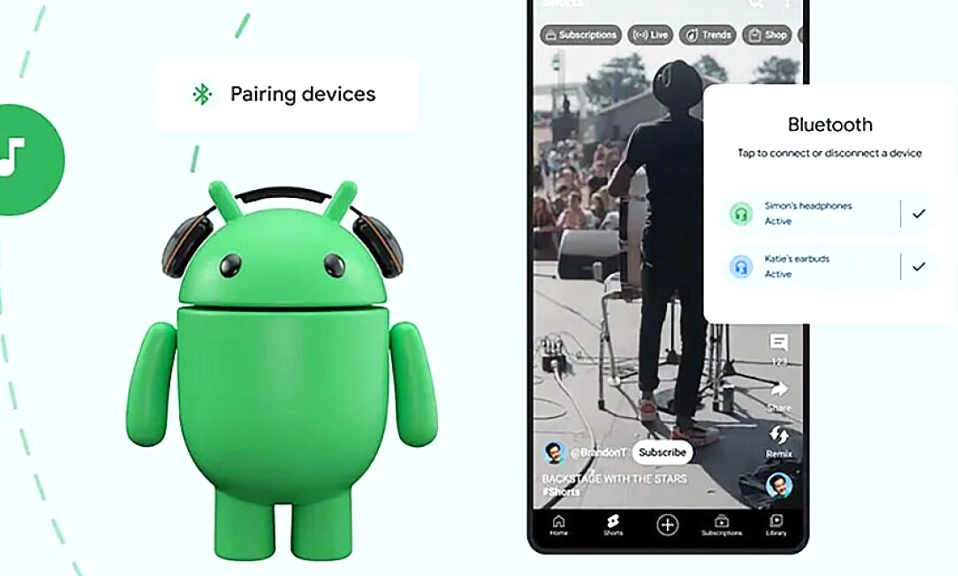
Open Quick Settings (swipe down from the top of the screen twice) and tap the Bluetooth icon.
Tap “Share audio” at the bottom left of the Bluetooth panel.
Select both headphones from the list of connected devices. The audio will begin playing through both simultaneously.
You can also find the setting under Settings > Connected devices > Connection preferences > Audio sharing. On Pixel devices, the “Share audio” button appears directly in the Bluetooth Quick Settings panel after both devices are connected.
Once enabled, both listeners hear the same audio in sync, whether it’s music, a movie, a podcast, or a game. There is no perceptible latency between the two streams—a crucial detail if you’re watching video together.
The catch
Audio sharing is limited to two devices at a time, not a whole group. It also depends entirely on hardware support. If your headphones are older or don’t support LE Audio, this method won’t work, and no amount of software tinkering will change that.
The Samsung Way: Dual Audio (and Music Share)
Samsung has had its own solution for years, and it works on a broader range of devices than Google’s LE Audio implementation—including older Galaxy phones that don’t support Auracast.
How to use Dual Audio
Pair both Bluetooth audio devices to your Galaxy phone.
Open Settings > Connections > Bluetooth.
Tap the three-dot menu (or look for the “Advanced” option) and ensure Dual audio is enabled.
Open the Media panel by swiping down from the top right of the screen and tapping Media output.
Check the circle next to each connected device you want to use. Both devices will now play the same audio simultaneously, and you can adjust the volume for each one independently.
Samsung’s Dual Audio works with any Bluetooth audio device, not just LE Audio-compatible ones. It requires a Galaxy phone with Bluetooth 5.0 or later, which covers most Samsung devices released in the last several years. It also supports sharing between two different sets of Bluetooth speakers, not just headphones.
Music Share: a different kind of sharing
Samsung also offers Music Share, which is not the same as Dual Audio. Music Share lets a friend’s phone or tablet connect directly to your Bluetooth headphones or speaker—so they can play their own music through your audio device, without pairing to your phone at all. It’s useful for a different scenario: you’re hosting, and someone else wants to DJ. Dual Audio is for listening to the same source together; Music Share is for letting someone else take over the audio output.
The Third-Party App Route: When Native Support Isn’t There
If your phone doesn’t support Audio sharing and it’s not a Samsung device with Dual Audio, third-party apps fill the gap. They work by routing your phone’s media audio to two Bluetooth outputs simultaneously, often using a local network or a software audio pipeline.
SoundShare is the most straightforward option. It advertises “synchronized, low-latency playback” to two or more Bluetooth headphones, earbuds, or speakers at the same time, with individual volume control for each connected device. It also includes spatial audio and haptic feedback features, though those are extras rather than the core function.
SoundSeeder is a popular alternative that can connect up to five devices at once and is particularly well-suited to group listening sessions. AudioShare supports most Bluetooth headphone brands and offers separate volume control for each connected device. AmpMe is another option that uses your phone’s media stream or local network to send audio to multiple devices.
The trade-off with third-party apps is latency. Native LE Audio and Samsung Dual Audio are designed to keep both streams in sync at the system level. Third-party apps have improved significantly, but if you’re watching video, a small audio delay on one device can be distracting. For music and podcasts, it’s rarely an issue. For movies and games, test it before you commit.
What to Do If It Doesn’t Work
Check LE Audio support first. If you’re trying the native Audio sharing method and “Share audio” doesn’t appear in Quick Settings, the most likely cause is that one or both of your headphones don’t support LE Audio. There is no workaround for this—it’s a hardware limitation.
Update your phone and your headphones. LE Audio support has been rolling out via software updates on both the phone and the earbud side. Make sure your phone is running the latest Android 17 build and that your headphones’ firmware is up to date through their companion app.
Try Samsung’s Dual Audio if you have a Galaxy. It works with standard Bluetooth audio devices and doesn’t require LE Audio, making it the more accessible option for Samsung users with older headphones.
Use a third-party app as a last resort. If neither native method works, SoundShare or SoundSeeder will get the job done, with the caveat that latency may be slightly higher.
Sharing Audio Is Finally Easy (If Your Hardware Cooperates)
For the first time, sharing music with two pairs of headphones on Android is a native feature, not a workaround. Google’s Audio sharing with LE Audio and Auracast is the cleanest implementation, but it demands compatible hardware on both ends. Samsung’s Dual Audio is more forgiving, working with standard Bluetooth devices and older Galaxy phones. And for everyone else, third-party apps bridge the gap.
The era of passing a single earbud back and forth is ending. Whether you’re on a train, on a plane, or on the couch, Android now lets you and a friend listen together—properly, in stereo, without sharing earwax.