Android 17 is here, but it’s not arriving on every phone at once. Google’s own Pixel devices get it first, followed by Samsung, OnePlus, Xiaomi, and others in a staggered rollout that can take months. Whether your phone is eligible, and how you update it, depends entirely on the manufacturer. Here is the complete, step-by-step guide to getting Android 17 on your phone, along with what to expect when you do.
Before You Update: The Essential Checklist
Before you tap a single button, take these three steps. They are not optional.
Back up your data. Most updates preserve your files, but “most” is not “all”. A failed update, a power cut, or a corrupted download can leave you with a phone that needs a factory reset. Back up photos, contacts, messages, and important documents to Google Drive or a computer.
Connect to Wi-Fi and charge your battery. Android 17 is a large download—some Samsung updates are around 2.84GB. Use Wi-Fi to avoid data charges, and ensure your battery is above 50% (or plug your phone in) before starting. The update will not install on a low battery.
Free up storage space. The update file needs room to download and unpack. If your phone is nearly full, delete old photos, videos, or apps you no longer use. A few gigabytes of free space is a sensible minimum.
The Universal Update Method (Works on Most Phones)
Regardless of your manufacturer, the basic process is the same. The menu names vary slightly, but the logic is identical.
Open Settings.
Scroll to “System” or “Software update.” On Samsung, it is usually Software update. On Pixel, it is System > System update. On OnePlus and Xiaomi, it is typically under About phone or System update.
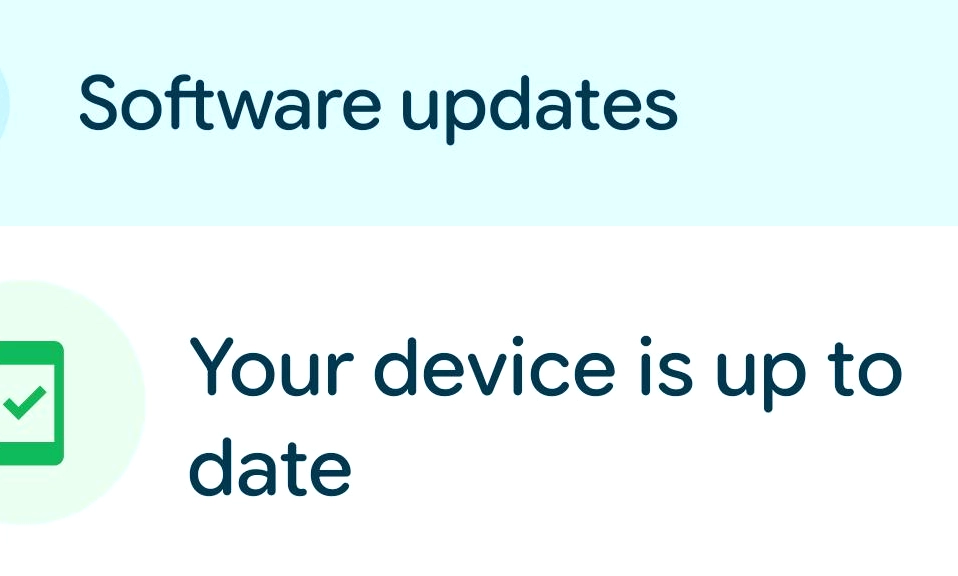
Tap “Check for updates” or “Download and install.” The phone will contact the manufacturer’s servers and tell you if Android 17 is available for your specific model and region.
Download the update. This may take several minutes on a fast connection.
Install and restart. Once downloaded, the phone will prompt you to install. It will restart during the process. Do not interrupt it. The installation can take 15 to 30 minutes, and the first boot after a major update may take longer than usual.
Manufacturer-by-Manufacturer: Specific Instructions and Eligibility
Google Pixel: The First in Line
Pixel devices are always the first to receive Android 17, and the rollout began in June 2026. The list of supported devices is extensive, covering the Pixel 6 series through the Pixel 11 series, as well as the Pixel Fold, Pixel Tablet, and Pixel 6a.
How to update:
Go to Settings > System > System update.
Tap Check for update.
If an update is available, tap Download and install.
Google is distributing the update in phases over approximately one week, so if it doesn’t appear immediately, check again in a day or two. Pixel users should also be aware of the known bugs covered in the troubleshooting section below.
Samsung Galaxy: One UI 9 on Top of Android 17
Samsung wraps Android 17 in its own One UI 9 skin, and the rollout is already well underway. The update has reached the Galaxy S26, S25, S24, and S23 series, as well as the Galaxy Z Fold 7, Z Flip 7, Z Fold 6, and even older devices like the Galaxy A34.
How to update:
Go to Settings > Software update.
Tap Download and install.
Follow the on-screen prompts.
Samsung rolls out updates in stages by region and carrier, so availability can vary. The Galaxy A34 update, for example, reached Europe, the Middle East, Africa, and parts of Asia-Pacific before some other markets. After the update installs, it is worth opening the Galaxy Store and Google Play Store to update Samsung’s system apps so they match the new software.
OnePlus: ColorOS 17 and OxygenOS 17
OnePlus has transitioned to ColorOS for its global software, and Android 17 arrives as ColorOS 17. The rollout schedule is aggressive. The OnePlus 15 and OnePlus Pad 4 were among the first, with the OnePlus 15R, OnePlus 13, and OnePlus 13s following in late October 2026. The OnePlus 12R, OnePlus 11, OnePlus Nord 5, and OnePlus Pad 2 are scheduled for December 2026.
How to update:
Go to Settings > About device > System update (the exact path may vary slightly by model).
Tap Check for update.
Download and install.
Xiaomi, Redmi, and POCO: HyperOS on Android 17
Xiaomi’s Android 17 update arrives as part of HyperOS. The rollout is phased, with flagship devices like the Xiaomi 17 Ultra, Xiaomi 15 Pro, and Xiaomi 15 Pro Titanium Edition among the first in line.
How to update:
Go to Settings > About phone > System update.
Tap Check for updates.
Download and install.
Other Manufacturers: Oppo, Vivo, Realme, and More
The Android 17 rollout extends across the broader Android ecosystem. Oppo devices, including the Find N6, Find X9 Ultra, and Find X9 Pro, began receiving the update in late October 2026. Realme is updating the GT 8 Pro. Vivo and iQOO are also on the schedule. Sony’s Xperia 1 VII received Android 17 in November 2026. For any of these devices, the universal method applies: check Settings > System/Software update.
What to Expect After the Update: Android 17’s Key Features
Android 17 is not a dramatic visual overhaul, but it adds several genuinely useful features that change how you use your phone.
Bubbles are the headline multitasking addition. Any app can be turned into a floating, moveable window by long-pressing its icon and selecting Bubble. You can stack up to five bubbles at once, switching between them with a tap. On foldables, bubbles appear in a dedicated bar at the bottom of the screen.
Screen Reactions lets you record your screen and your face at the same time using the front camera. It is designed for content creators and social media, allowing you to react to videos, comments, or articles while capturing both the screen and your expression.
Location privacy controls have been tightened. A new blue dot indicator appears when your location is actively being shared, and you can grant location access to apps on a per-use basis rather than a blanket permission.
Foldable Gaming Mode uses the hinge. On a foldable device, you can half-fold the phone so the top half shows the game and the bottom half becomes a gamepad.
Troubleshooting: What to Do If Something Goes Wrong
Android 17 has had a rocky first few weeks for some users, particularly on Pixel devices. Here are the most commonly reported issues and their fixes.
Wi-Fi connection problems. Some users found that after updating, their phone showed a Wi-Fi connection but all data ran over mobile data. The fix is often to update Google Play Services, or to check your router’s IPv6 settings.
5G dropping to LTE. Several Pixel users reported that their phone would only connect to LTE after the update. A common fix is to put the phone into Repair Mode (Settings > System > Repair mode), restart, and then exit Repair Mode. This has restored 5G for some users.
Touchscreen issues. Some users experienced ignored taps, misinterpreted swipes, or a frozen screen. The most reliable fix is to clear the cache of the Pixel Launcher app: go to Settings > Apps > See all apps > Pixel Launcher > Storage & cache > Clear cache. Disabling the triple-tap accessibility shortcut has also helped some users.
Lost widgets. Some home screen widgets disappeared after the update. A temporary fix is to disable and re-enable the affected app, or to archive and unarchive it.
General animation stutter. A kernel memory issue in some Android 17 builds can cause multi-second freezes. A 30-second settings fix has been reported to help, though the exact toggle varies by device.
If none of these fixes work, a factory reset is the last resort. It is why the backup step at the beginning of this guide matters.
Patience Is Part of the Process
Android 17 is a solid update, but it is not arriving everywhere at once. Pixel users are already on it. Samsung users are receiving it in stages. OnePlus, Xiaomi, and others are following on their own schedules. If your phone is eligible but the update hasn’t appeared yet, do not panic—it is a matter of when, not if.
The update process itself is simple: back up, connect to Wi-Fi, check for updates, and install. The harder part is knowing what to do if something goes wrong. The troubleshooting steps above cover the most common issues, but if your phone is functioning normally after the update, the best advice is simple: give it a few days. The first 48 hours after a major update are often the most resource-intensive as the system re-indexes and optimizes. Battery life and performance typically stabilize after that.
Android 17 is here. Your phone will tell you when it’s ready.