You’re paying for high-speed, gigabit internet. You’ve got a top-of-the-line router. But somehow, your streaming keeps buffering, your gaming is lagging, and your smart home devices keep dropping offline.
You run a speed test, and the results are dismal. What gives?
Before you call your Internet Service Provider to complain, consider a highly likely culprit: You might have digital squatters.
Neighbors, passersby, or even hackers could be leeching off your Wi-Fi. And it’s not just about slow Netflix speeds; an unauthorized device on your network is a massive security risk, giving them a potential backdoor to your personal computers, smart cameras, and financial data.
If you suspect your Wi-Fi is being hijacked, don’t panic. Here are 8 proven ways to find the freeloaders and kick them off your network for good.
📱 1. Check Your ISP or Router’s Mobile App (The Easy Way)
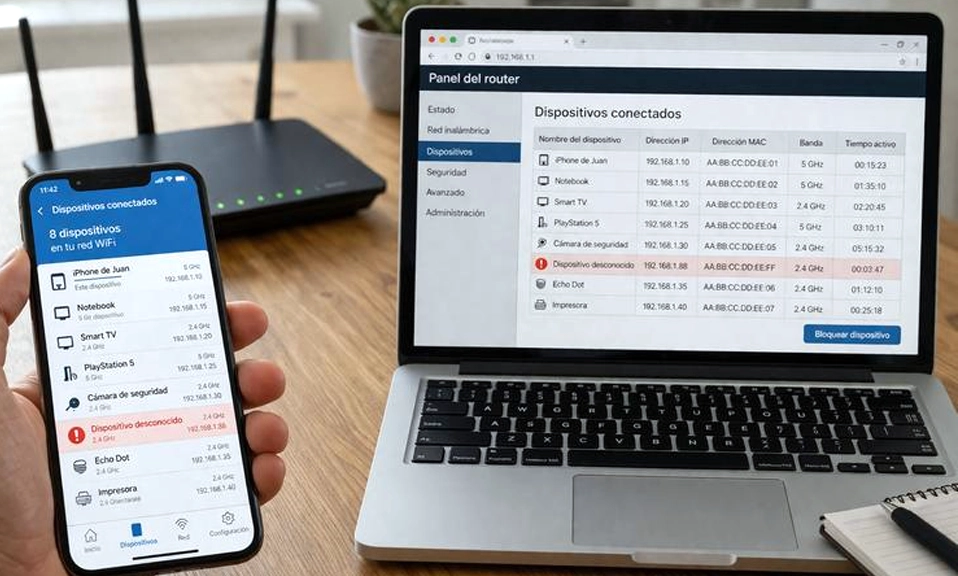
Most modern routers (and ISP-provided gateways from companies like Xfinity, AT&T, or Spectrum) come with a companion smartphone app. This is the fastest way to see who is on your network.
- The Fix: Open your router’s app and look for a section called “Connected Devices,” “Device List,” or “Network Map.” This will show you every single device currently talking to your router. If you see a device you don’t recognize, you’ve found your squatter.
💻 2. Log Into the Router’s Admin Panel (The Classic Way)
If you don’t have a mobile app, you can check your router’s brain directly through a web browser.
- The Fix:
- Make sure you are connected to your Wi-Fi.
- Open a web browser and type your router’s IP address into the URL bar. It’s usually 192.168.1.1 or 192.168.0.1 (you can also find this printed on a sticker on the bottom of your router).
- Log in with your admin username and password (again, usually on the sticker, unless you changed it).
- Look for a tab named “Attached Devices,” “Client List,” “DHCP Clients,” or “Network Map.”
🕵️ 3. Play Detective: Identify the Mystery Devices
You’re looking at a list of 25 devices, and three of them are named “Android-8f7a9b” or “Device_XY123.” How do you know if it’s your smart fridge or your neighbor’s phone?
- The Fix: First, do a physical count. Count every phone, laptop, TV, smart bulb, and thermostat in your house. If the router shows 5 more devices than you actually own, you have intruders.
- Pro Tip: If you want to know exactly what a mystery device is, copy its MAC Address (a 12-character alphanumeric code like
A1:B2:C3:D4:E5:F6) and paste it into a free online “MAC Address Lookup” tool. It will tell you the manufacturer (e.g., Apple, Samsung, Ring), which might jog your memory about which device it is.
🔑 4. The Ultimate Eviction: Change Your Wi-Fi Password
If you’ve confirmed there are unknown devices on your network, the fastest and most effective way to kick them all off simultaneously is to change your Wi-Fi password.
- The Fix: Go to your router’s Wireless Settings and create a new, strong password. Use a mix of uppercase letters, lowercase letters, numbers, and symbols. Once you hit save, every device will be disconnected. You will then need to reconnect your own devices using the new password. The freeloaders, who don’t have the new password, are locked out.
🛡️ 5. Upgrade Your Security Protocol (and Disable WPS)
If someone managed to guess your old password, your router’s security settings might be outdated.
- The Fix: In your router’s Wireless Security settings, ensure your encryption is set to WPA2-AES or, if your router supports it, WPA3. Never use WPA or WEP; they can be cracked in minutes.
- Crucial Step: Find the setting for WPS (Wi-Fi Protected Setup) and turn it OFF. WPS allows devices to connect by pressing a physical button or entering a short PIN, but the PIN feature is notoriously vulnerable to brute-force hacking. Turn it off to close this massive backdoor.
📋 6. Enable MAC Address Filtering (The VIP List)
If you want to be absolutely certain no one else can ever join your network, even if they have the password, use MAC Address Filtering. Every device has a unique MAC address. This feature tells your router to only allow specific, pre-approved devices to connect.
- The Fix: In your router settings, find “MAC Filtering” or “Access Control.” Add the MAC addresses of all your personal devices to the “Allow” list, and set the rule to “Block all devices not on the list.”
- Note: The downside is that whenever a friend visits or you buy a new smart gadget, you’ll have to manually log into the router and add its MAC address to the list. It’s highly secure, but a bit of a hassle.
🥷 7. Hide Your SSID (Go Incognito)
By default, your router broadcasts its name (the SSID, like “SmithFamilyWiFi”) so anyone nearby can see it and connect. If you hide it, casual freeloaders won’t even know your network exists.
- The Fix: In your router’s Wireless Settings, look for “Hide SSID,” “Broadcast Network Name,” or “Visibility Status” and toggle it to hide/disable.
- Note: To connect a new device to a hidden network, you will have to manually type in the exact network name and password. It won’t stop a dedicated hacker, but it will stop the neighbor who is just looking for an easy, unsecured signal.
🏠 8. Isolate the Chaos with a Guest Network
If you actually want to share your Wi-Fi with guests, or if you have a lot of “dumb” smart home devices (like cheap smart plugs or bulbs) that have weak security, don’t put them on your main network.
- The Fix: Enable a Guest Network in your router settings. This creates a completely separate Wi-Fi bubble. Guests can use it to browse the web, but they cannot access your main network, meaning they can’t see your personal computers, your NAS drive, or your private files. It’s the perfect way to share your internet without compromising your security.
Your Network is Your Castle
Your Wi-Fi network is the digital front door to your home. Leaving it unsecured or ignoring unknown devices is like leaving your front door wide open and wondering why your groceries are missing.
By taking 15 minutes to check your connected devices, update your password, and tighten your security settings, you reclaim your bandwidth and, more importantly, your digital privacy.
Don’t let freeloaders slow you down. Take control of your router today!