Your phone knows exactly where you are. Every app you’ve ever tapped “Allow” on has a pin on your front door, accurate to within a few metres. And most of them don’t need it.
Precise location is the setting that lets an app pinpoint your exact coordinates—your street, your building, sometimes the room you’re standing in. Approximate location only gives a general area, usually within a couple of miles. For a maps app, precise is essential. For a photo editor, a mobile wallet, or a puzzle game, it is surveillance dressed up as a feature.
The uncomfortable truth is that precise location is the default on Android, not approximate. If you’ve ever granted location access to an app and didn’t manually dig into the settings to turn off the precise toggle, that app has been tracking your exact position ever since.
Here’s how to take that control back—and what Android 17 has changed to make it easier.
The Core Method: Turn Off Precise Location Per App
This is the most important step, and it works on every modern Android phone regardless of manufacturer.
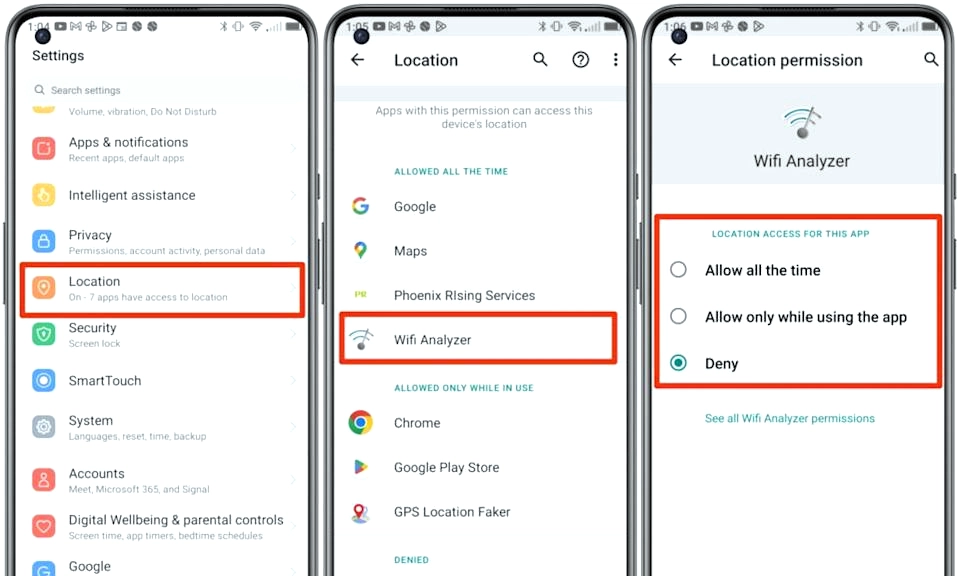
Open Settings.
Tap “Location.”
Tap “App location permissions.” (On some devices, this may be under “Location services” or “Permission manager.”)
Review the list. You’ll see every app that has location access, grouped by whether it’s allowed “All the time,” “Only while in use,” or not at all.
Tap each app individually. Look for the “Use precise location” toggle. If it’s on, turn it off.
Once precise location is disabled, the app can still determine your general area—enough for local weather or nearby restaurant suggestions—but it cannot pinpoint your exact address.
Who should keep precise location on? Ride-hailing apps (Uber, Lyft, Bolt) genuinely need it to find you. Navigation apps (Google Maps, Waze) need it for turn-by-turn directions. Weather apps can function with approximate data in most cases. Everyone else—shopping apps, social media, games, photo editors, mobile wallets—can almost always function with approximate location. If an app refuses to work without precise location, that tells you something about its priorities.
Android 17’s New Location Button: Temporary Access, Automatic Expiry
Android 17, which rolled out to Pixel devices in June 2026 and is now reaching the broader ecosystem, introduces a feature that changes the permission model entirely: the Location button「5†L13-L16】.
Instead of granting an app permanent access to your precise location, the location button lets you grant access only for the current session. When you close the app, the permission expires automatically. The next time you open the app, it has to ask again「6†L41-L46】.
This is a deliberate shift away from the “set it and forget it” model of permissions. It is designed for the moments when you genuinely need to share your location—finding a nearby store, tagging a photo, sharing your position with a friend—without handing over a permanent key to your movements.
If your phone supports it, you’ll see the location button appear within the app when it requests location access. Tap it, grant access for the session, and let it expire when you’re done. It is the closest thing to a “one-time use” permission that Android has ever offered.
The Blue Dot: Know When You’re Being Tracked
Android 17 also introduces a persistent blue dot in the status bar that appears whenever a non-system app is actively accessing your location.
You’ve probably seen green and orange dots before—green for the camera, orange for the microphone. The blue dot is the location equivalent. It appears at the top of the screen, next to the battery icon, and it stays there for as long as an app is using your location. Tap it, and Android shows you which app is currently using your location and lets you revoke the permission on the spot.
The dot is a diagnostic tool. If you see the blue dot when you’re not using a maps app or a ride-hailing service, something is tracking you in the background. Tap it, find out what it is, and decide whether that’s acceptable.
The feature launched on Pixel devices with Android 16 QPR3 and is now part of the Android 17 release for all compatible devices.
The Global Switch: Google Location Accuracy
There’s another layer of location data collection that operates independently of individual app permissions: Google Location Services.
Even if you’ve disabled precise location for every app on your phone, Google’s system-level location services can still use Wi-Fi, mobile networks, and sensors to improve location accuracy. This is controlled by a separate setting.
Open Settings.
Tap “Location.”
Tap “Location Services.”
Tap “Improve Location Accuracy” (or “Google Location Accuracy”).
Toggle it off.
This setting is distinct from app permissions. It governs whether Google’s own services can use network data to refine your location. Disabling it does not break GPS, but it reduces the accuracy of location-based features that rely on network triangulation—which is often exactly what you want if you’re trying to limit precise tracking.
The Quick Settings Toggle: The Nuclear Option
If you want a single switch that kills all location access at once, Android’s Quick Settings panel has you covered.
Swipe down from the top of the screen twice to open the full Quick Settings panel, and look for the Location tile. Tap it to toggle location on or off globally. When it’s off, no app can access your location, period.
This is not the right setting for everyday use—it will break navigation, ride-hailing, and weather apps. But it is useful when you want a guaranteed, system-wide block: during a sensitive conversation, when you’re in a private location, or when you suspect an app is misbehaving.
You can add the Location tile to your Quick Settings panel if it isn’t there already: swipe down twice, tap the Edit button (usually a pencil icon), and drag the Location tile into the active tiles area.
What to Do If an App Refuses to Work Without Precise Location
Some apps will not function unless you grant precise location. Mobile wallets are a common offender—a payment app may insist on precise location for fraud detection, even though it doesn’t need to know your exact coordinates for anything you’re doing.
In these cases, you have three options:
Grant precise location only while using the app. This limits the data to the moments you’re actively using the app, rather than allowing background tracking. It’s a compromise, but a meaningful one.
Grant it, use the app, then revoke it. This is tedious, but it works. You can toggle precise location back on in Settings, complete your task, and toggle it off again.
Find an alternative. If an app demands precise location for a feature that doesn’t logically require it, that is often a sign that the app’s business model depends on location data. A competing app that respects approximate location may be the better choice.
Precision Is a Privilege, Not a Default
Precise location is not inherently sinister. For maps, ride-hailing, and emergency services, it is essential. The problem is that it has become the default for every app that asks, and most of us tapped “Allow” without thinking.
The fix is not complicated. Review your app location permissions. Turn off the “Use precise location” toggle for apps that don’t genuinely need it. Use Android 17’s location button for one-time access. Watch for the blue dot. And if you want a system-wide block, the Quick Settings toggle is one tap away.
Your exact location is one of the most sensitive pieces of data your phone holds. It should be shared deliberately, not by default.