Your smartphone is not just a phone. It is a portable Wi-Fi router, capable of sharing its cellular connection with laptops, tablets, e-readers, and other devices wherever you are. Whether you’re working from a café with unreliable Wi-Fi, traveling with family, or stuck in a hotel with expensive internet, your phone can be the solution. Here’s how to turn it into a portable hotspot, along with the settings, security steps, and practical tips that make it work reliably.
What Is a Mobile Hotspot?
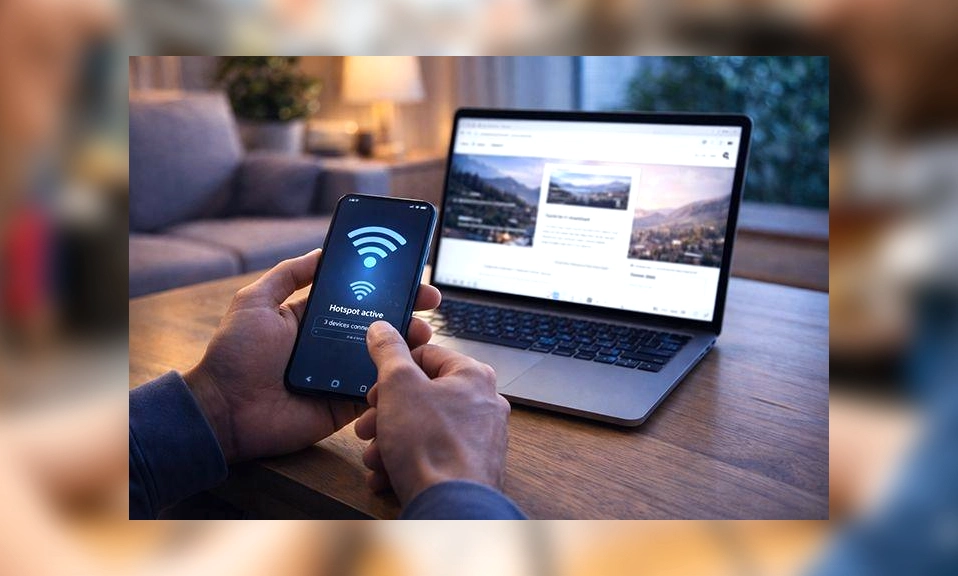
A mobile hotspot is a feature that lets your phone broadcast its cellular data connection as a Wi-Fi network. Other devices—laptops, tablets, even other phones—can connect to that network just as they would to any Wi-Fi router. The phone acts as the gateway, routing traffic between the connected devices and the cellular network.
Most modern smartphones support hotspot functionality, but there are important caveats. Your carrier may charge extra for hotspot usage, throttle its speed, or limit how much data you can share. Some plans include hotspot data as part of your monthly allowance; others require an add-on. Before you rely on it, check your plan details.
How to Set Up a Hotspot on Android
The exact menu names vary by manufacturer, but the process is broadly similar across Samsung, Google, OnePlus, Motorola, and other Android devices.
Open Settings.
Tap Network & internet (or Connections on Samsung devices).
Tap Hotspot & tethering (or Mobile Hotspot and Tethering).
Tap Wi-Fi hotspot (or Mobile hotspot).
Toggle the switch to On.
Before you connect anything, tap Configure or Hotspot settings to adjust these options:
Network name (SSID): Give your hotspot a recognizable name. Avoid using your real name or phone model if you’re in a public place.
Password: Set a strong password. The default is often a random string, but you should change it to something you can remember and that others cannot guess.
Security: Choose WPA2-Personal or WPA3-Personal if available. Avoid “None” or “Open” unless you are absolutely certain no one else is nearby.
Band: Some phones let you choose between 2.4 GHz and 5 GHz. The 2.4 GHz band has longer range but slower speeds; 5 GHz is faster but shorter range. Choose based on your needs.
AP Band / Extender: Some devices offer a “Wi-Fi extender” or “Wi-Fi sharing” mode that repeats an existing Wi-Fi network rather than using cellular data. This is useful in hotels but can be slower.
On Samsung Galaxy devices, you can also enable “Auto Hotspot” so that devices signed into your Samsung account can connect automatically when nearby. On Pixel phones, the hotspot settings include a “Turn off hotspot automatically” option that saves battery when no devices are connected.
How to Set Up a Hotspot on iPhone
Apple’s implementation is straightforward and consistent across iPhone models.
Open Settings.
Tap Personal Hotspot.
Toggle Allow Others to Join to On.
Tap Wi-Fi Password to set or change the password.
You can also enable “Maximize Compatibility” if you have older devices that struggle to connect. This switches the hotspot to the 2.4 GHz band, which is slower but more widely compatible. On iPhone 12 and later, the default is 5 GHz for faster speeds.
To connect a device, go to its Wi-Fi settings, select your iPhone’s name from the list, and enter the password. On a Mac signed into the same Apple ID, you can connect without entering a password thanks to Instant Hotspot. The same feature works on iPads and other Apple devices signed into your account.
Alternative: USB and Bluetooth Tethering
Wi-Fi is not the only way to share your connection. Both Android and iOS support USB tethering and Bluetooth tethering, which have distinct advantages.
USB tethering connects your phone to a laptop with a cable. It is faster and more stable than Wi-Fi, and it charges your phone at the same time. The downside is that it only works with one device at a time, and you need the right cable. On Android, go to Hotspot & tethering and enable USB tethering after connecting the cable. On iPhone, connect via USB, then go to Personal Hotspot and enable it; your computer will recognize the connection.
Bluetooth tethering is slower than Wi-Fi or USB, but it uses very little power. It is useful for connecting a single device over a short distance when battery life is a concern. Pair the devices via Bluetooth, then enable Bluetooth tethering in your phone’s hotspot settings. On iPhone, Bluetooth tethering works through the Personal Hotspot menu once paired.
Data, Battery, and Heat: The Practical Realities
A mobile hotspot is a convenience, but it is not free. Keep these considerations in mind.
Data usage. Hotspot data counts against your mobile plan, and many carriers cap or throttle it separately from your phone’s on-device data. Streaming video, downloading large files, or backing up photos over a hotspot can consume gigabytes quickly. Monitor your usage through your carrier’s app or your phone’s data settings.
Battery drain. Broadcasting a Wi-Fi signal and routing traffic is power-intensive. A phone used as a hotspot can drain its battery in a few hours, especially if several devices are connected. Keep the phone plugged in if possible, or use USB tethering to charge while sharing.
Heat. Hotspot use generates heat. Avoid leaving the phone in direct sunlight or under a pillow, and remove thick cases if the phone becomes uncomfortably warm. Overheating can cause the hotspot to shut down automatically.
Speed. Hotspot speed is limited by your cellular connection. If you are in an area with weak signal, connected devices will experience slow speeds. The number of connected devices also affects performance; most phones support between five and ten simultaneous connections, but more devices means more contention for bandwidth.
Carrier restrictions. Some carriers block hotspot functionality on certain plans or charge extra for it. Others may throttle hotspot speeds after a certain threshold. Check your plan details before relying on your phone as your primary internet source.
Security Best Practices
A hotspot is a small Wi-Fi network, and it deserves the same security attention as your home router.
Use a strong password. Avoid simple passwords like “12345678” or your phone number. A password with a mix of letters, numbers, and symbols is much harder to crack.
Change the default network name. If your hotspot is named “iPhone” or “Galaxy S26,” it is easy for others to identify. A custom name makes your network less conspicuous.
Disable the hotspot when not in use. Leaving it on unnecessarily increases the risk of unauthorized access and drains your battery.
Limit connected devices. Check the list of connected devices periodically. If you see something you do not recognize, disconnect it and change your password.
Avoid sensitive transactions on public hotspots. If you are using your own hotspot, you are not on a public network, but the cellular connection itself is still subject to interception. Use a VPN if you are handling sensitive information.
Turn off “Auto Hotspot” or automatic sharing if you do not need it. These features can make it easier for devices to connect without your explicit permission each time.
Troubleshooting Common Issues
Devices can’t find the hotspot. Make sure the hotspot is turned on and the network name is visible. Some phones hide the SSID by default; check the settings. Also ensure the devices are within range (typically 30 feet or less).
Connected but no internet. Check that your phone has an active cellular data connection. Some carriers require you to enable data roaming or configure APN settings for hotspot use. If you are on a limited plan, you may have hit a data cap.
Slow speeds. Move to an area with better cellular reception. Reduce the number of connected devices. If your phone supports 5 GHz, use that band for faster speeds at shorter range.
Hotspot turns off automatically. Some phones disable the hotspot after a period of inactivity to save battery. Check the settings for a timeout option. Overheating can also cause automatic shutdown; let the phone cool down.
USB tethering not working. Try a different cable. Some cables are charge-only and do not support data transfer. On Windows, you may need to install drivers; on Mac, the connection should be recognized automatically.
Your smartphone is a capable
portable hotspot, and setting one up takes less than a minute on both Android and iPhone. The technology is reliable, widely supported, and genuinely useful when you need internet on the go. But it is not unlimited or free—data caps, battery drain, and carrier restrictions are real considerations.
Use it deliberately. Set a strong password, monitor your data usage, and turn it off when you are done. Treat your hotspot as a tool for occasional connectivity rather than a replacement for dedicated broadband. Used wisely, it is one of the most practical features your phone offers—a small, powerful router that fits in your pocket.