Your laptop’s battery doesn’t just drain when you’re using it. It drains when you’re not—sometimes losing 15% or more overnight while the machine sits in “sleep,” supposedly resting. That quiet, invisible drain is one of the most frustrating and least understood problems in modern computing. But Microsoft is finally doing something about it, and the fix is a new setting that could genuinely change how long your laptop lasts.
The setting is called Adaptive Hibernate, and it is rolling out through Windows 11 Insider builds before reaching the stable channel in the months ahead. It is not a flashy feature or a headline-grabbing AI tool. It is a quiet, intelligent piece of power management that addresses one of the most persistent complaints about Windows laptops: the fact that “sleep” doesn’t always mean what it used to.
The Problem: Modern Standby Was a Battery Nightmare
To understand why Adaptive Hibernate matters, you have to understand what went wrong with sleep in the first place.
For years, Windows laptops have used a feature called Modern Standby (technically S0 low-power idle). The idea was borrowed from smartphones: the laptop stays technically “on” but in a very low-power state, allowing it to wake instantly, receive notifications, download updates, and stay connected—just like your phone does when the screen is off.
The reality has been messier. Because background processes and wireless radios remain partially active, Modern Standby can drain significant battery during periods of non-use. Some laptops lose 15% or more overnight, even when they are closed and supposedly sleeping. That is not a minor inconvenience. It is a design flaw that has plagued Windows laptops for years, and it has made “sleep” a unreliable concept for anyone who expects their machine to be ready when they are.
How Adaptive Hibernate Fixes It
Adaptive Hibernate changes the rules. Instead of treating every sleep state the same way—regardless of battery level—it dynamically decides whether to stay in Modern Standby or transition to true hibernate based on how much charge is left.
The logic is elegantly simple. When the battery is healthy—above 80%—the system avoids hibernation in favor of Modern Standby, preserving the instant wake experience that makes a laptop feel responsive and always ready. When the battery drops below 10%, the system transitions to hibernate much more quickly, writing the contents of RAM to disk and shutting down almost completely to preserve what little charge remains.
That distinction matters because hibernate (S4) and Modern Standby (S0) are fundamentally different states. Hibernate writes the entire contents of memory to a file on the SSD and powers the system down almost entirely, drawing negligible power. Modern Standby keeps the system technically awake, connected, and ready—which is why it drains the battery when something goes wrong.
Adaptive Hibernate essentially says: we will give you instant wake when you have the battery to spare, and we will protect your charge when you don’t. It is a sensible, user-friendly compromise that treats battery level as a relevant variable rather than an afterthought.
The Hidden Setting You Can Use Today
Adaptive Hibernate is the headline, but it is not the only battery trick hiding in Windows 11. There is another setting—one that is available right now—that can extend your laptop’s runtime by addressing a different kind of drain: CPU boost mode.
The setting is called PERFBOOSTMODE, and it controls how aggressively your processor ramps up to higher performance states. By default, Windows allows the CPU to boost beyond its base clock when more power is available or when a workload demands it. That is great for responsiveness. It is terrible for battery life. Disabling CPU boost, particularly when running on battery, can meaningfully reduce power consumption—at the cost of some performance in demanding tasks.
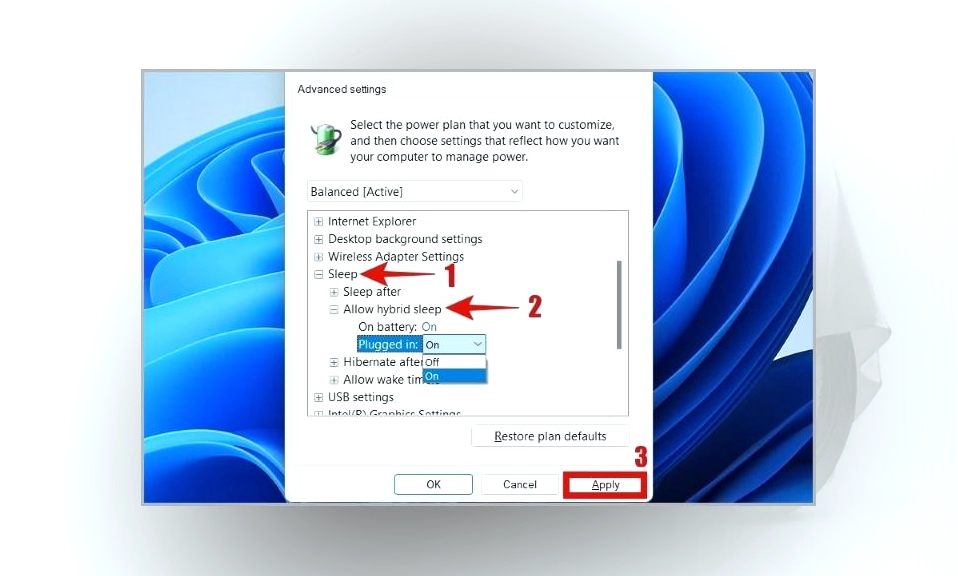
The setting is not exposed in the standard Settings app. To access it, you need to unhide it with an elevated command: powercfg -attributes SUB_PROCESSOR PERFBOOSTMODE -ATTRIB_HIDE. After that, it appears under Processor power management in the classic Advanced power settings, where you can set separate values for on-battery and plugged-in usage. Microsoft does not officially document this route, and the battery gain varies by CPU and platform, so it is best treated as an optional compromise rather than a default step. But for anyone who spends their day on battery and rarely needs maximum CPU performance, it is a genuinely useful hidden lever.
The Bigger Picture: Windows 11 Is Getting Smarter About Power
Adaptive Hibernate and the hidden boost setting are part of a broader shift in how Windows 11 manages power. The operating system has been moving away from rigid, one-size-fits-all power plans toward dynamic, context-aware management.
The Energy Saver mode, which replaced the old Battery Saver in recent Windows 11 versions, is a good example. It does not simply kick in at a fixed battery percentage; it dynamically throttles background threads and adjusts system behavior to stretch runtime. The old threshold slider—the one that let you set exactly when Battery Saver would activate—has been removed from the main settings screen precisely because the new system is designed to run continuously rather than wait for a trigger. If you want the old behavior back, you can still access it through the legacy powercfg.cpl menu and set a custom low-battery threshold.
The Power Mode selector, buried under Settings > System > Power & battery, is another simple but underused tool. Choosing Best Power Efficiency instead of Balanced or Best Performance limits background activity and reduces power consumption, and it can be changed on the fly without a restart.
None of these settings are magic bullets. Battery life depends on your hardware, your workload, your screen brightness, and the health of your battery. But together, they represent a meaningful improvement in the tools available to Windows users who want to get more out of a single charge.
Adaptive Hibernate is
not a dramatic feature. It will not make headlines or change the way you think about your laptop. But it addresses a real, persistent problem—the quiet drain of Modern Standby—with a sensible, intelligent solution. It gives you instant wake when you have the battery to spare, and it protects your charge when you don’t. It is the kind of fix that should have existed years ago, and its arrival is welcome.
The hidden CPU boost setting is a reminder that Windows 11 still contains powerful levers that are not exposed in the main interface. For users willing to dig a little deeper, there is more battery life to be found.
Your laptop’s battery will never be infinite. But with the right settings—some new, some hidden—it can last longer than you think. The tools are there. You just have to know where to look.