🧠 What Is xfreerdp?
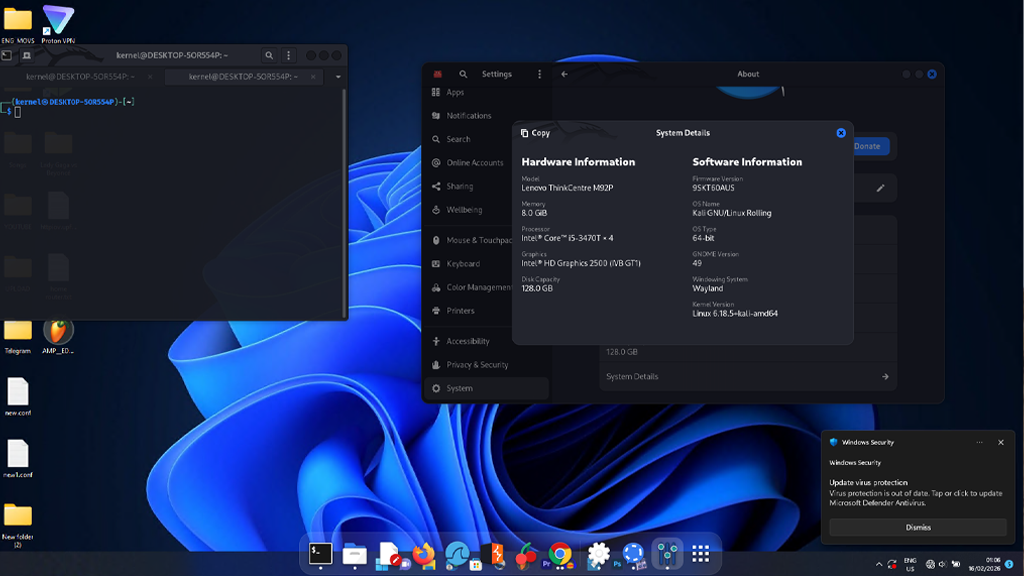
xfreerdp is a free and open-source tool that lets you connect to a Windows computer remotely using Remote Desktop Protocol (RDP).
In simple terms:
👉 You can control your Windows PC from your Linux computer using only software — no extra hardware needed.
This is perfect if you:
Use Linux and Windows together
Want to share one keyboard, mouse, and monitor
Want to avoid buying USB switches or extra screens
🔹 What You Need Before Starting
A Linux computer
A Windows computer (Windows 10 / 11 Pro recommended)
Both computers connected to the same local network (Wi-Fi or Ethernet)
Administrator access on the Windows PC
PART 1 — Set Up Windows for Remote Access
Step 1: Enable Remote Desktop
On your Windows PC:
Press Windows Key + I → Open Settings
Go to:
System → Remote DesktopTurn Remote Desktop ON
Click Confirm
Step 2: Note Down Your Windows IP Address
Press Windows Key + R
Type:
cmdRun:
ipconfigLook for:
IPv4 Address: 192.168.x.x
Save this — you’ll need it.
Step 3: Make Sure Your User Has a Password
Remote Desktop won’t work if your Windows account has no password.
If needed:
PART 2 — Install xfreerdp on Linux
Ubuntu / Debian / Kali:
sudo apt install freerdp2-x11 -y
Arch Linux:
Fedora:
PART 3 — Connect to Windows Using xfreerdp
Now the magic happens ✨
Basic Command:
Example:
✔ Replace:
USERNAME→ Windows login namePASSWORD→ Windows passwordIP_ADDRESS→ Windows IP
PART 4 — Improve Experience (Recommended Options)
Full Screen Mode
Auto-fit Screen Resolution
Clipboard Sharing (Copy & Paste)
Best Smooth Experience Command:
PART 5 — Common Problems & Fixes
❌ Connection Failed?
Check:
Windows firewall allows Remote Desktop
Both machines are on same network
Correct IP address
❌ Black Screen?
Try:
❌ Laggy Experience?
Solutions:
Use Ethernet cable instead of Wi-Fi
Reduce resolution:
WHY This Setup Is Powerful
This method lets you:
✔ Use one keyboard & mouse for two computers
✔ Use one monitor for both systems
✔ Avoid buying USB switch hardware
✔ Keep your desk clean
✔ Save money
All using free open-source software.
REAL-WORLD USE CASE
Perfect for:
Linux + Windows dual workflows
Developers
Network engineers
Cybersecurity students
Designers using Linux + Adobe tools on Windows
Anyone who wants efficient workstation setups
FINALY
xfreerdp proves that:
Smart thinking beats quick buying.
Instead of buying extra hardware, software solutions often exist — free, powerful, and elegant.