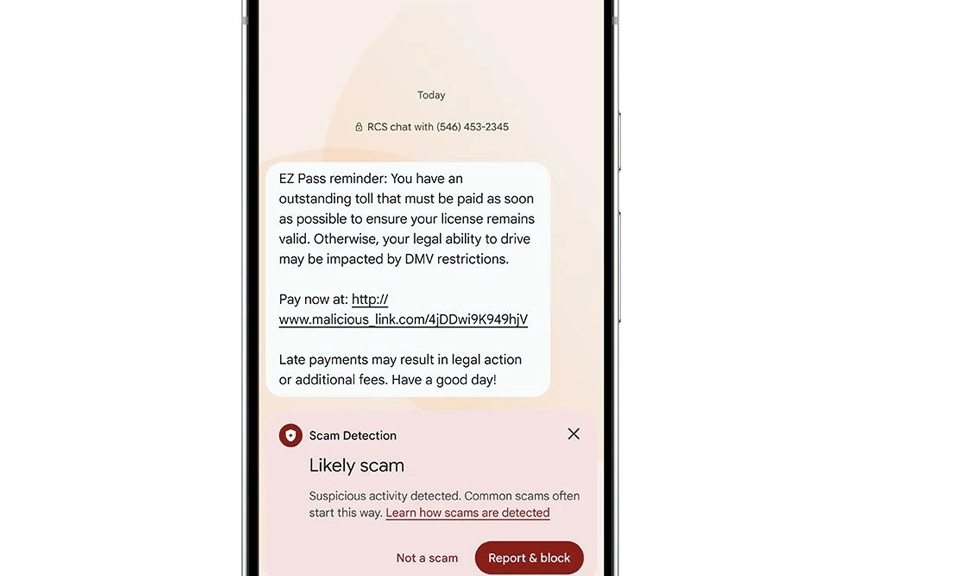
Scammers are no longer just relying on poorly spelled emails from “foreign princes.” Today’s fraudsters are using AI voice cloning, spoofed local phone numbers, and sophisticated “smishing” (SMS phishing) texts to trick you.
But while the scammers are upgrading their tactics, your smartphone is sitting on a goldmine of built-in security features that you probably haven’t turned on.
Out of the box, Apple and Google prioritize convenience over security. They want you to be able to answer calls easily and see your texts on the lock screen. But that convenience is exactly what scammers exploit.
Take five minutes today to flip these 6 hidden security switches. They will drastically reduce the noise of daily scams and lock down your digital life.
📞 1. The “Ghost” Protocol: Silence Unknown Callers & Spam Protection
The Threat: Robocalls, spoofed numbers (like your local bank or the IRS), and AI voice scams.
The Fix: Tell your phone to automatically ignore numbers not in your contacts.
The Fix: Tell your phone to automatically ignore numbers not in your contacts.
Scammers rely on creating a sense of urgency. If you don’t answer, their script falls apart. By silencing unknown numbers, you force them to leave a voicemail, giving you time to verify if the call is legitimate before calling them back.
- iPhone: Go to Settings > Phone > Silence Unknown Callers and toggle it On. Unknown callers will be silenced, sent to voicemail, and displayed on your recent calls list.
- Android: Open the Phone app > tap the three dots > Settings > Caller ID & spam. Toggle on See caller and spam ID and Filter spam calls.
📩 2. The Text Trap: Filter Unknown Senders
The Threat: “Smishing” texts claiming your package is delayed, your bank account is locked, or you owe a toll fee, complete with malicious links.
The Fix: Segregate texts from people you don’t know.
The Fix: Segregate texts from people you don’t know.
When texts from strangers are mixed in with messages from your spouse or boss, it’s easy to accidentally click a malicious link. Filtering them removes the temptation and the visual clutter.
- iPhone: Go to Settings > Messages. Scroll down to Message Filtering and toggle on Filter Unknown Senders. Your messages will now be split into “All Messages” and “Unknown Senders,” and you won’t get notifications for the latter.
- Android: Open the Messages app > tap your profile icon > Messages settings > Spam protection. Toggle it On. Google’s AI will automatically flag and hide suspected spam texts.
🚪 3. The Trojan Horse Blocker: Disable “Install Unknown Apps”
The Threat: Fake banking apps, crypto wallet drainers, and spyware disguised as “system updates” or “exclusive games” downloaded from shady websites.
The Fix: Stop your phone from installing apps outside the official store.
The Fix: Stop your phone from installing apps outside the official store.
Scammers often use text messages or pop-up ads to trick you into downloading an app directly from a website (called “sideloading”). Once installed, these apps can steal your passwords and drain your accounts.
- Android: Go to Settings > Security (or Privacy) > Install unknown apps. Ensure that none of your apps (especially Chrome, Gmail, or your file manager) are allowed to install unknown apps. If you see any toggled on, turn them off.
- iPhone: iOS is naturally locked down against this, but you can add an extra layer by going to Settings > Screen Time > Content & Privacy Restrictions > iTunes & App Store Purchases and setting “Installing Apps” to Don’t Allow.
🙈 4. The Shoulder-Surfer Shield: Hide Lock Screen Notifications
The Threat: Thieves and scammers stealing your Two-Factor Authentication (2FA) codes or reading sensitive financial alerts.
The Fix: Hide the content of your notifications until the phone is unlocked.
The Fix: Hide the content of your notifications until the phone is unlocked.
If a scammer manages to phish your password, they need the 2FA code sent to your phone to access your bank account. If your phone is stolen, or if someone is simply looking over your shoulder on the subway, your lock screen shouldn’t be broadcasting your bank balance or your 6-digit authentication codes.
- iPhone: Go to Settings > Notifications > Show Previews. Change it from “Always” to When Unlocked.
- Android: Go to Settings > Notifications > Lock screen. Select Don’t show notifications at all or Hide sensitive content (which shows the app name but hides the actual text).
🎙️ 5. The Eavesdropper Audit: Revoke Unnecessary Permissions
The Threat: Malicious apps (or compromised legitimate apps) secretly recording your conversations, tracking your location, or accessing your camera.
The Fix: Conduct a quarterly audit of who has the keys to your phone’s sensors.
The Fix: Conduct a quarterly audit of who has the keys to your phone’s sensors.
You might have granted a flashlight app or a calculator game access to your microphone or location years ago and forgotten about it. Scammers and shady developers use these permissions to harvest data.
- iPhone: Go to Settings > Privacy & Security. Tap through Microphone, Camera, and Location Services. Turn off access for any app that doesn’t absolutely need it to function.
- Android: Go to Settings > Privacy > Permission Manager. Review Microphone, Camera, and Location. For apps you only use occasionally, change their permission to “Ask every time” or “Don’t allow.”
📱 6. The Ultimate Account Saver: Set a SIM Card PIN
The Threat: “SIM Swapping.” This is a devastating scam where a fraudster tricks your mobile carrier into transferring your phone number to a new SIM card they control. Once they have your number, they can intercept your texts, bypass your 2FA, and empty your bank accounts.
The Fix: Put a PIN on your physical SIM card.
The Fix: Put a PIN on your physical SIM card.
If a scammer steals your phone, or successfully executes a SIM swap, a SIM PIN prevents the card from connecting to the cellular network without your personal code. It is the ultimate dead-man’s switch for your phone number.
- iPhone: Go to Settings > Cellular > SIM PIN. Turn it on and create a 4-to-8 digit PIN. (Warning: Do not forget this PIN, or you will lock yourself out of your cellular service!)
- Android: Go to Settings > Security (or Passwords & Security) > SIM card lock. Turn it on and set your PIN.
Friction is Your Friend
Scammers rely on speed, panic, and your desire for things to be easy. They want you to answer the call, click the link, and enter the code right now.
By turning on these six settings, you are introducing friction into the process. You are forcing the scammers to slow down, which gives your brain the time it needs to recognize the trap.
Technology can only do so much to protect you, but when you combine your phone’s built-in security shields with a healthy dose of skepticism, you become virtually untouchable.
Take five minutes right now. Check your settings. Your future self (and your bank account) will thank you.