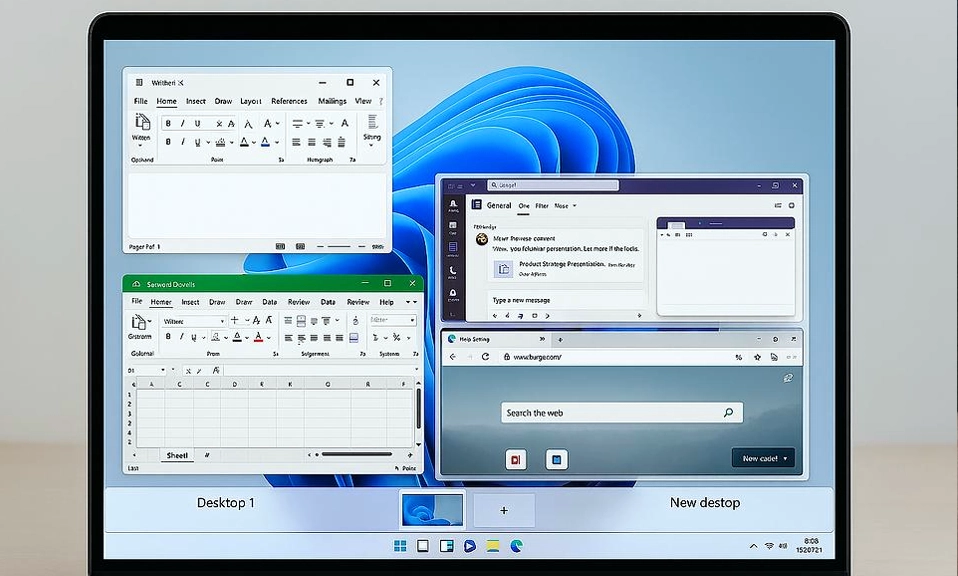
We’ve all seen that person at work (or in a movie) who never touches their mouse. Their fingers fly across the keyboard, windows snap into place, files are moved, and tasks are completed with a series of rapid, silent keystrokes. They look like a hacker, a wizard, or at the very least, a certified computer expert.
The secret? They aren’t geniuses. They just know keyboard shortcuts.
While everyone is busy clicking through nested menus and waiting for animations to finish, you can bypass the clutter entirely. Windows 11 has a treasure trove of built-in shortcuts designed to make you faster, more efficient, and undeniably cooler.
Ditch the mouse. Here are 10 Windows 11 keyboard shortcuts that will instantly upgrade your workflow and make you look like a total pro.
📋 1. The Time Machine: Windows Key + V
What it does: Opens your Clipboard History.
Why it’s expert-level: Everyone knows
With
(Note: You may need to press
Why it’s expert-level: Everyone knows
Ctrl + C and Ctrl + V. But what if you need to copy three different things and paste them in a different order? Normally, you’d have to copy, switch, paste, switch back, copy again.With
Win + V, Windows remembers the last 25 things you copied (text and images). Press it, and a sleek menu pops up. Just click what you want to paste.(Note: You may need to press
Win + V once and click “Turn on” to enable this feature).✂️ 2. The Precision Snip: Windows Key + Shift + S
What it does: Instantly activates the modern Snipping Tool.
Why it’s expert-level: Stop pressing the “Print Screen” key and pasting into Paint.
Why it’s expert-level: Stop pressing the “Print Screen” key and pasting into Paint.
Win + Shift + S dims your screen and lets you instantly drag a box around exactly what you want to capture (a rectangle, a freeform shape, a specific window, or the full screen). The image is automatically copied to your clipboard, ready to be pasted into an email, Slack, or Word doc.🪟 3. The Master Organizer: Windows Key + Arrow Keys
What it does: Snaps your active window to different parts of the screen.
Why it’s expert-level: Windows 11’s “Snap Layouts” are fantastic, but using the mouse to drag windows is slow. Press
Why it’s expert-level: Windows 11’s “Snap Layouts” are fantastic, but using the mouse to drag windows is slow. Press
Win + Left Arrow to snap a window to the left half of your screen. Then, press Win + Right Arrow on your second window to fill the other half. You can even use Win + Up/Down to snap windows into quarters. You’ll set up a perfect multi-tasking workspace in under two seconds.🖥️ 4. The Secret Workspace: Windows Key + Ctrl + D
What it does: Creates a brand new Virtual Desktop.
Why it’s expert-level: Virtual desktops are the ultimate productivity hack for separating “Work” from “Play” (or “Deep Focus” from “Meetings”). Press
Why it’s expert-level: Virtual desktops are the ultimate productivity hack for separating “Work” from “Play” (or “Deep Focus” from “Meetings”). Press
Win + Ctrl + D to instantly create a fresh, empty desktop. Switch between them seamlessly with Windows Key + Ctrl + Left/Right Arrow. Close the current one with Windows Key + Ctrl + F4. Your colleagues will think you have multiple monitors.⚡ 5. The Power User Menu: Windows Key + X
What it does: Opens the Quick Link menu (also known as the Power User menu) in the bottom-left corner.
Why it’s expert-level: Need to open Device Manager, Disk Management, Terminal, or the Run dialog? Instead of typing these into the Start menu search bar, hit
Why it’s expert-level: Need to open Device Manager, Disk Management, Terminal, or the Run dialog? Instead of typing these into the Start menu search bar, hit
Win + X. A sleek, text-based menu appears with direct access to all the deep system tools you need. (Pro tip: You can then just press the underlined letter of the tool you want, like M for Device Manager).🚀 6. The Direct Route: Ctrl + Shift + Esc
What it does: Opens the Task Manager immediately.
Why it’s expert-level: Amateurs press
Why it’s expert-level: Amateurs press
Ctrl + Alt + Delete and then click “Task Manager” from a blue screen. Experts know that Ctrl + Shift + Esc bypasses the middleman and launches the Task Manager instantly. It’s the fastest way to kill a frozen app or check your CPU usage.😄 7. The Secret Panel: Windows Key + . (Period)
What it does: Opens the Emoji, GIF, Kaomoji, and Symbol panel.
Why it’s expert-level: Need to insert an em dash (—), a copyright symbol (©), or a specific emoji into a professional email or a casual Teams chat? Don’t search Google for “how to type copyright symbol.” Just hit
Why it’s expert-level: Need to insert an em dash (—), a copyright symbol (©), or a specific emoji into a professional email or a casual Teams chat? Don’t search Google for “how to type copyright symbol.” Just hit
Win + . and type the name of what you’re looking for. It’s fast, built-in, and surprisingly comprehensive.🎙️ 8. The Built-in Dictation: Windows Key + H
What it does: Activates Windows 11’s Voice Typing feature.
Why it’s expert-level: Windows 11’s voice recognition is shockingly good, complete with auto-punctuation. Instead of typing out a long paragraph, hit
Why it’s expert-level: Windows 11’s voice recognition is shockingly good, complete with auto-punctuation. Instead of typing out a long paragraph, hit
Win + H, start speaking, and watch your words appear on the screen. You can even say “period,” “comma,” or “new line” to format your text hands-free.🔒 9. The Instant Lock: Windows Key + L
What it does: Instantly locks your computer.
Why it’s expert-level: Security experts never just walk away from their desk. They lock it. Instead of clicking your profile picture and hitting “Lock,” a quick tap of
Why it’s expert-level: Security experts never just walk away from their desk. They lock it. Instead of clicking your profile picture and hitting “Lock,” a quick tap of
Win + L secures your machine in a fraction of a second. It’s a tiny habit that makes you look incredibly security-conscious.🔄 10. The App Relauncher: Ctrl + Shift + Click (on a Taskbar icon)
What it does: Opens a new instance of an app that is already running.
Why it’s expert-level: If you have File Explorer or Chrome open and you want to open a second window of the same app, don’t right-click and select “New Window.” Just hold
Why it’s expert-level: If you have File Explorer or Chrome open and you want to open a second window of the same app, don’t right-click and select “New Window.” Just hold
Ctrl + Shift and left-click the app’s icon on your taskbar. It’s a subtle, lightning-fast move that IT professionals use daily.Muscle Memory is Your Best Friend
You don’t need to memorize all 10 of these shortcuts today. Pick two or three that solve your biggest daily frustrations (we highly recommend starting with
Win + V and Win + Shift + S).Use them consciously for a few days. Soon, your fingers will do the work automatically, and you’ll find yourself reaching for the mouse less and less.
Before you know it, you’ll be the one flying through your workflow, leaving your colleagues wondering how you get so much done so quickly.