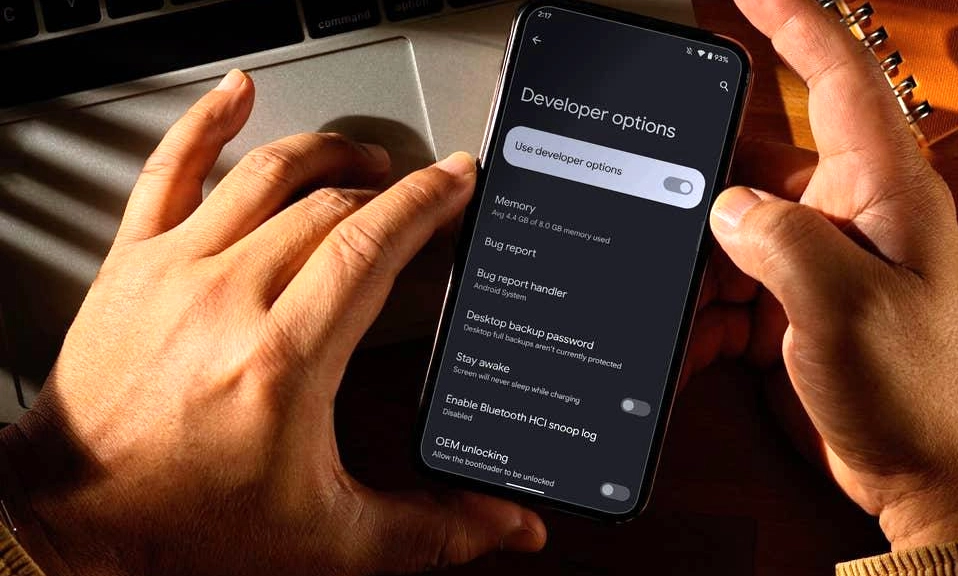
Android’s greatest superpower has always been customization. But with that power comes a notorious side effect: a settings menu so vast and deeply buried that most users only ever scratch the surface of what their phone can actually do.
You don’t need to root your device, install sketchy third-party “cleaner” apps, or buy a new phone to get a better experience. The tools you need are already built into your device; they’re just hiding.
Whether you want to make your phone feel lightning-fast, lock down your privacy, or unlock features that feel like pure magic, we’ve got you covered. Here are 7 hidden Android settings that will completely upgrade your daily smartphone experience.
(Note: Menu names may vary slightly depending on whether you use a Google Pixel, Samsung Galaxy, OnePlus, or another brand, but the core features remain the same.)
🚀 1. The Speed Hack: Scale Down Animations
The Benefit: Makes your phone feel instantly faster and more responsive.
How to Enable It:
How to Enable It:
- Go to Settings > About Phone and tap Build Number 7 times until it says, “You are now a developer!”
- Go back to Settings > System > Developer Options.
- Scroll down to the “Drawing” section.
- Find Window animation scale, Transition animation scale, and Animator duration scale.
- Change all three from
1xto0.5x.
Why It Works: Android uses animations to make opening apps and switching screens look smooth. By cutting the animation time in half, you eliminate the visual “waiting” period without making the phone feel jarring or broken. It’s the single most effective way to make an older phone feel brand new.
🛡️ 2. The Privacy Shield: Auto-Remove App Permissions
The Benefit: Stops forgotten apps from secretly accessing your microphone, camera, or location.
How to Enable It:
How to Enable It:
- Go to Settings > Privacy > Permission Manager (on Samsung: Settings > Apps > Permission Manager).
- Tap on any permission (like Camera or Location).
- Look for an option that says “Remove permissions if app is unused” and toggle it on. (On some phones, this is a global toggle at the top of the Permission Manager screen).
Why It Works: We all have apps we downloaded once and haven’t opened in six months. If you don’t use an app for a few months, Android will automatically revoke its sensitive permissions. If you ever open the app again, it will simply ask for permission anew. It’s a brilliant, set-it-and-forget-it safety net.
🌐 3. The Network-Level Ad Blocker: Private DNS
The Benefit: Blocks intrusive ads and malicious tracking domains across all apps and browsers, without installing an ad-blocking app.
How to Enable It:
How to Enable It:
- Go to Settings > Network & Internet > Private DNS (on Samsung: Settings > Connections > More connection settings > Private DNS).
- Select Private DNS provider hostname.
- Type in:
dns.adguard.com - Tap Save.
Why It Works: This routes your phone’s DNS (Domain Name System) requests through AdGuard’s secure servers, which automatically block known ad-serving and tracking domains before they even reach your device. It makes mobile browsing cleaner, faster, and more private. (Pro Tip: If a specific app stops working, you can temporarily turn this off, as some free apps aggressively block DNS-level ad blockers).
🕵️ 4. The “Oops” Saver: Notification History
The Benefit: Retrieves messages, alerts, or calls you accidentally swiped away or cleared.
How to Enable It:
How to Enable It:
- Go to Settings > Notifications > Notification history.
- Toggle the switch to On.
Why It Works: We’ve all been there: you clear your notifications to feel organized, only to realize two minutes later that you just deleted a crucial text message or an Uber arrival alert. Once enabled, this feature keeps a 24-hour log of every notification your phone receives, even if you dismiss it. It is an absolute lifesaver.
🎧 5. The Universal Translator: Live Caption
The Benefit: Automatically generates real-time subtitles for any audio playing on your phone, even without an internet connection.
How to Enable It:
How to Enable It:
- Go to Settings > Accessibility > Live Caption (on Samsung: Settings > Accessibility > Hearing enhancements > Live Caption).
- Toggle it On.
- You can now activate it instantly by pressing the volume button and tapping the small caption icon that appears below the volume slider.
Why It Works: Powered by on-device machine learning, Live Caption transcribes podcasts, videos, voice notes, and even phone calls in real-time. It’s invaluable for watching videos in noisy environments, in quiet libraries, or for anyone who is hard of hearing.
📌 6. The Lending Safety Net: App Pinning (Screen Pinning)
The Benefit: Locks your phone to a single app so someone borrowing it can’t snoop through your photos or messages.
How to Enable It:
How to Enable It:
- Go to Settings > Security > Advanced > App Pinning (on Samsung: Settings > Security and privacy > More security settings > Pin windows).
- Toggle it On, and ensure “Ask for PIN before unpinning” is also enabled.
- To use it: Open your recent apps view (swipe up and hold, or tap the square button), tap the app’s icon at the top, and select Pin.
Why It Works: When a friend asks to “just check something quickly” on your phone, App Pinning ensures they can only use that specific app. To exit, they have to press and hold the Back and Overview buttons simultaneously, which will immediately lock the screen and require your fingerprint or PIN.
🌙 7. The Eye-Saver: Extra Dim
The Benefit: Makes your screen darker than the hardware’s minimum brightness setting, reducing eye strain at night.
How to Enable It:
How to Enable It:
- Go to Settings > Accessibility > Visibility enhancements > Extra Dim (on Pixel: Settings > Accessibility > Extra Dim).
- Toggle it On.
- You can adjust the intensity slider to make the screen as dark as you need. You can also add “Extra Dim” to your Quick Settings pull-down menu for one-tap access.
Why It Works: Even at 1% brightness, many modern OLED phone screens are still too bright for a pitch-black bedroom. Extra Dim applies a software-level dark overlay, drastically reducing blue light and glare, helping you wind down without blinding yourself or your partner.
Take Control of Your Device
Your smartphone is the most personal computer you own. It holds your memories, your finances, and your private conversations.
By taking just 10 minutes to enable these seven hidden settings, you’re not just tweaking a gadget; you’re actively reclaiming your time, protecting your privacy, and tailoring the technology to serve you, rather than the other way around.
Open your settings menu right now. Your future, more efficient self will thank you.