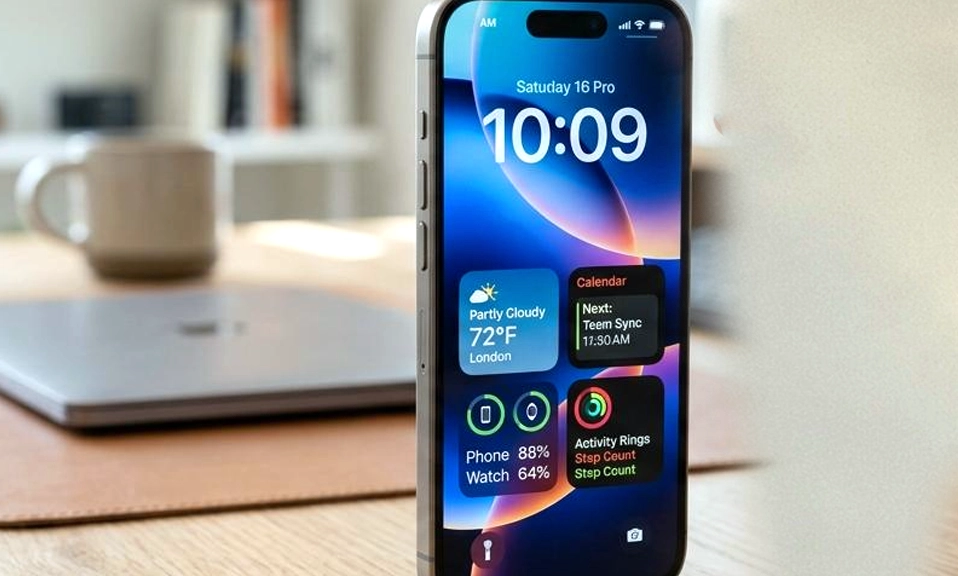
Your iPhone doesn’t need to be replaced to feel new again. The device in your hand is capable of far more than most people ever ask of it—and with a few hidden settings, a couple of long-overdue cleanups, and one or two tricks that have been hiding in plain sight for years, you can make it feel faster, smarter, and more personal than it did on day one. Here are seven iPhone tricks that will make your device feel brand new without spending a cent.
1. Clear the Cache (Yes, It Actually Works)
Your iPhone doesn’t have a single “clear cache” button, but it has something better: a way to reclaim gigabytes of storage by clearing the caches of the apps that accumulate them.
For Safari: Go to Settings → Safari → Clear History and Website Data. This wipes the browser’s cache, history, and cookies—the latter means you’ll be logged out of some websites, but the performance gain can be significant if you’ve been browsing for months without clearing anything.
For individual apps: Open Settings → General → iPhone Storage. Here you’ll see a list of every app and how much space it’s using, broken down into the app itself and its data. Apps like Messages, Photos, and social media can accumulate enormous caches. You can’t clear the cache of every app individually, but you can offload an app (which removes the app but keeps its data) and then reinstall it. For apps you don’t use at all, delete them. The storage and memory freed by this cleanup can make the entire system feel snappier.
For system-level cache: Restart your iPhone. It sounds trivial, but a restart clears the system’s temporary memory and can resolve minor performance hiccups that have been building up over weeks.
2. Offload Unused Apps Automatically
The “Offload Unused Apps” setting is one of Apple’s most underrated features. It automatically removes the app from your phone when you haven’t used it in a while—but it keeps all your data and documents intact. If you ever need the app again, tapping its icon re-downloads it in seconds, with your login state and data exactly as you left them.
How to enable: Go to Settings → App Store → Offload Unused Apps and toggle it on. You can also trigger it manually in Settings → General → iPhone Storage → Offload Unused Apps.
This one setting can free up tens of gigabytes on a phone that’s cluttered with apps you downloaded for a single purpose months ago and never touched again.
3. Master the Back Tap (A Hidden Button You Didn’t Know You Had)
The back of your iPhone is a programmable button. With Back Tap, you can double-tap or triple-tap the back of the device to trigger actions like taking a screenshot, opening the camera, turning on the flashlight, or launching a shortcut.
How to enable: Go to Settings → Accessibility → Touch → Back Tap. Choose Double Tap or Triple Tap, then assign an action. Popular choices include Screenshot, Camera, and Flashlight—the latter two save you from fumbling with the Control Center.
Once you get used to it, the Back Tap becomes second nature. It feels like a new hardware feature, and it costs nothing.
4. Customize the Control Center (Make It Yours)
The Control Center is the most-used screen on your iPhone that most people never customize. By default, it shows a handful of toggles, but you can add dozens more—including Screen Recording, Shazam, Low Power Mode, Voice Memos, Hearing, and Dark Mode—and resize them to fit your needs.
How to customize: Go to Settings → Control Center. Tap the “+” next to any control to add it, and tap the “–” to remove one. You can also drag the handles to resize a control (the larger size gives you more information or a bigger tap target). Put your most-used controls at the top and move the rest down.
For an even more “new phone” feel, try replacing the default controls with a Shortcut you’ve created—like a one-tap button that starts your morning routine or opens a specific app.
5. Set Up Text Replacement Shortcuts
Typing on an iPhone is fine until you have to type the same long phrases over and over—your email address, your address, a standard reply, or a complicated emoji sequence. Text Replacement lets you create shortcuts that expand into full phrases.
How to set it up: Go to Settings → General → Keyboard → Text Replacement. Tap the “+” and enter a Phrase (what you want it to expand to) and a Shortcut (the short trigger you’ll type). For example, you can set the shortcut “@@@” to expand to your full email address, or “omw” to expand to “On my way!”.
Text Replacement syncs across all your Apple devices via iCloud, so once you set it up on your iPhone, it works on your iPad and Mac too. The time saved over weeks of typing is substantial.
6. Reduce Motion and Transparency (For Speed and Comfort)
iOS animations are beautiful, but they consume processing power and can make the phone feel slower, especially on older devices. Turning them down—or off—makes the interface feel more immediate and can reduce motion sickness for some users.
How to reduce motion: Go to Settings → Accessibility → Motion and toggle Reduce Motion on. This replaces the zooming app-opening animations with a simpler fade, which feels faster and is easier on the eyes.
How to reduce transparency: In the same Accessibility menu, go to Display & Text Size and toggle Reduce Transparency on. This replaces the blurred, translucent backgrounds in menus and Control Center with solid colors, which can improve both performance and legibility.
Both changes are subtle at first, but after a few days, the phone will feel more responsive and less visually busy—like a cleaner, faster version of the iOS you already know.
7. Use Focus Modes to Reclaim Your Attention
The most transformative “new phone” feeling doesn’t come from a setting that makes the phone faster. It comes from a setting that makes the phone quieter. Focus Modes let you create custom profiles—Work, Sleep, Personal, Driving, or your own—that filter notifications, silence apps, and change your home screen to show only the apps that matter for that context.
How to set it up: Go to Settings → Focus, choose a mode, and customize which people and apps are allowed to notify you. You can also create a custom Home Screen page for each Focus mode, containing only the apps you need for that context—work apps for Work, a meditation app for Sleep, or a reading app for Personal.
The effect is dramatic. When you switch to a Focus mode, your phone stops feeling like a chaotic notification machine and starts feeling like a tool designed for the moment you’re in. It’s the closest thing to getting a new phone without buying one—because it changes not just how the phone works, but how it feels to use it.
Your iPhone is a remarkably
capable device, and most of its best features are buried in menus or disabled by default. Clearing the cache and offloading unused apps reclaim storage and speed. The Back Tap and Control Center customization make the phone feel more personal and responsive. Text Replacement saves hours of typing, Reduce Motion makes the interface feel snappier, and Focus Modes transform the phone from a source of distraction into a tool for intentional living.
None of these tricks require a new purchase. They require ten minutes of exploration and a willingness to dig one layer deeper into the settings you already have. Do one today, another tomorrow, and by the end of the week, your iPhone will feel like it just came out of the box—except it will be set up exactly the way you want it.