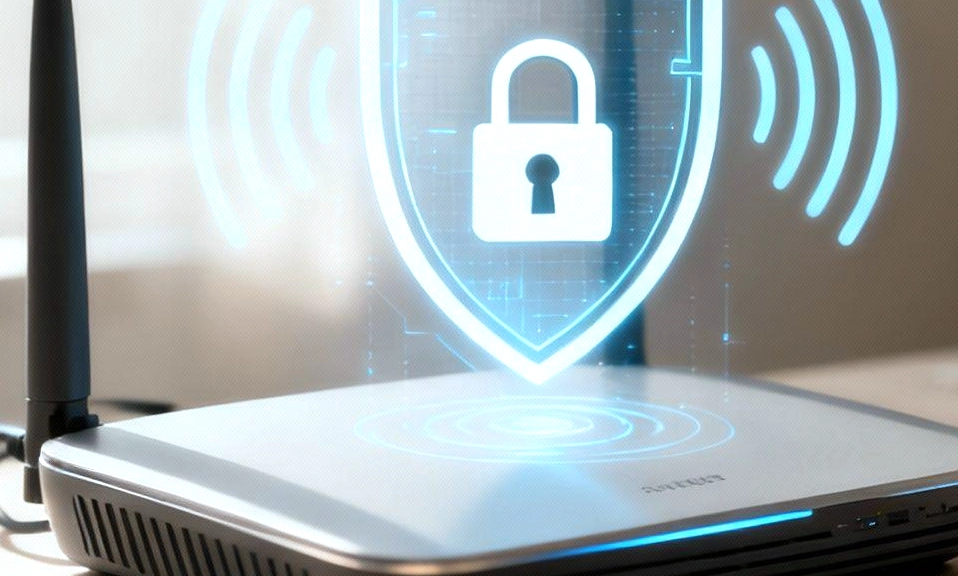
Think of your Wi-Fi router as the front door to your digital home.
Every email you send, every password you type, every smart camera feed, and every connected device passes through this single piece of hardware. If that front door is left unlocked, or worse, if a hacker has a copy of the key, your entire digital life is exposed.
The scary reality? Millions of routers are shipped with default settings that are notoriously easy to compromise. But the good news is that securing your network doesn’t require a degree in cybersecurity. It just requires about 15 minutes of your time and a willingness to change a few settings.
Here is your complete, step-by-step guide to bulletproofing your router against hackers and keeping your home network safe.
🔑 1. Change the Admin Password (Not Just the Wi-Fi Password)
This is the #1 mistake people make. Your router has two passwords: the Wi-Fi password (which lets devices connect to the internet) and the Admin password (which lets someone change the router’s settings).
Most routers come with a default admin password like
admin / password, or one printed on the sticker. Hackers have databases of these default credentials and use automated bots to scan the internet for routers that still use them.- The Fix: Log into your router’s admin panel (usually via
192.168.1.1or192.168.0.1). Find the Administration, System, or Management tab and change the admin password to a long, unique passphrase. Write it down and store it somewhere safe.
🛡️ 2. Update Your Router’s Firmware
Firmware is the operating system of your router. Just like your phone gets iOS or Android updates to patch security holes, your router needs firmware updates to fix vulnerabilities that hackers actively exploit.
- The Fix: In your router’s admin panel or mobile app, look for Firmware Update or System Update. Run it immediately. If your router supports Automatic Updates, turn that feature on so you never have to think about it again.
🔐 3. Upgrade Your Encryption (Ditch WEP Immediately)
Encryption scrambles the data traveling between your devices and your router so hackers can’t read it.
- The Fix: Go to your Wireless Security settings. Ensure your network is set to WPA3 (the newest, most secure standard). If your router or some of your older devices don’t support WPA3, choose WPA2-PSK (AES).
- ⚠️ Warning: If you see an option for WEP or WPA (TKIP), do not use them. They are ancient, broken security protocols that a skilled hacker can crack in a matter of minutes.
🚫 4. Disable WPS (The Silent Security Killer)
Wi-Fi Protected Setup (WPS) was designed to make connecting devices easy (usually via a physical button or an 8-digit PIN). Unfortunately, the PIN method has a massive, unpatchable flaw: it can be brute-forced by hacking software in a matter of hours.
- The Fix: Find the WPS setting in your router’s menu (often under Wireless or Advanced Settings) and turn it OFF. It’s a minor inconvenience to type in a password, but it closes a massive backdoor.
🕵️ 5. Change Your Default Network Name (SSID)
Default network names like
NETGEAR_5G or ATT-WIFI-123 tell hackers exactly what model of router you have, which helps them look up specific vulnerabilities for that device. Furthermore, names like SmithFamily_Apt4B give away your personal information.- The Fix: Change your SSID to something generic and anonymous.
HomeNetwork_5G,FBI_Surveillance_Van, orThe_LAN_Before_Timeare all much safer than using your real name or address.
🌍 6. Disable Remote Management
“Remote Management” (or “Remote Access”) is a feature that allows you to log into your router’s admin panel from outside your home network (e.g., from your phone while you’re at work). While convenient, it is a massive security risk. If a hacker guesses your admin password, they can compromise your router from anywhere in the world.
- The Fix: Unless you absolutely, positively need to manage your router while traveling, find Remote Management, Remote Access, or WAN Access in the settings and turn it OFF. You should only be able to configure your router when you are physically connected to your home Wi-Fi.
🏠 7. Isolate Your Smart Home Devices on a Guest Network
Your smart TV, Wi-Fi-enabled lightbulbs, and cheap smart plugs are notorious for having weak, easily exploitable security. If a hacker breaches your smart bulb, they could potentially use it as a foothold to jump over to your laptop and access your banking data.
- The Fix: Enable a Guest Network (as covered in our previous guide). Connect all your “dumb” IoT (Internet of Things) devices and visitors to this network. It provides them with internet access but creates a digital wall, preventing them from communicating with your main, sensitive devices.
🔌 8. Disable UPnP (Universal Plug and Play)
UPnP is a feature that allows devices on your network (like gaming consoles or smart cameras) to automatically open ports on your router’s firewall to communicate with the outside world. While it makes setup easy, it also allows malware on an infected device to silently open ports and create a backdoor for hackers, bypassing your firewall entirely.
- The Fix: Go to your router’s Advanced or NAT/Forwarding settings and disable UPnP. If a specific device (like a gaming console) needs it, you can manually set up “Port Forwarding” for that specific device, which is much safer than leaving the front door wide open for everything.
15 Minutes for Total Peace of Mind
It’s easy to assume that your Internet Service Provider or the router manufacturer has your back. But in reality, the security of your home network is your responsibility.
By taking just 15 minutes to change your admin password, update your firmware, disable WPS, and lock down remote access, you transform your router from a vulnerable target into a digital fortress.
Don’t wait until you’ve been compromised to take action. Log into your router today, lock the digital front door, and enjoy the peace of mind that comes with a truly secure home network.