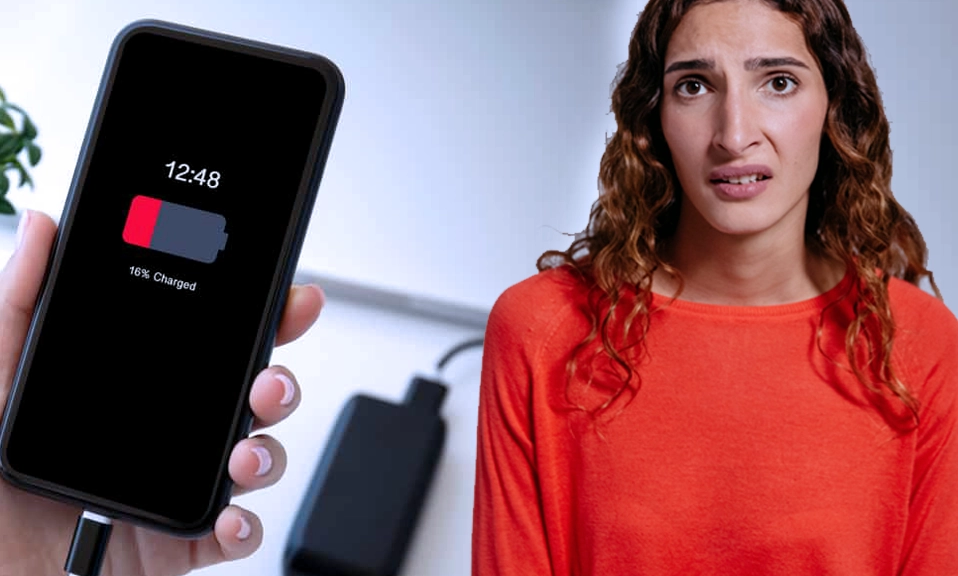
You charge your phone to 100% before bed. You barely touch it the next morning. Yet, by noon, you’re staring at a 40% battery icon and wondering if your phone has a secret, energy-draining double life.
It’s one of the most frustrating modern mysteries. You didn’t stream a 4K movie, you didn’t play a graphics-heavy game, and you certainly didn’t leave the flashlight on. So where did all that power go?
The truth is, your phone is never truly “resting.” Even when it’s sitting quietly in your pocket or on your desk, it’s performing a dozen invisible tasks that quietly siphon your battery.
Here are the 6 hidden reasons your phone battery is dying so fast, and exactly how to stop the bleed.
1. The “Weak Signal” Struggle 📶
The Culprit: This is the most overlooked battery killer. When your phone has a weak cellular signal (one or two bars), its internal modem has to work exponentially harder to maintain a connection with the nearest cell tower. It essentially “shouts” to stay connected, which drains the battery at an alarming rate. The Fix: If you’re in an area with consistently poor reception, switch your phone to Airplane Mode or force it to use Wi-Fi Calling. Wi-Fi requires significantly less power to maintain a stable connection than a struggling cellular radio.
2. Background App Refresh & Rogue Processes 🔄
The Culprit: When you “close” an app, it doesn’t always actually close. Many apps are granted permission to run in the background, constantly checking for new emails, social media updates, or weather changes. A poorly coded app can get stuck in a loop, continuously waking up your phone’s processor. The Fix:
- iPhone: Go to Settings > General > Background App Refresh and turn it off for apps that don’t need real-time updates (like games, shopping apps, or utilities).
- Android: Go to Settings > Apps > [App Name] > Battery and set it to “Restricted” or “Optimized” to prevent background activity.
3. The Notification Tsunami 🔔
The Culprit: Every time your phone receives a push notification, it wakes up the processor, activates the cellular/Wi-Fi radio to download the data, vibrates the haptic motor, and lights up the screen. One notification isn’t a big deal. But 50 notifications a day? That’s a constant, microscopic drain that adds up to hours of lost battery life. The Fix: Be ruthless with your notifications. Go into your settings and disable notifications for any app that doesn’t provide immediate, critical value. If it’s not a text from a loved one, a work emergency, or a delivery update, it can wait.
4. Location Services on Overdrive 📍
The Culprit: GPS is one of the most power-hungry features on your phone. If you have apps set to “Always” track your location (rather than “While Using”), they are periodically waking up your phone to ping satellite networks, even when the app is closed. The Fix:
- iPhone: Settings > Privacy & Security > Location Services. Change most apps to “While Using” or “Never.”
- Android: Settings > Location > App permissions. Do the same. Only critical apps (like Maps or ride-sharing) need “Always” access.
5. The “Always-On” Illusion 📱
The Culprit: Modern phones are designed to be helpful, but features like “Always-On Display,” “Raise to Wake,” and overly generous screen timeout settings mean your screen is turning on far more often than you realize. The display is, by far, the single biggest consumer of battery power on any smartphone. The Fix:
- Turn off “Raise to Wake” if you find yourself accidentally triggering it while walking or gesturing.
- Reduce your screen timeout to 30 seconds.
- If your phone has an Always-On Display, set it to show only when tapped, or disable it entirely if you’re struggling to make it through the day.
6. The Hard Truth: Chemical Aging 🔋
The Culprit: Sometimes, it’s not a software setting at all. It’s chemistry. Smartphones use lithium-ion batteries, which physically degrade over time. After about 300 to 500 full charge cycles (roughly 1.5 to 2 years of daily use), a battery’s maximum capacity naturally drops to around 80%. The Fix: Check your battery health.
- iPhone: Settings > Battery > Battery Health & Charging. If “Maximum Capacity” is below 80%, it’s time for a replacement.
- Android: Many manufacturers include a battery health metric in the settings (e.g., Samsung: Settings > Battery and device care > Diagnostics).
- Note: A $70–$90 official battery replacement will make a 2-year-old phone feel brand new again.
The 5-Minute Battery Rescue Plan
If you need to extend your battery life right now, do these three things:
- Turn on Low Power Mode / Battery Saver. This instantly throttles background activity, reduces screen brightness, and limits 5G usage.
- Check the “Battery Usage” Graph. Both iOS and Android will show you exactly which app has been eating your battery over the last 24 hours. If an app you haven’t opened is at the top of the list, delete or restrict it.
- Stop “Micro-Charging.” Constantly plugging your phone in for 5 minutes at a time generates excess heat, which degrades lithium-ion batteries faster. Try to charge in longer, cooler sessions (like overnight, with Optimized Battery Charging enabled).
Your phone isn’t broken,
and you aren’t imagining things. Modern smartphones are incredibly powerful pocket computers, and keeping them connected, updated, and ready to react at a millisecond’s notice requires a lot of energy.
By taking control of your background processes, managing your notifications, and acknowledging the natural lifespan of your battery, you can reclaim hours of battery life every single day.
Which of these hidden drains was the biggest surprise to you? Have you found a weird trick that saves your battery?