Let’s be honest: leaving your Wi-Fi network named something like
NETGEAR_5G_8A or ATT-WIFI-492 is boring.Worse, it’s a potential security risk. Default passwords printed on the bottom of routers are often predictable, and if you’ve had your router for a while, you’ve probably shared that clunky password with enough guests, repairmen, and former roommates that it’s no longer secure.
It’s time to take ownership of your network. Changing your Wi-Fi name (technically called the SSID) and password is one of the easiest and most effective ways to boost your home’s digital security and make your life a little easier.
Think it requires an IT degree? Think again. Here is your foolproof, jargon-free guide to changing your Wi-Fi name and password in under 10 minutes.
📱 The Modern Shortcut: Use Your Router’s App
Before we dive into the classic web browser method, check your router brand. If you have a modern router (like Eero, TP-Link Deco, Google Nest Wifi, or a recent Netgear/Asus model), you likely have a smartphone app.
The App Method:
- Open your router’s official app.
- Tap on Network Settings, Wi-Fi Settings, or the gear icon.
- Look for an option to Edit your Wi-Fi Name (SSID) and Password.
- Type in your new choices, hit Save, and you’re done!
If you don’t have an app, or you’re using an older router or an ISP-provided gateway, follow the classic method below.
💻 The Classic Method: Step-by-Step
Step 1: Find Your Router’s IP Address
To talk to your router, you need its “home address” on your local network. You can usually find this printed on the sticker on the bottom of the router (it might say something like
routerlogin.net, 192.168.1.1, or 192.168.0.1).If it’s not on the sticker, you can find it on your connected device:
- On Windows: Press the
Windows Key + R, typecmd, and press Enter. In the black box, typeipconfigand press Enter. Look for the “Default Gateway” number. That’s your router’s IP address. - On Mac: Click the Apple menu > System Settings > Network. Click on your active Wi-Fi connection, click Details, and look for the “Router” IP address.
- On iPhone/Android: Go to Wi-Fi settings, tap the “i” or gear icon next to your connected network, and look for “Router” or “Gateway.”
Step 2: Log Into the Admin Panel
- Open any web browser (Chrome, Safari, Edge) on a device connected to your Wi-Fi.
- Type that IP address (e.g.,
192.168.1.1) into the address bar at the very top and press Enter. - A login screen will appear.
- Find the credentials: Look at the sticker on the bottom of your router. It will list the default “Admin Username” and “Admin Password” (often
adminandpassword, or a unique random string). Note: This is different from your Wi-Fi password!
Step 3: Navigate to Wireless Settings
Every router’s interface looks a little different, but the terminology is almost always the same. Look for a tab or menu on the left or top of the screen labeled:
- Wireless
- Wi-Fi Settings
- WLAN
- Network
Step 4: Change the Name (SSID) and Password
Once you are in the Wireless settings, you will see two main fields:
- Network Name (SSID): This is what shows up on your phone. Have fun with it! (See our “Pro Tips” below for ideas).
- Password / Passphrase / Network Key: Create a new, strong password.
💡 Password Tip: Length is more important than complexity. A passphrase like
PurpleCoffeeMug2024! is much harder for a computer to crack than P@ssw0rd1, and much easier for you to remember.Step 5: Save and Reconnect (Crucial!)
Click Save or Apply. Your router will likely take 30 to 60 seconds to reboot and apply the changes.
⚠️ WARNING: The moment you hit save, every single device in your house will disconnect from the Wi-Fi. Your phone, laptop, smart TV, and smart bulbs will all drop offline.
You will need to go into the Wi-Fi settings of each device, find your shiny new network name, and type in the new password to reconnect them.
🛡️ 3 Pro Tips for a Better Wi-Fi Setup
- Keep It Anonymous: Never use your last name, your street address, or your apartment number in your Wi-Fi name (e.g.,
SmithFamily_Apt4B). This gives potential hackers or porch pirates too much personal information about who lives at that location. is a much safer bet. - Choose the Right Security: If your router gives you a choice of security protocols, always choose WPA3 or WPA2/WPA3 Personal. Never choose WEP or WPA; they are ancient, broken security standards that can be cracked in minutes.
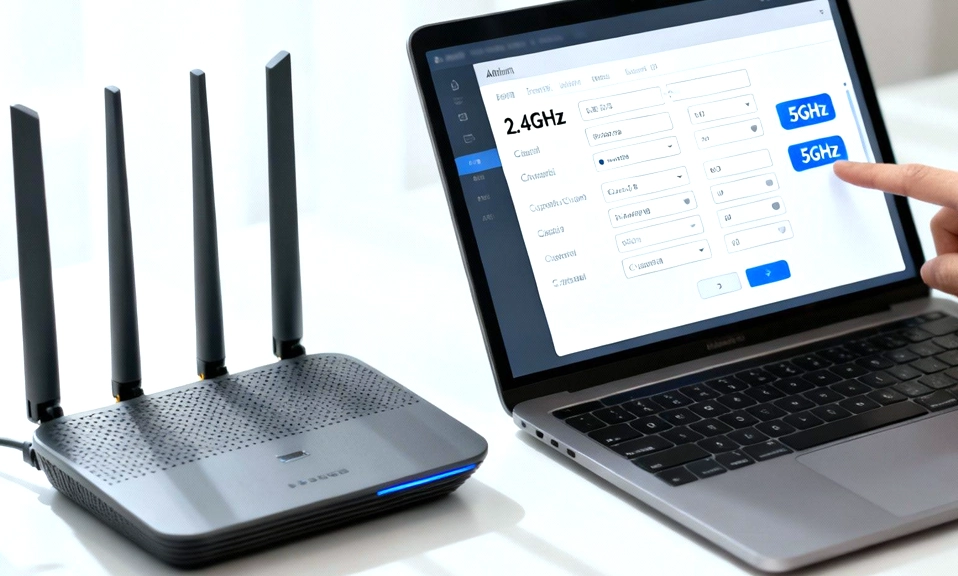
- Consider Splitting Your Bands: If your router combines 2.4GHz and 5GHz into one name, you might want to split them (e.g.,
MyWiFi_2GandMyWiFi_5G). This allows you to force older smart home devices onto the 2.4GHz network (which they require) while keeping your phones and laptops on the blazing-fast 5GHz network.
You Are the Master of Your Domain
Changing your Wi-Fi name and password takes less than 10 minutes, but the peace of mind it brings is invaluable. You’ve just kicked off any unauthorized devices, secured your network with a fresh password, and given your home internet a little bit of personality.
Yes, you have to reconnect your devices, but think of it as a digital spring cleaning. Your network is now fresh, secure, and entirely yours.