Your phone can already do this. You just have to know where to look.
For years, recording your screen with your face in the corner meant downloading a third-party app, wrestling with overlay permissions, and hoping the result didn’t look like a grainy security camera feed. In 2026, that’s no longer necessary. Android has built the feature directly into the operating system, and the third-party apps that remain have evolved into genuinely powerful tools.
Here is exactly how to record your Android screen with your face showing at the same time—whether you’re on a Pixel, a Samsung, a Xiaomi, or anything in between.
The Built-In Method: Android 17’s Screen Reactions
If you have a device running Android 17—and especially if you have a Pixel—the feature is already there. Google calls it Screen Reactions, and it was introduced as part of the June 2026 Pixel Drop.
How to use it:
Open Quick Settings (swipe down from the top of the screen twice).
Tap the Screen record tile.
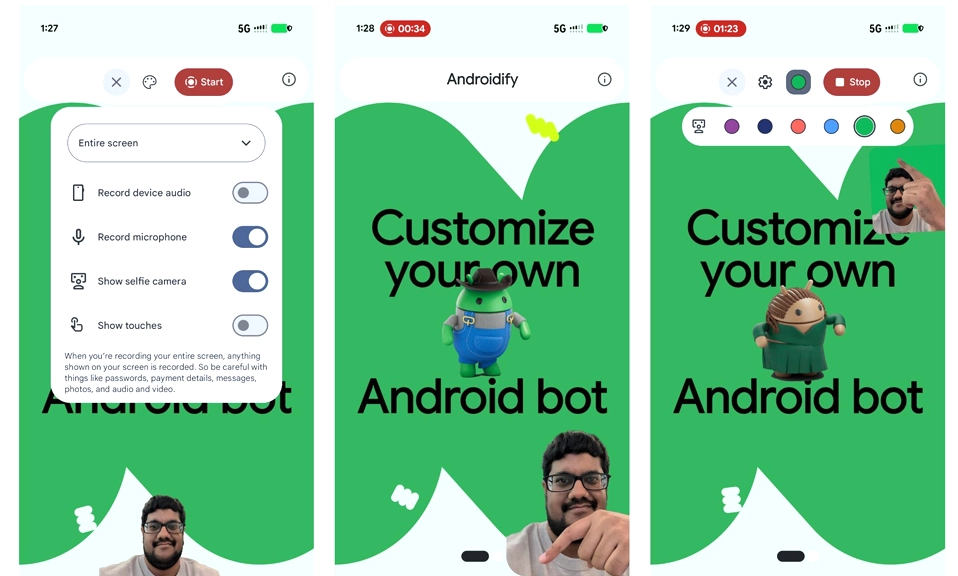
Select “Record the entire screen”—this is crucial. The selfie camera option only works in full-screen recording mode; it is not available if you’re recording a single app.
Before you hit start, look for the “Show selfie camera” toggle and turn it on.
Start recording.
Your front camera will activate, and a floating cutout of your face will appear over the screen recording. You can drag it around and resize it to fit your layout. You can even set a background color behind the selfie feed—options include black, purple, red, blue, green, and orange—to make your face stand out against the content you’re recording.
The feature is available on all Pixel devices running Android 17 and is expected to roll out to other manufacturers as the OS update reaches more phones.
The Manufacturer Methods: Samsung, Realme, and Xiaomi
If you don’t have Android 17 yet, your phone’s built-in screen recorder may already support face cam. The implementation varies by brand.
Samsung Galaxy
Samsung’s built-in recorder includes a front-facing camera toggle. Open the Quick Settings panel by swiping down with two fingers, start a screen recording, and tap the front camera icon (it looks like a person). A small window will appear in the upper left corner, recording your face alongside the screen.
Realme
Realme’s UI has a dedicated setting. Go to Settings > Accessibility & convenience > Screen recording and enable “Record front camera video” . The exact path varies slightly depending on your Realme UI version (6.0/7.0 vs. older versions), but the option is there.
Xiaomi / Redmi
Xiaomi’s Game Turbo overlay includes a Face cam option for gameplay recording. Swipe from the right edge of the screen while in a game, tap Screen record, and enable Face cam alongside internal audio and microphone input. Xiaomi’s HyperOS screen recorder also supports it, though the option is more reliably exposed through Game Turbo.
The Third-Party Apps: When You Need More Control
If your phone doesn’t have a built-in face cam option, or if you want features that go beyond the basics, third-party apps fill the gap. Two stand out in 2026.
AZ Screen Recorder
AZ Screen Recorder is the most established name in Android screen recording, and it includes a floating face cam window that you can reposition and resize. It supports internal audio, microphone audio, GIF recording, and drawing on screen while you record. There is no watermark and no time limit on the core recording features.
It is a reliable, all-purpose choice that works across a wide range of devices and Android versions.
HD Face Cam Screen Recorder
This app is built specifically for the face cam use case. It advertises “a truly live face cam overlay” —your face is shown in real time during the recording, not added in post-production.
What makes it stand out is the control it gives you over the overlay. The face cam can be dragged, resized, and shaped (circle, square, or rectangle). It includes touch indicators that show every tap and swipe, on-screen drawing tools, text overlays, and a built-in teleprompter that stays visible to you but invisible in the final video. It also supports live streaming to Twitch, YouTube, and Facebook with the face cam overlay active.
The free version includes all features but caps recordings at 5 minutes and adds a watermark. A one-time purchase removes both.
Other Options
LScreen offers a clean, straightforward face cam overlay with floating controls and a built-in video trimmer. Screen Recorder – Video Editor combines face cam recording with an integrated editor for trimming, merging, and adding subtitles. Super Screen Recorder is another free option with face cam and live streaming support.
Tips for Better Face Cam Recordings
Recording your screen and your face is one thing. Making it look good is another. These settings and habits make a noticeable difference.
Enable Do Not Disturb. Notifications appearing on screen are the fastest way to ruin a recording. Turn on Do Not Disturb before you start—your viewers don’t need to see your group chat.
Use 1080p at 60fps. For most content, 1080p resolution and 60 frames per second strike the right balance between quality and file size. If you’re recording gameplay, 6–8 Mbps is a recommended bitrate.
Position the face cam thoughtfully. The default bottom position is fine, but if you’re recording content with important information at the bottom of the screen, drag the overlay to a corner where it won’t obscure anything. Keep it small enough to be unobtrusive but large enough that your expressions are visible.
Light your face. The front camera is not as forgiving as a dedicated webcam. Face a window or a soft light source so your face is evenly lit. A cheap ring light makes a bigger difference than you might expect.
Use a background color for contrast. If your face cam is getting lost against the screen content, Android 17’s colored background options can help separate your face from the recording.
Record in landscape for most content. Unless you’re specifically making vertical video for TikTok or Reels, landscape orientation is the standard for tutorials, gameplay, and presentations.
It’s Easier Than It’s Ever Been
Recording your Android screen with your face showing used to be a workaround—a patchwork of apps, permissions, and post-production edits. In 2026, it’s a feature.
If you have a Pixel on Android 17, Screen Reactions does it natively, with a floating face cam you can drag, resize, and color-code. If you’re on Samsung, Realme, or Xiaomi, your built-in recorder likely has a face cam toggle already. And if you need more control—teleprompter, touch indicators, live streaming—AZ Screen Recorder and HD Face Cam Screen Recorder are the tools to reach for.
The technology is no longer the barrier. The only question left is what you want to record.