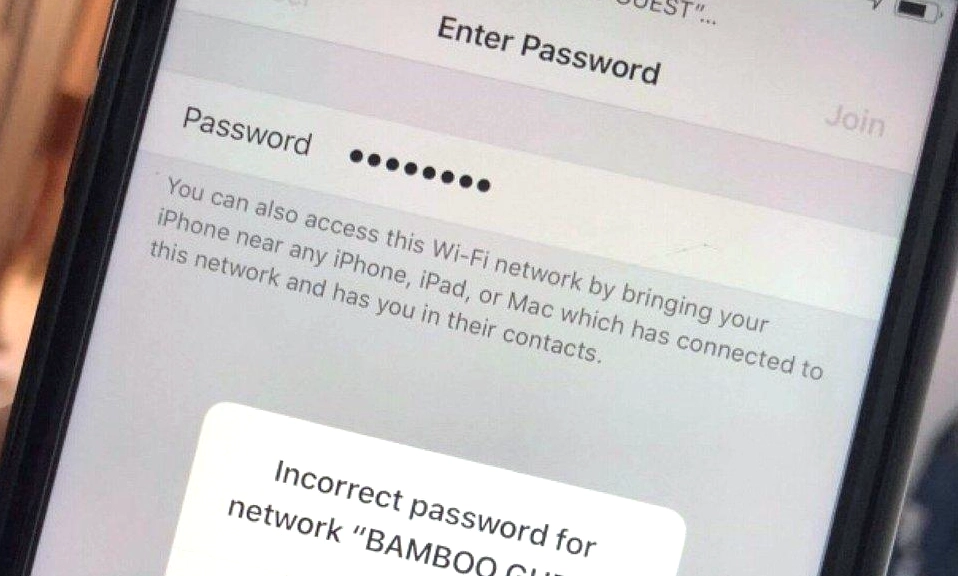
You type in the password. You double-check it. You hit “Join.”
The little loading circle spins for a few seconds… and then you get the dreaded message: “Incorrect Password,” “Authentication Error,” or it simply fails and drops back to the Wi-Fi menu.
You know the password is right. You’ve typed it into your laptop, and it works perfectly. So why is your phone stubbornly refusing to connect?
This is one of the most frustrating tech glitches out there, but it’s almost always caused by a minor software hiccup, a corrupted network profile, or a quirky router setting—not a broken phone.
Before you throw your device across the room, try these 8 proven fixes, ranked from the easiest quick tweaks to the deeper system resets.
📶 1. The Golden Fix: “Forget” the Network
This solves the problem 90% of the time. Your phone saves a “profile” for every Wi-Fi network you join. Sometimes, this profile gets corrupted, or the router assigns a conflicting IP address, causing a handshake failure even when the password is correct.
- iPhone (iOS): Go to Settings > Wi-Fi. Tap the blue “i” icon next to your network name. Tap Forget This Network, then confirm.
- Android: Go to Settings > Network & Internet > Wi-Fi. Tap the gear icon next to your network. Tap Forget or the trash can icon.
- Next Step: Tap the network name again and type the password in freshly.
🔄 2. The Double Restart (Do It Right)
If you haven’t restarted your devices recently, do it now. But there’s a right way to do it.
- The Fix: Turn your phone completely off and back on. Then, unplug your router and modem from the wall. Wait a full 60 seconds (this drains residual power and clears the router’s short-term memory). Plug them back in, wait 2–3 minutes for the lights to stabilize, and try connecting your phone again.
🕵️ 3. The “Private Address” Glitch (iOS & Android)
Modern smartphones have a privacy feature that generates a fake, randomized MAC address for every Wi-Fi network you join, so trackers can’t follow you. However, some older or highly secured routers get confused by this and will reject the connection, even with the right password.
- iPhone (iOS): Go to Settings > Wi-Fi, tap the “i” next to your network, and toggle Private Wi-Fi Address to OFF. Try connecting again.
- Android: Go to Settings > Wi-Fi, tap the gear icon next to your network, tap Advanced or Privacy, and change “Use randomized MAC” to Use device MAC.
🧹 4. Reset Network Settings (The Phone’s “Soft” Reset)
If forgetting the network didn’t work, there may be a deeper glitch in your phone’s networking software. Resetting network settings wipes the slate clean.
- ⚠️ Warning: This will erase all saved Wi-Fi passwords and paired Bluetooth devices on your phone. You will need to reconnect your headphones and smartwatch afterward.
- iPhone (iOS): Go to Settings > General > Transfer or Reset iPhone > Reset > Reset Network Settings.
- Android: Go to Settings > System > Reset options > Reset Wi-Fi, mobile & Bluetooth (path may vary slightly by manufacturer, e.g., Samsung: Settings > General Management > Reset > Reset network settings).
🚫 5. Check for Router-Side Roadblocks
Sometimes, your phone is doing everything right, but the router is actively blocking it. Log into your router’s admin panel (usually via a browser at
192.168.1.1 or 192.168.0.1) and check two things:- MAC Filtering: If this is turned on, the router will only allow specific, pre-approved devices to connect, regardless of the password. You’ll need to add your phone’s MAC address to the “Allow” list.
- Device Limit: Some budget routers or ISP-provided gateways have a hard limit on how many devices can connect at once (e.g., 15 or 20). If you have a house full of smart bulbs, phones, and TVs, the router might be rejecting new connections. Disconnect an old device to make room.
📝 6. The “Trailing Space” and Character Trap
It sounds silly, but it happens to the best of us. If you copied and pasted the password from a text message or email, you might have accidentally copied a blank “space” at the end of the password.
- The Fix: Type the password manually. Pay close attention to easily confused characters: a capital
Ovs. the number0, a lowercasel(L) vs. the number1, or an uppercaseI(i). Also, ensure Caps Lock isn’t accidentally on.
📡 7. Split the 2.4GHz and 5GHz Bands
Many modern routers use “Smart Connect” or “Band Steering,” which combines the 2.4GHz and 5GHz networks under a single name (SSID). The router then decides which band your phone should use. Sometimes, this handoff fails, causing the phone to get stuck in a connection loop.
- The Fix: Log into your router settings and temporarily disable “Smart Connect.” This will create two separate networks (e.g.,
MyWiFiandMyWiFi_5G). Try connecting your phone to the 2.4GHz network first, as it is much more forgiving and has better range.
🌐 8. The Isolation Test: Is it the Phone or the Router?
If you’ve tried everything and it’s still failing, you need to isolate the variable.
- Test 1: Can your phone connect to other Wi-Fi networks (like a coffee shop or a friend’s house)? If no, your phone’s Wi-Fi antenna or hardware may be failing, and it’s time to contact the manufacturer.
- Test 2: Can other devices connect to your home Wi-Fi right now? If no, the issue is definitely with your router or ISP, not your phone.
Patience Pays Off
When a phone rejects a correct password, it feels like a personal insult from your technology. But in almost every case, it’s just a minor miscommunication between your phone’s network cache and the router’s security protocol.
Start with Step 1 (Forgetting the network) and Step 3 (Toggling Private Address), as these are the most common culprits in modern smartphones. In 99% of cases, one of these steps will get you back online in under two minutes.