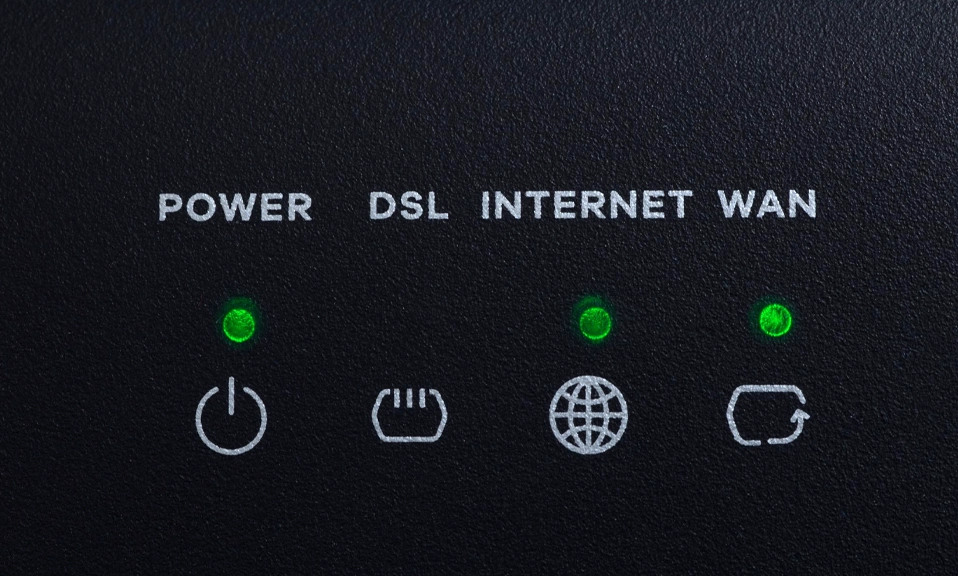
We’ve all heard the golden rule of IT support: “Have you tried turning it off and on again?”
It’s the ultimate tech cliché, but when it comes to your home Wi-Fi router, it actually works like magic. Your internet is buffering? Reboot the router. A device won’t connect? Reboot the router.
But this leads to a very common question among homeowners: Should you be restarting your Wi-Fi router every single day?
Some people swear by a daily morning reboot, while others plug their router in once and don’t touch it for five years until it dies. So, what’s the actual truth about router maintenance? Does your router need a daily nap, or is that just a waste of time?
Let’s dive into the mechanics of your router and find out the perfect maintenance schedule to keep your internet blazing fast.
🧠 1. Understand What a Router Actually Is
To understand why routers need restarting, you have to understand what they are.
Your router isn’t just a plastic box that beams invisible internet waves; it is a fully functioning, low-power computer. It has a central processor (CPU), an operating system, and Random Access Memory (RAM).
Just like your laptop or smartphone, your router runs dozens of background processes every second. It’s routing traffic, assigning IP addresses, managing firewall security, and translating DNS web addresses. And unlike your phone, which you restart regularly, your router is expected to do this 24/7/365 without a break.
🗑️ 2. What Happens When a Router Runs Too Long?
Because your router never sleeps, it is prone to the same software quirks as any other computer. Over weeks and months of continuous uptime, a few things start to go wrong:
- Memory Leaks: The router’s RAM gets filled with fragmented data from dropped connections, background tasks, and software bugs. As the RAM fills up, the router’s processor slows down, leading to lag and dropped packets.
- DNS Cache Bloat: Your router caches (remembers) the IP addresses of websites you visit so it can load them faster next time. Over time, this cache gets bloated with outdated or corrupted entries, which can cause the dreaded “Connected, No Internet” error.
- Overheating: Routers generate heat. If they run continuously in a dusty, poorly ventilated spot, the internal temperature rises, causing the hardware to throttle its speed to prevent melting.
- Zombie Connections: Sometimes, a device (like a phone that went out of range) doesn’t properly disconnect from the router. The router keeps a “zombie” connection open for it, wasting bandwidth and taking up a slot on the network.
🔄 3. The Magic of the Reboot
When you unplug your router, wait 60 seconds, and plug it back in, you are performing a digital exorcism.
- It completely clears the RAM, giving the processor a fresh slate.
- It wipes the corrupted DNS cache.
- It drops all zombie connections.
- Bonus: When it boots back up, it will often scan the airwaves and automatically select the least congested Wi-Fi channel, instantly improving your speed.
📅 4. So, Should You Do It Every Day?
The short answer: No. The long answer: For 95% of households, a daily reboot is completely unnecessary and just adds a tedious chore to your morning routine.
Modern routers (especially Wi-Fi 6 and Wi-Fi 7 models) are built with much better memory management and thermal cooling than the routers of 10 years ago. They are designed to run for months at a time without breaking a sweat.
However, there are exceptions. You might need to restart daily if:
- You have a massive smart home with 50+ connected devices (smart bulbs, cameras, thermostats) stressing a budget router.
- You are using an old, ISP-provided “combo” modem/router that is known to overheat or have buggy firmware.
- You notice your internet consistently slowing down every evening (a sign of severe memory leaks).
🏆 5. The Golden Rule: The Weekly or Monthly Reboot
For the average user, the sweet spot for router maintenance is once a week or once a month.
A quick monthly reboot is enough to clear out the digital cobwebs, clear the cache, and keep the hardware running at peak efficiency without becoming a daily annoyance.
🤖 6. The “Lazy” Hack: Automate It!
If you don’t want to remember to reboot your router, let technology do it for you.
- The Smart Plug Method: Plug your router into a cheap smart plug (like a Kasa or Wyze plug). Use the plug’s app to schedule the router to turn off at 3:00 AM and turn back on at 3:05 AM every night or every week while you are asleep.
- The Built-in Method: Log into your router’s admin app or web panel. Many modern routers (like Eero, Asus, and TP-Link) have a built-in “Scheduled Reboot” feature in their settings. Set it and forget it.
🛠️ 7. Beyond the Reboot: True Router Maintenance
Restarting is great, but it’s only one part of router care. To keep your network in top shape, follow these three rules:
- Update the Firmware: Router manufacturers release software updates to fix security holes and improve performance. Check your router’s app once a month to ensure the firmware is up to date.
- Keep It Cool and Clean: Don’t hide your router in a closed cabinet or stack books on top of it. Once a year, use a can of compressed air to blow the dust out of the ventilation grilles.
- Know When to Replace It: A reboot can’t fix obsolete hardware. Wi-Fi technology evolves rapidly. If your router is more than 4 to 5 years old, it’s time to replace it. A modern router will handle more devices, offer better security, and provide significantly faster speeds.
Rest is for Computers, Too
You don’t need to restart your Wi-Fi router every single day unless you are running a massive, device-heavy network on older hardware. But treating your router like an immortal, invincible box that never needs maintenance is a recipe for slow speeds and frustrating dropouts.
Think of your router like a car. You don’t need to change the oil every single day, but if you never take it in for a tune-up, it’s eventually going to break down on the highway.
Give your router a quick 60-second power cycle once a month (or automate it via a smart plug), keep it dust-free, and it will reward you with fast, reliable internet for years to come.