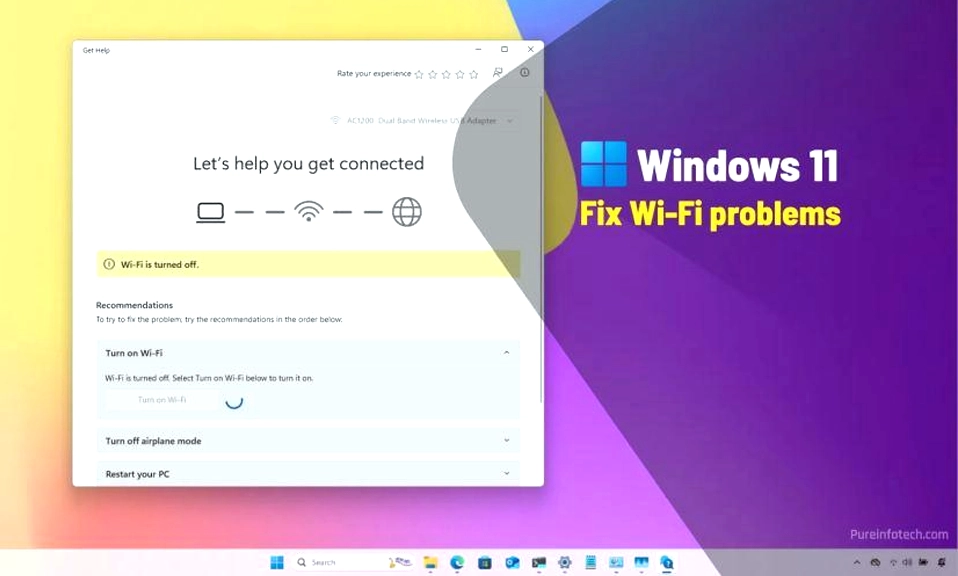
You open your Windows 11 laptop, ready to work, stream, or game, and you’re greeted by a nightmare: the Wi-Fi icon has a prohibition sign, a little globe indicating “No Internet,” or worse, the Wi-Fi option has vanished entirely from your Quick Settings.
Panic sets in. Is the laptop broken? Is the router dead? Did Microsoft push a bad update?
Before you assume the worst or schedule an expensive repair, take a deep breath. Windows 11 Wi-Fi issues are incredibly common, and 95% of the time, they can be fixed with a few clicks. The operating system is packed with built-in diagnostic tools and settings that can get you back online in minutes.
Here are 10 proven, step-by-step solutions to fix Wi-Fi not working on your Windows 11 laptop, ranked from the easiest quick fixes to the more advanced troubleshooting steps.
✈️ 1. Check Airplane Mode and Physical Switches
It sounds ridiculously simple, but it’s the #1 cause of sudden Wi-Fi loss. Windows 11 makes it easy to accidentally toggle Airplane Mode on.
- The Fix: Press
Windows Key + Ato open the Quick Settings panel. Look for the Airplane mode tile. If it’s highlighted, click it to turn it off. - Bonus Check: Many laptops have a physical Wi-Fi switch on the side, or a function key (like
Fn + F2orFn + F5, look for the antenna icon) that hardware-disables the Wi-Fi card. Make sure you haven’t accidentally pressed it.
🔄 2. The “Proper” Restart (Laptop + Router)
Turning it off and on again is a cliché because it works. It clears temporary software glitches and forces the Wi-Fi adapter to re-initialize.
- The Fix: Don’t just put the laptop to sleep. Click Start > Power > Restart. While it’s rebooting, unplug your router and modem from the wall, wait 60 seconds, plug them back in, and wait for the lights to stabilize before your laptop finishes booting.
🛠️ 3. Run the Windows 11 Network Troubleshooter
Microsoft has actually built a decent automated diagnostic tool into Windows 11 that can identify and fix common configuration errors.
- The Fix: Go to Settings > System > Troubleshoot > Other troubleshooters. Find Network and Internet and click Run. Follow the on-screen prompts and let Windows do the heavy lifting.
📶 4. “Forget” the Network and Reconnect
Sometimes, the saved profile for your home Wi-Fi gets corrupted, or there’s an IP address conflict between your laptop and the router. Starting fresh can work wonders.
- The Fix: Go to Settings > Network & internet > Wi-Fi > Manage known networks. Find your home network, click the three dots
...next to it, and select Forget. Then, click the Wi-Fi icon in your taskbar, select your network, and type the password in again.
💻 5. Update or Reinstall Your Wi-Fi Driver
An outdated, corrupted, or incompatible network driver is a frequent culprit, especially after a major Windows update.
- The Fix:
- Right-click the Start button and select Device Manager.
- Expand the Network adapters section.
- Right-click your Wi-Fi adapter (it will usually say “Intel,” “Realtek,” “MediaTek,” or “Wireless”) and select Update driver > Search automatically for drivers.
- If that doesn’t work: Right-click it again, select Uninstall device, and then Restart your laptop. Windows 11 will automatically detect the missing hardware and reinstall a fresh, clean driver upon reboot.
⚙️ 6. Check the WLAN AutoConfig Service
This background service is responsible for discovering and connecting to wireless networks. If it’s stopped or disabled, your Wi-Fi will completely disappear.
- The Fix: Press
Windows Key + R, typeservices.msc, and hit Enter. Scroll down to find WLAN AutoConfig. Double-click it. Ensure the “Startup type” is set to Automatic, and if the “Service status” says Stopped, click Start. Click Apply and OK.
🧹 7. Flush DNS and Reset TCP/IP
Your computer uses a DNS cache to remember website addresses, and a TCP/IP stack to communicate over the network. If these get corrupted, your Wi-Fi will connect but fail to load anything.
- The Fix:
- Type
cmdin the Windows search bar, right-click Command Prompt, and select Run as administrator. - Type the following commands, pressing Enter after each one:
netsh winsock resetnetsh int ip resetipconfig /releaseipconfig /renewipconfig /flushdns
- Restart your laptop.
- Type
⚡ 8. Disable “Fast Startup”
Windows 11’s “Fast Startup” feature saves the system state to a file to help your PC boot quicker. However, it can sometimes prevent hardware drivers (like your Wi-Fi card) from loading correctly on boot.
- The Fix: Open the Start menu, type Control Panel, and hit Enter. Go to Hardware and Sound > Power Options. Click Choose what the power buttons do on the left. Click Change settings that are currently unavailable (requires admin rights). Uncheck Turn on fast startup, save changes, and restart.
🌐 9. Perform a Full Network Reset
If nothing else has worked, Windows 11 has a “nuclear option” that wipes all network adapters and settings back to their factory defaults.
- ⚠️ WARNING: This will erase all saved Wi-Fi passwords and Bluetooth pairings, so have your Wi-Fi password handy.
- The Fix: Go to Settings > Network & internet > Advanced network settings > Network reset. Click Reset now, confirm with Yes, and let your laptop restart (it will do this automatically within 5 minutes).
🪟 10. Check for Pending Windows Updates
Ironically, the fix for a Windows 11 bug is often another Windows 11 update. Microsoft frequently releases “out-of-band” patches specifically to address Wi-Fi and Bluetooth driver conflicts.
- The Fix: Go to Settings > Windows Update and click Check for updates. Install everything, including “Optional updates” (which often contain crucial driver fixes from manufacturers like HP, Dell, or Lenovo). Restart when prompted.
Don’t Panic, Just Troubleshoot
A broken Wi-Fi connection on your laptop feels like a major crisis, but it’s almost always a software hiccup, not a hardware failure. By methodically working through these steps—starting with the Quick Settings and moving toward the Network Reset—you can bypass the frustration and get back online.
Save this guide in your bookmarks. The next time your Wi-Fi decides to take an unscheduled vacation, you’ll know exactly how to bring it back.