Your Windows PC is not a neutral tool. It is a data-collection device that, by default, reports back to Microsoft on a scale that most people never fully grasp. The Settings app offers a patchwork of toggles—there is no single “stop collecting my data” switch—but with twenty minutes of deliberate configuration, you can meaningfully reduce what leaves your machine. Here are eight settings worth checking today, why they matter, and what you trade for the privacy you reclaim.
1. Optional Diagnostic Data: The Biggest Data Firehose
Windows distinguishes between required and optional diagnostic data. Required data includes device specifications, system version, and crash information—Microsoft argues this is necessary to keep Windows secure and stable across a billion devices, and it cannot be turned off on Home or Pro editions. Optional data is a different story. It can include your app usage, performance details, and even typing diagnostics.
Path: Settings > Privacy & security > Diagnostics & feedback
What to do: Turn Send optional diagnostic data to Off. In the same menu, toggle off Improve inking and typing and Tailored experiences if they are present. You can also click Delete to remove any optional diagnostic data already stored on the device.
The trade-off: Some troubleshooting features rely on optional data. On a managed work computer, administrators may restrict this setting. But for a personal machine, the privacy gain is significant and the functional loss is minimal.
2. Advertising ID: Turning Your OS into an Ad Platform
Windows assigns your device an Advertising ID—a unique identifier that tracks you across apps and services to serve “more relevant” targeted ads. It is one of the clearest examples of Windows functioning as an advertising platform rather than purely an operating system.
Path: Settings > Privacy & security > General
What to do: Turn off “Let apps show me personalized ads by using my advertising ID.” You will still see ads in some places, but they will no longer be personalized based on your activity.
The trade-off: None of substance. You are not losing functionality; you are opting out of being profiled for advertisers.
3. Location Tracking: More Than Just Maps
Windows tracks your device’s location to power features like Find My Device and location-aware apps like weather and social media. But not every app that requests location actually needs it, and the tracking is more persistent than many users expect.
Path: Settings > Privacy & security > Location
What to do: Review the master toggle for Location services. If you want to keep location for Find My Device but limit app access, scroll to Let apps access your location and turn off location permissions for apps that do not genuinely need them. You can also disable precise location for apps where an approximate location is sufficient.
The trade-off: Disabling location entirely will break Find My Device and may affect automatic time-zone detection. Reviewing per-app permissions lets you keep the useful features while cutting off the unnecessary ones.
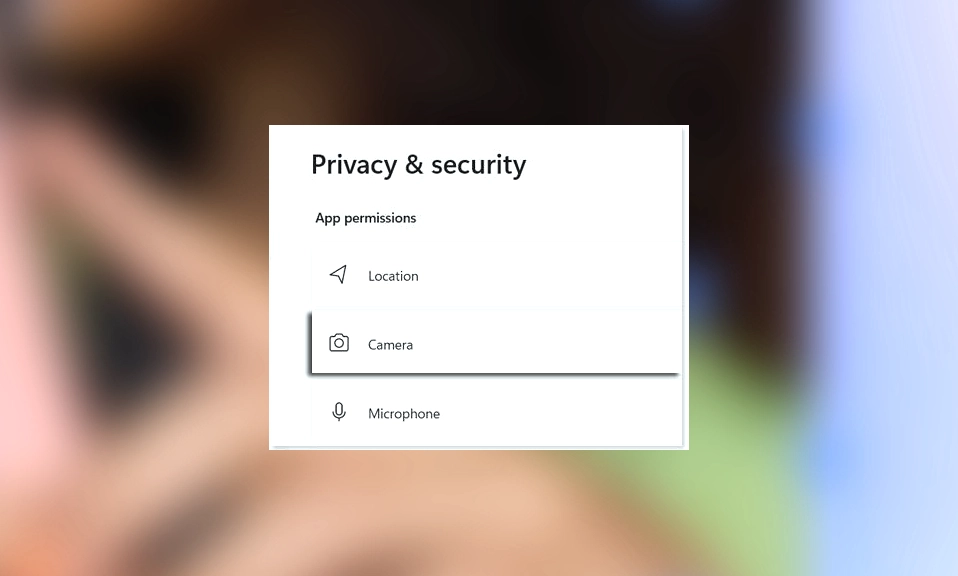
4. App Permissions for Camera and Microphone: Audit Who Has Access
This is the setting that tends to produce the most uncomfortable revelations. Apps you barely use—or do not remember installing—may have been granted access to your camera or microphone, and those permissions can persist across Windows updates.
Path: Settings > Privacy & security > App permissions > Camera (or Microphone)
What to do: Open the per-app list for Camera and Microphone. Toggle off access for any app that does not have a clear, legitimate need. Pay attention to Recent activity, which shows you which apps have actually requested camera or microphone access in the last seven days. In one audit, a feedback tool and a messaging app were found to have microphone access they did not need; in another, an Xbox app had camera access despite never being used for video.
The trade-off: You may need to re-grant permission to an app later if you discover you actually use it for calls or video. That is a small inconvenience compared to the risk of unnecessary access.
5. Windows Recall: Snapshots of Everything You Do
Recall is one of the most controversial features Microsoft has ever shipped. On Copilot+ PCs, it periodically takes snapshots of your screen as you work, browse, and use apps, storing them in a searchable local timeline. Microsoft emphasizes that Recall runs entirely on-device, is encrypted, and never sends snapshots to the cloud without your explicit action. But the idea of a continuous visual record of your activity—searchable by anyone with access to your unlocked device—is enough to make many users uncomfortable.
Path: Settings > Privacy & security > Recall & snapshots
What to do: If you do not want Recall active, turn off the Save snapshots toggle. To delete all existing data, click Delete Snapshots and then Delete All. For a more thorough reset, use Advanced settings > Reset Recall, which permanently disables the feature and deletes collected data on that device.
Note: Recall is only available on Copilot+ PCs with a sufficient NPU. Most Windows machines do not have access to it.
The trade-off: You lose the ability to search your past screen activity. If you never wanted that capability, you lose nothing.
6. Inking and Typing Personalization: A Dictionary Built on Your Habits
Windows can build a personalized dictionary from the words you type and write, improving suggestions, spelling, and handwriting recognition. It is a useful feature, but it also means your keystrokes are being analyzed and stored to build a profile of your language habits.
Path: Settings > Privacy & security > Inking & typing personalization
What to do: Turn Custom inking and typing dictionary to Off. This disables the personalized dictionary and clears its contents. Separately, in Diagnostics & feedback, turn off Improve inking and typing if it appears—this controls whether samples of your typing can be used to improve Microsoft’s recognition features, rather than your local dictionary.
The trade-off: Typing predictions and handwriting recognition will be less tailored to your habits. Standard input remains fully functional.
7. Clipboard Sync: Your Copy-Paste History in the Cloud
Windows can sync your clipboard across devices, allowing you to copy something on one PC and paste it on another. Convenient—but it means the contents of your clipboard, which may include passwords, addresses, or sensitive text, are transmitted to and stored in your Microsoft account.
Path: Settings > System > Clipboard
What to do: Turn off Clipboard history and Sync across your devices if you do not need cross-device paste. If you want local clipboard history but not cloud sync, you can keep history on and disable only the sync option.
The trade-off: You lose the ability to paste across devices. For many users, that is a small price for keeping clipboard contents local.
8. Activity History: The Record of What You’ve Done
Windows once maintained a visible Activity History that tracked which apps, files, and websites you had used, and synced that data across devices via your Microsoft account. Microsoft has removed the standalone Activity History setting from recent Windows 11 versions, but on versions that still support it—and through your Microsoft account privacy dashboard—activity data may still be stored in the cloud.
Path: Check Settings > Privacy & security for Activity history if it exists on your build. Regardless of the local setting, visit account.microsoft.com/privacy to review and clear activity data associated with your Microsoft account.
What to do: If the setting is present, turn off “Store my activity history on this device” and “Send my activity history to Microsoft.” Then click Clear to delete existing history. On the Microsoft privacy dashboard, use the Clear activity history option to remove cloud-stored data.
The trade-off: You lose Timeline continuity across devices if you use that feature. Most users do not.
The Overarching Trade-Off: Local Account vs. Microsoft Account
None of the settings above matter as much as the account you use to sign in. Windows 11 aggressively pushes users toward a Microsoft account, which ties your PC to OneDrive, Edge Sync, and cloud-based settings by default. A local account—one that exists only on the machine, without an email or cloud password—dramatically reduces the data that can be synced to Microsoft’s servers.
Path: Settings > Accounts > Your info > Sign in with a local account instead
What to consider: Switching to a local account may require disconnecting from some Microsoft services. If you rely on OneDrive, Office 365 integration, or cross-device settings sync, the trade-off is real. But for privacy-conscious users who do not need the Microsoft ecosystem, it is the single most effective change available.
You cannot make Windows 11
completely private. Required diagnostic data cannot be disabled on Home or Pro, and Microsoft’s telemetry is an integral part of how the operating system functions. But you can move from a default configuration that collects aggressively to one that collects minimally, and the eight settings above are where that work begins.
Start with optional diagnostic data and the Advertising ID—those two toggles alone meaningfully reduce your profile. Then audit camera and microphone permissions, because unnecessary access is a risk you do not need to carry. Turn off Recall if your PC supports it and you are not using it. And consider whether a local account fits your workflow.
The privacy you reclaim will not be absolute. But it will be deliberate—and that is a meaningful difference from the default.