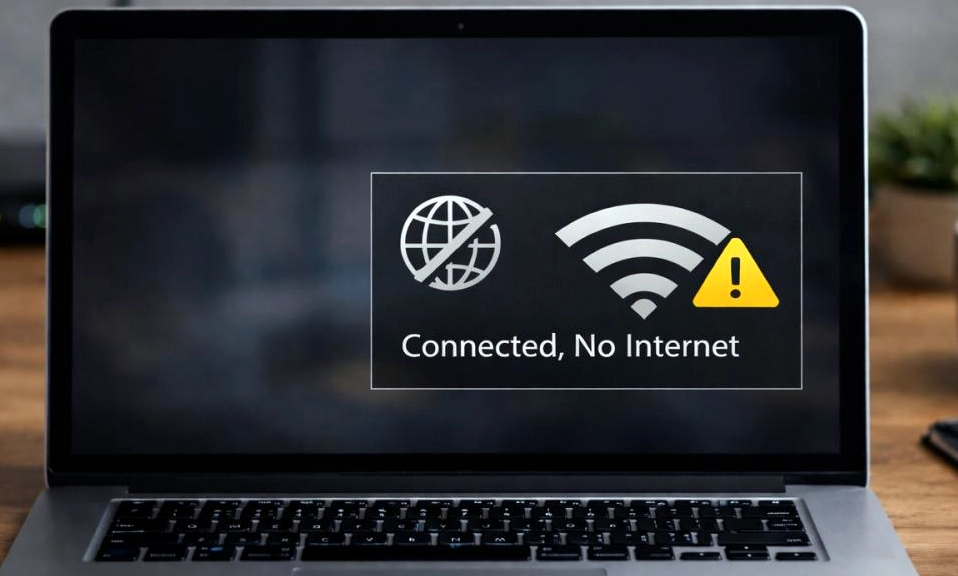
We’ve all been there. You look at the top corner of your screen and see the beautiful, familiar Wi-Fi symbol. You feel a sense of relief. But then you open a browser, and… nothing. The page just spins. Or worse, you get that dreaded message: “Connected, No Internet.”
You are in digital limbo. Your device is talking to your router, but your router isn’t talking to the outside world.
Before you call your Internet Service Provider (ISP) and sit on hold for an hour, take a deep breath. This is a very common issue, and 90% of the time, you can fix it yourself in under 10 minutes.
Here is your step-by-step troubleshooting guide, ranked from the easiest fixes to the more advanced solutions.
🔄 1. The Classic: Restart Your Modem and Router (The Right Way)
Turning it off and on again isn’t just a meme; it clears temporary cache, resets network assignments, and forces the hardware to re-establish a connection with your ISP.
- The Right Way: Unplug both your modem and your router from the wall outlet.
- Wait a full 60 seconds (this ensures all residual power drains from the capacitors).
- Plug the modem back in first. Wait for all the lights to stabilize (usually 2–3 minutes).
- Plug the router back in. Wait another 2 minutes for the Wi-Fi to broadcast.
- Check your connection.
📱 2. Isolate the Problem: Check Other Devices
Before you start tweaking settings, figure out the scope of the issue.
- Grab your smartphone or a tablet and try to load a webpage using the same Wi-Fi.
- If other devices work: The problem is isolated to your specific computer or phone. Skip to Step 4.
- If NO devices have internet: The problem is with your router, modem, or the ISP. Continue to Step 3.
🔌 3. Check the Physical Connections
It sounds ridiculously simple, but loose cables are a leading cause of “no internet” issues. A pet, a vacuum cleaner, or a clumsy foot can easily nudge a cable out of place.
- Ensure the coaxial cable (the thick, round screw-in cable) is tightly secured to the back of the modem and the wall.
- Check the Ethernet cable connecting the modem to the router. Unplug it and plug it back in until you hear a firm click.
📶 4. “Forget” the Wi-Fi Network and Reconnect
Sometimes, the saved network profile on your device gets corrupted, or the router assigns a conflicting IP address. Starting fresh can work wonders.
- Windows: Settings > Network & Internet > Wi-Fi > Manage known networks > Click your network > Forget.
- Mac: System Settings > Wi-Fi > Click the “Details” or “Advanced” button next to your network > Forget This Network.
- Phone: Settings > Wi-Fi > Tap the “i” or gear icon next to your network > Forget This Network.
- Reconnect by entering your Wi-Fi password again.
🛠️ 5. Run the Built-in Network Troubleshooter
Both Windows and macOS have built-in diagnostic tools that can automatically identify and fix common network configuration errors.
- Windows: Right-click the Wi-Fi icon in the taskbar > Diagnose network problems (or go to Settings > System > Troubleshoot > Other troubleshooters > Network and Internet).
- Mac: Hold the
Optionkey and click the Wi-Fi icon in the top menu bar > Open Wireless Diagnostics. Follow the on-screen prompts.
💻 6. Flush Your DNS and Reset Your IP (Windows)
Your computer uses a DNS (Domain Name System) cache to remember website addresses. If this cache gets corrupted, you can’t load pages. Flushing it is like clearing your browser history, but for your network.
- Type
cmdin the Windows search bar, right-click Command Prompt, and select Run as administrator. - Type the following commands, pressing Enter after each one:
ipconfig /flushdnsipconfig /releaseipconfig /renew
- Restart your computer and test the connection.
🌍 7. Check for an ISP Outage
You might be doing everything right, but your Internet Service Provider could be experiencing a local outage due to weather, construction, or server issues.
- Use your phone’s cellular data to visit Downdetector.com and search for your ISP (e.g., Comcast, AT&T, Spectrum).
- Check your ISP’s official mobile app or Twitter/X account for outage maps. If there’s an outage, all you can do is wait it out.
🔄 8. Update Your Network Drivers (PC Only)
If you are on a Windows laptop, an outdated or corrupted Wi-Fi adapter driver can cause this exact symptom.
- Right-click the Start button and select Device Manager.
- Expand the Network adapters section.
- Right-click your Wi-Fi adapter (it will usually say “Wireless,” “Wi-Fi,” “Intel,” or “Realtek”) and select Update driver.
- Choose Search automatically for drivers. If it finds one, install it and restart.
🌐 9. Change Your DNS Servers
Sometimes, your ISP’s default DNS servers go down, even if the rest of their internet is working. Switching to a free, public, and highly reliable DNS server can instantly restore your connection.
- Windows: Network Connections > Right-click Wi-Fi > Properties > Internet Protocol Version 4 (TCP/IPv4) > Properties > Select “Use the following DNS server addresses.”
- Mac: System Settings > Network > Wi-Fi > Details > DNS tab > Click the
+button. - Enter these reliable addresses:
- Google DNS:
8.8.8.8and8.8.4.4 - Cloudflare DNS:
1.1.1.1and1.0.0.1
- Google DNS:
☢️ 10. The Nuclear Option: Factory Reset the Router
If absolutely nothing else has worked, your router’s internal software might be hopelessly tangled. A factory reset will wipe it clean and restore it to the state it was in when you took it out of the box.
- ⚠️ WARNING: This will erase your custom Wi-Fi name, password, and any port-forwarding settings. You will have to set up your network from scratch.
- How to do it: Find the tiny “Reset” button on the back of the router. While the router is powered on, use a paperclip to press and hold the button for 10 to 15 seconds until all the lights flash.
- Wait for it to reboot, then use the default Wi-Fi name and password printed on the sticker on the bottom of the router to reconnect.
Don’t Panic, Just Troubleshoot
The “Connected, No Internet” error is frustrating, but it is rarely a sign of permanent hardware failure. By methodically working through these steps—starting with the simple power cycle and moving toward DNS adjustments—you can almost always get your digital life back on track.
Save this guide for the next time the internet ghosts you. Your future, frustrated self will thank you.