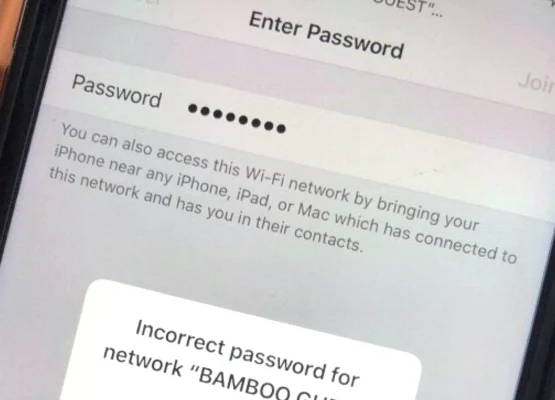
We’ve all been there. A friend, family member, or houseguest pulls out their phone and asks the inevitable question: “What’s the Wi-Fi password?”
You hesitate. You could give them your main password. But that’s the same password that unlocks your personal laptop, your smart home security cameras, your network-attached storage (NAS), and every other sensitive device in your home. Handing it over is the digital equivalent of giving a stranger the master key to your house, just so they can check their email.
Enter the Guest Wi-Fi Network.
Setting up a guest network is one of the easiest, most effective ways to improve your home’s digital security and make hosting a breeze. It takes less than five minutes, and the peace of mind it provides is invaluable.
Here is your complete, step-by-step guide to setting up a guest network, whether you use a modern smartphone app or the classic web browser method.
🛡️ Why You Actually Need a Guest Network
Before we get to the “how,” let’s talk about the “why.” A guest network isn’t just a convenience; it’s a crucial security layer.
- Network Isolation (The Big One): A properly configured guest network creates a digital wall. Devices on the guest network can access the internet, but they cannot see or communicate with devices on your main network. If a guest’s phone has malware, or if a clever visitor decides to snoop, your personal computers and smart home hubs are completely safe.
- Bandwidth Management: Many modern routers let you limit the speed of the guest network. This ensures that if a guest starts downloading a massive 100GB video game in the background, it won’t tank the bandwidth for your work video call or 4K Netflix stream.
- Ultimate Convenience: You can make the guest password short, simple, and easy to dictate over the phone. If it gets compromised or you have a party, you can change the guest password instantly without having to reconnect your own 20+ smart home devices.
📱 Method 1: The Modern Way (Using Your Router’s App)
If you have a modern router (like Eero, TP-Link Deco, Google Nest Wifi, or a recent Netgear/Asus model), this process is incredibly simple.
- Open the App: Launch your router’s official mobile app and ensure you are logged in.
- Find Guest Settings: Look for a tab labeled Guest Network, Wi-Fi Settings, or a gear icon for Network Settings.
- Toggle It On: Switch the “Enable Guest Network” toggle to On.
- Name and Secure It:
- Give it a clear name (e.g.,
SmithHouse_Guest). - Create a simple but secure password (e.g.,
Welcome2024!).
- Give it a clear name (e.g.,
- Check Isolation: Ensure the setting for “Allow guests to access my local network” (or similar wording) is turned OFF.
- Save: Hit save or apply. Your new network is now live!
💻 Method 2: The Classic Way (Using a Web Browser)
If you have an older router or an ISP-provided gateway, you’ll need to use a web browser.
- Find Your Router’s IP Address: Look at the sticker on the bottom of your router. It will list an IP address (usually
192.168.1.1or192.168.0.1) and a web address (likerouterlogin.net). - Log In: Open a web browser on a device connected to your Wi-Fi, type the IP address into the address bar, and press Enter. Log in using the admin username and password (also on the sticker, unless you changed it).
- Locate Guest Settings: Look through the menu on the left or top of the screen for Guest Network, Wireless, or Advanced Settings.
- Enable and Configure:
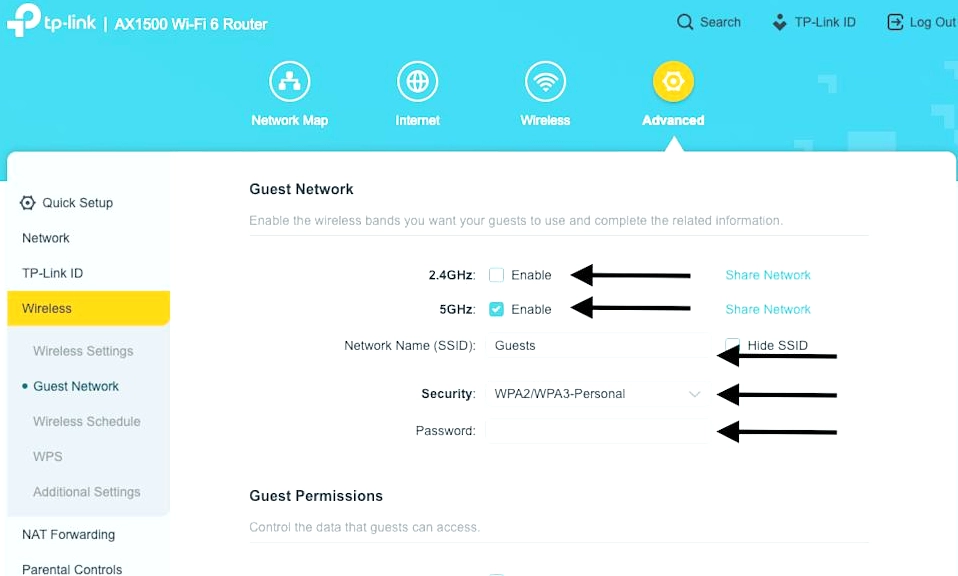
- Check the box to Enable Guest Network.
- Set the Network Name (SSID).
- Set the Password.
- Set the Security Type to WPA2-PSK or WPA3 (never leave it “Open” or “None”).
- Enable Client Isolation: Look for a checkbox that says “AP Isolation,” “Guest Network Isolation,” or “Prevent guests from accessing my local network.” Check this box. This is the magic switch that keeps them separated from your main devices.
- Save/Apply: Click Save. The router may take 30 seconds to reboot and apply the changes.
💡 3 Pro Tips for a Perfect Guest Network
- Make the Password “Dictatable”: Your main password should be a complex, 16-character random string. Your guest password, however, should be easy to say out loud. Try a passphrase like
CoffeeAndWifi!orGuestAccess24. It’s secure enough for temporary use but won’t require you to spell out “capital O, not zero” three times. - The “IoT” Hack: Don’t just save the guest network for humans! Use it for your “dumb” or budget smart home devices (cheap smart bulbs, Wi-Fi plugs, robotic vacuums). These devices are notorious for having weak security and are a common backdoor for hackers. Putting them on the isolated guest network protects your main computers and phones.
- Set an Expiration (If Available): Some advanced routers (like Asus or Netgear) allow you to set a time limit on the guest network. You can set it to automatically turn off after 8 hours or 7 days, which is perfect for short-term visitors or Airbnb hosts.
Five Minutes for Total Peace of Mind
Setting up a guest Wi-Fi network is one of the highest-return, lowest-effort tech tasks you can do. It protects your personal data, keeps your main network running smoothly, and saves you the awkwardness of guarding your master password.
Take five minutes today to log into your router and turn it on. The next time a guest asks for the Wi-Fi, you can hand it over with a smile, knowing your digital house is still securely locked.