Windows 11’s AutoPlay pop-up has looked the same since the Windows 8 era—a small, dated flyout that appeared in the corner of your screen and offered little control over what happened next. That changed with the November 2026 update, which finally modernizes the dialog and, more importantly, gives you the power to decide whether Windows should remember your choice for a USB drive or ask you again next time.
The update, delivered via KB5132061, is rolling out gradually to Windows 11 versions 25H2 and 26H2, so you may not see it immediately after installing. But when it arrives, it turns AutoPlay from a minor annoyance into a tool you can actually shape around your workflow.
What Actually Changed
The redesign is the first phase of a broader Windows 11 interface overhaul, and AutoPlay was chosen as the starting point because it is a dialog millions of users encounter almost every day.
The visual update is substantial. The old flyout has been replaced by a full dialog centered on the screen, rebuilt with WinUI and styled to match the rest of Windows 11. It supports dark mode, uses rounded corners and larger icons, and responds better to text scaling and display settings.
The functional update is the real story. The new dialog adds two options that the old one never had: “Always” and “Just once” . When you connect a USB drive, you can choose an action—open it in File Explorer, for example—and decide whether Windows should remember that choice permanently or apply it only to the current connection.
Notifications no longer disappear. If you miss the dialog, it now stays in the notification center, so you can revisit your choice later instead of dismissing it by accident.
How to Control What Happens When You Connect a USB Drive
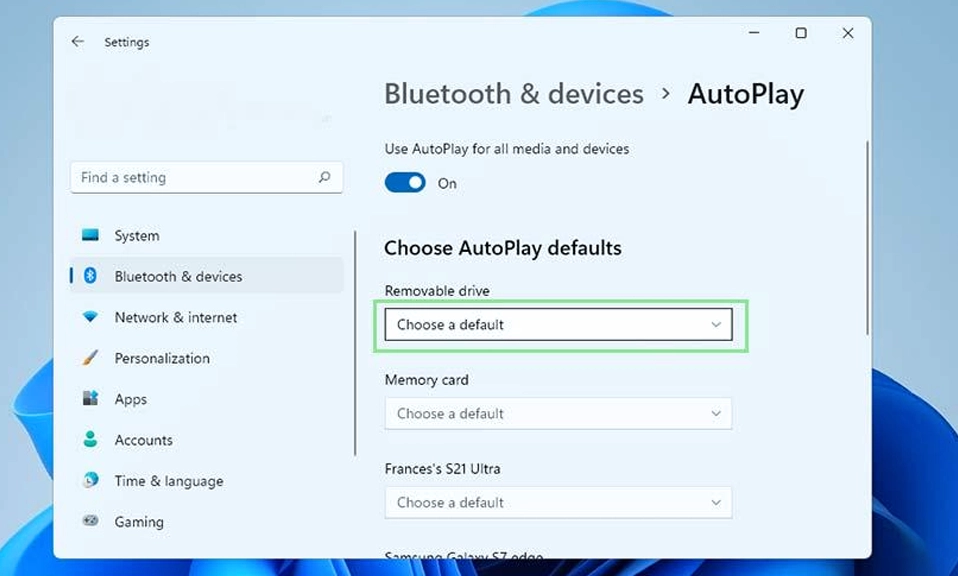
The modernized dialog is the most visible change, but the underlying controls live in Settings > Bluetooth & devices > AutoPlay—and that is where you can fine-tune the behavior for every type of device you connect.
Choose a Default Action for Removable Drives
Open the AutoPlay settings page and look for the Removable drive dropdown. Your options typically include:
Open folder to view files (File Explorer) — the most common choice for USB drives.
Import photos and videos — useful for camera SD cards, less so for general storage.
Ask me every time — restores the prompt on every connection.
Take no action — Windows detects the drive but does nothing automatically.
Select the option that matches your routine, close Settings, and reconnect the drive to test it.
Set Separate Rules for Memory Cards
The Memory card dropdown works the same way. If you regularly import photos from an SD card, setting the default to Import photos and videos saves a click every time. If you prefer manual control, choose Ask me every time or Take no action.
Turn AutoPlay Off Entirely
If you do not want Windows to react to connected devices at all, toggle Use AutoPlay for all media and devices to Off. This disables the automatic response across the board, but it does not stop the drive from working—you can still open it manually through File Explorer.
The Registry and Group Policy Routes (Advanced)
For users who want a system-wide, enforceable setting—or who manage multiple PCs—AutoPlay can be disabled through the Local Group Policy Editor (gpedit.msc) under Computer Configuration > Administrative Templates > Windows Components > AutoPlay Policies, or through the registry value NoDriveTypeAutoRun set to 255 to disable it for all drive types. These methods are more permanent than the Settings toggle, but they are also harder to reverse if you change your mind.
Is AutoPlay a Security Risk?
This is the question that matters most, and the answer is more reassuring than the headlines suggest.
AutoPlay is not the same as AutoRun. AutoRun—the old feature that could execute a program automatically when a USB drive was inserted—was a genuine malware vector, and Microsoft disabled it for USB drives by default in Windows 10 and 11. AutoPlay, by contrast, does not execute anything without user interaction. It presents options and waits for you to choose one.
That does not make AutoPlay risk-free. If you select an action that opens a malicious file, or if you click through a prompt without thinking, you can still compromise your system. The security guidance is straightforward: treat every USB drive as untrusted until you have verified its contents, and consider setting AutoPlay to “Take no action” for drives you do not recognize. For high-security environments, disabling AutoPlay entirely through Group Policy is the recommended hardening step.
Troubleshooting: When the Pop-Up Does Not Appear
If you have updated Windows 11 and the new AutoPlay dialog is not showing up, a few common causes are worth checking.
The feature is rolling out gradually. Microsoft is pushing the modernized AutoPlay in phases, so installing KB5132061 does not guarantee you will see it immediately. Check Windows Update again and enable “Get the latest updates as soon as they’re available” if you want it sooner.
AutoPlay is turned off. Go to Settings > Bluetooth & devices > AutoPlay and confirm that Use AutoPlay for all media and devices is On. If it is off, no dialog will appear.
The removable drive default is set to “Take no action.” If you previously chose this setting, Windows will detect the drive silently. Change the Removable drive dropdown to Ask me every time to restore the prompt.
Group Policy or security software is overriding the setting. In managed environments, or on PCs with certain security suites, AutoPlay may be disabled at the policy level. Check gpedit.msc under AutoPlay Policies, and review your security software’s settings.
The drive itself is the problem. If the USB drive does not appear in File Explorer either, the issue is not AutoPlay—it is a connection or driver problem. Test the drive on another port or another PC before assuming the setting is at fault.
A Small Change With Real Control
The November 2026 AutoPlay update is not a headline-grabbing feature. It is a quiet, practical improvement to a dialog that most of us have been clicking through on autopilot for years. The new “Always” and “Just once” options finally let you tell Windows what you want it to do—and have it remember. The dark mode support, centered layout, and notification center integration make the experience feel like it belongs in Windows 11 rather than Windows 8.
The real power, though, is in the settings page. Whether you want your USB drive to open in File Explorer automatically, prompt you every time, or do nothing at all, you can configure it in seconds. And if you take security seriously, you can disable AutoPlay entirely and treat every connected device as something to be inspected deliberately rather than acted on automatically.
Plug in a drive. Open the settings. Make it behave the way you want. It is a small change, but it is yours to make.