You pay for high-speed internet, but your streams are buffering, your video calls are dropping, and your smart home devices keep going offline.
Your first thought might be, “Is my internet provider throttling me?” But before you call customer service, there’s a much more likely culprit: You might have digital squatters. Or, at the very least, a dozen forgotten smart gadgets quietly hoarding your bandwidth.
Knowing exactly what is connected to your home network is the absolute foundation of digital security and network performance. If you don’t know who (or what) is on your Wi-Fi, you can’t protect it.
The good news? You don’t need to be a hacker to find out. Here is your complete, step-by-step guide to uncovering every single device connected to your Wi-Fi network.
📱 Method 1: The Modern Way (Use Your Router’s App)
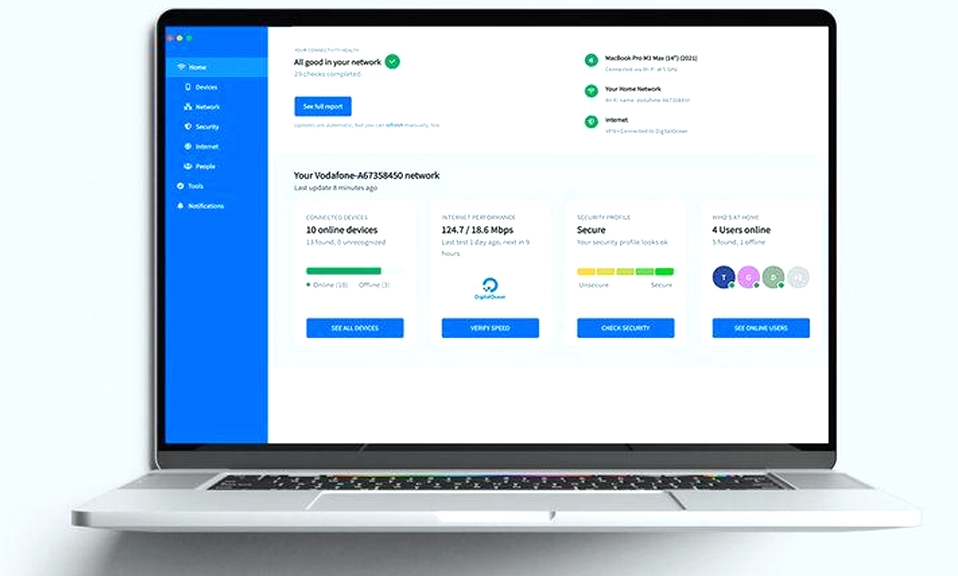
If you’ve bought a router in the last five years (like Eero, TP-Link Deco, Google Nest Wifi, or a modern Netgear/Asus model), the manufacturer has already done the hard work for you via a smartphone app.
- Open the App: Launch your router’s official companion app and log in.
- Find the Device List: Look for a tab labeled Devices, Network Map, Clients, or Connected Devices.
- Review the List: The app will display every device currently or recently connected. Many modern apps even label them clearly (e.g., “John’s iPhone,” “Living Room TV,” “Unknown Device”).
- Take Action: Most apps let you tap on a device to pause its internet, assign it to a “Kids” profile, or kick it off the network with a single tap.
💻 Method 2: The Classic Way (Router Web Interface)
If you have an older router or an ISP-provided gateway (like those from Xfinity, AT&T, or Spectrum), you’ll need to log into the router’s brain via a web browser.
- Find Your Router’s IP Address: Look at the sticker on the bottom or back of your router. It will list an IP address, usually 192.168.1.1 or 192.168.0.1. (If it’s not there, see the “Pro Tip” below).
- Log In: Open a web browser on a device connected to your Wi-Fi. Type the IP address into the URL bar and press Enter. Enter the admin username and password (also on the sticker, unless you changed it).
- Locate the Client List: Every router’s interface looks different, but you are looking for a menu option named:
- Attached Devices
- DHCP Client List
- Network Map
- Wireless Statistics
- Review the Data: You will see a list of device names (sometimes cryptic, like “Android-8f7a9b”) alongside their IP and MAC addresses.
💡 Pro Tip: Can’t find the IP address? On a Windows PC, open Command Prompt and typeipconfig. Look for the “Default Gateway.” On a Mac, go to System Settings > Network > Wi-Fi > Details, and look for “Router.” That number is your router’s IP.
📲 Method 3: The Quick Scan (Third-Party Network Apps)
If you can’t access your router’s settings, you can use a network scanning app on your phone or computer to see what’s sharing your local network.
- Fing (iOS/Android): The gold standard for mobile network scanning. It quickly lists every device on your Wi-Fi, often identifying the manufacturer (e.g., “Apple, Inc.” or “Samsung Electronics”).
- WiFiman (by Ubiquiti): A fantastic, ad-free alternative that not only lists devices but also tests your Wi-Fi speed and signal strength in different rooms.
Note: These apps can only see devices that are currently active and responding to network pings. They won’t show sleeping smart devices or devices hidden by advanced router privacy settings.
🕵️♂️ Phase 2: The Detective Work (Identifying “Unknown” Devices)
You’re looking at the list, and you see “Device-XY123” or “Espressif Inc.” Panic sets in. Is it a hacker?
Probably not. Before you sound the alarm, do some detective work:
- The Physical Count: Walk through your house. Count every phone, laptop, tablet, smart TV, gaming console, smart speaker, Wi-Fi plug, robot vacuum, and smart thermostat. Does the number on the router match the number in your house? (Don’t forget guests’ phones or old devices in drawers!).
- The MAC Address Lookup: Every network device has a unique 12-character fingerprint called a MAC Address (e.g.,
A1:B2:C3:D4:E5:F6). Copy the MAC address of the mystery device and paste it into a free online MAC Address Vendor Lookup tool.- If it says “Amazon Technologies Inc,” it’s probably an Echo Dot or Fire Stick.
- If it says “Roku,” you’ve found your streaming stick.
- If it says “Hon Hai Precision,” that’s a common manufacturer for smart home gadgets and gaming consoles.
🚨 Phase 3: The Eviction Plan (What to Do If You Find a Squatter)
If you’ve done the detective work and you are certain a device does not belong to you or anyone in your household, it’s time to kick them off and lock the door.
- Change Your Wi-Fi Password Immediately: This is the nuclear option, but it’s the most effective. Go to your router settings, create a strong, new password (12+ characters, mixed case, numbers, symbols), and save. Every device will be disconnected. You will have to reconnect your own devices, but the squatter is permanently locked out.
- Disable WPS: As mentioned in previous guides, Wi-Fi Protected Setup (WPS) is a major security vulnerability. Turn it off in your router settings to prevent brute-force attacks.
- Enable MAC Filtering (Optional but Secure): For ultimate peace of mind, turn on MAC Address Filtering and set it to “Allow” mode. Add the MAC addresses of your personal devices to the list. Now, even if someone has your password, the router will physically reject their connection attempt.
- Set Up a Guest Network: For future visitors, give them the Guest Wi-Fi password, not your main one. It keeps them off your primary network entirely.
Knowledge is Power
Checking your connected devices shouldn’t be a once-in-a-blue-moon panic exercise. Make it a habit. Take five minutes once a month to open your router app and scan the device list.
It takes almost no time, but it guarantees that your bandwidth is being used by your devices, and your digital front door is securely locked against uninvited guests.