We’ve all been there. Your internet is acting up, you call tech support, and you spend 20 minutes listening to the agent say, “Okay, I’m just going to run a few commands on my end…” followed by the sound of furious typing.
What if you could skip the hold music and troubleshoot your own network like a pro?
When most people see the Command Prompt (Windows) or Terminal (Mac), they see a scary, hacker-style black box with glowing text. But in reality, it’s just a direct line of communication with your computer’s operating system. You won’t break your computer by typing in these commands, and learning them will save you hours of frustration.
Here are the 10 essential networking commands every beginner should know, what they actually do, and how to use them to become the IT hero of your household.
(Note: I will provide the Windows command first, followed by the Mac/Linux equivalent in parentheses where they differ).
🏓 1. ping (The Ultimate Connectivity Check)
What it does: Sends a tiny digital “hello” to a specific website or IP address and waits for a reply. It measures how long it takes for the message to make the round trip. The Analogy: It’s like shouting into a canyon and timing how long it takes for the echo to come back. How to use it: Open Command Prompt/Terminal and type:
ping google.com Why it’s useful: If you get a reply with a low time (e.g., time=15ms), your internet is working perfectly. If it says “Request timed out” or “Destination host unreachable,” you know exactly where the connection is failing.🆔 2. ipconfig / ifconfig (What’s My IP?)
What it does: Displays your computer’s current IP address, Subnet Mask, and Default Gateway (your router’s IP address). (Mac/Linux users: use
ifconfig or ip a). The Analogy: Asking your computer, “What is my name, and what is the address of the building I live in?” How to use it: Type: ipconfig (Windows) or ifconfig (Mac/Linux) Why it’s useful: If you need to set up port forwarding, configure a static IP, or log into your router’s admin panel, you need to know your Default Gateway. This command gives it to you in seconds.🧹 3. ipconfig /flushdns (The Magic Internet Fix)
What it does: Clears out your computer’s local DNS cache. Your computer remembers the IP addresses of websites you visit so it can load them faster. Sometimes, this cache gets corrupted or outdated, causing websites to fail to load. The Analogy: Clearing the browser history and cookies, but for your computer’s core network brain. How to use it: (Windows only) Type:
ipconfig /flushdns Why it’s useful: This is the #1 fix for when you can load some websites but others are giving you a “Server Not Found” error. It takes two seconds and works like magic.🔄 4. ipconfig /release & ipconfig /renew (Get a Fresh IP)
What it does: Forces your computer to drop its current local IP address and ask the router for a brand new one. The Analogy: Hanging up the phone and calling back to get a fresh, un-busy line. How to use it: (Windows only) Type them one after the other:
ipconfig /release ipconfig /renew Why it’s useful: If your computer is stuck in a weird network loop, or if your router is refusing to assign you an IP address (giving you an “APIPA” address starting with 169.254.x.x), this forces the router to hand out a fresh, working IP.🗺️ 5. tracert / traceroute (Follow the Data Trail)
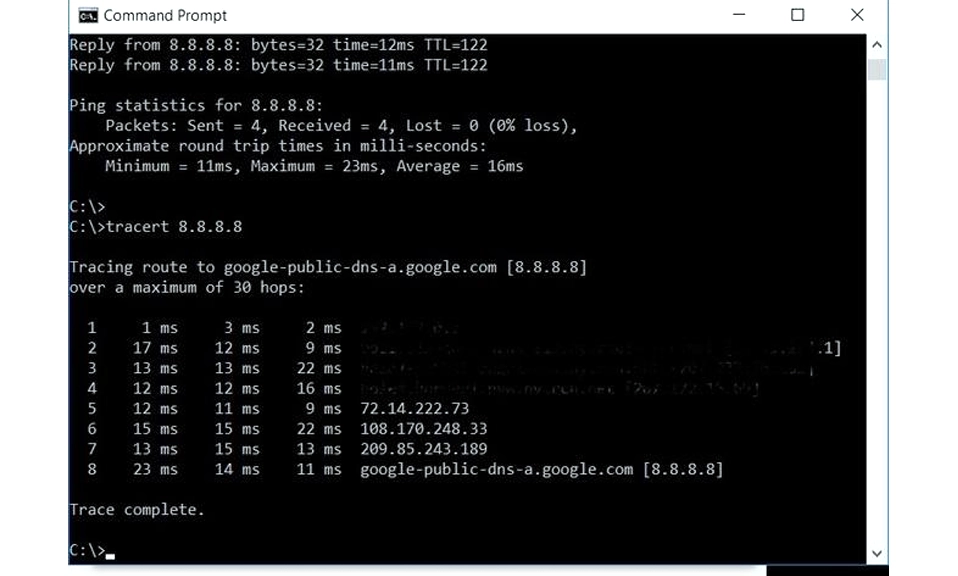
What it does: Shows you the exact path (the “hops”) your data takes to reach a destination, and how long it takes at each stop. (Mac/Linux:
traceroute). The Analogy: Instead of just checking if a package arrived at its destination, this command tracks the package at every sorting facility along the way. How to use it: Type: tracert google.com Why it’s useful: If your internet is incredibly slow, tracert will show you exactly where the bottleneck is. If the delay happens at Hop 2, the problem is your router. If it happens at Hop 15, the problem is your ISP’s backbone.📖 6. nslookup (Is it a DNS Issue?)
What it does: Queries the DNS system directly to see if a domain name (like
netflix.com) can be successfully translated into an IP address. The Analogy: Looking up a phone number in the directory to make sure the listing actually exists. How to use it: Type: nslookup netflix.com Why it’s useful: If you can ping an IP address (like 8.8.8.8) but you can’t load google.com in your browser, you have a DNS issue. nslookup will confirm if the DNS server is failing to translate the name.🕵️ 7. arp -a (Who Else is on My Network?)
What it does: Displays the ARP (Address Resolution Protocol) table. This shows the mapping of every IP address on your local network to its physical MAC address (the device’s unique hardware ID). The Analogy: Checking the guest list at a party to see exactly who is in the house and what their name tags say. How to use it: Type:
arp -a Why it’s useful: It gives you a quick, raw list of every device currently communicating with your router. If you see a dozen IP addresses listed but only own three devices, you might have a Wi-Fi squatter!📊 8. netstat (Who is My Computer Talking To?)
What it does: Displays all active network connections, the ports being used, and the amount of data being sent and received. The Analogy: Looking at your phone’s recent calls list to see who you are currently on the phone with, and how long the call has been. How to use it: Type:
netstat (Add -ano to see the specific program using the connection). Why it’s useful: If your internet is crawling and you don’t know why, netstat will show you if a background app (like a cloud backup or a Windows update) is secretly hogging all your bandwidth.🔑 9. netsh wlan show profiles (The “I Forgot My Wi-Fi Password” Lifesaver)
What it does: Lists all the Wi-Fi networks your Windows computer has ever connected to and saved. The Analogy: Finding the old diary where you wrote down all your passwords. How to use it: First, type:
netsh wlan show profiles to see the list of saved networks. Then, to reveal the password for a specific network, type: netsh wlan show profile name="YOUR_WIFI_NAME" key=clear Why it’s useful: We’ve all been there: a friend visits, asks for the Wi-Fi password, and you realize you have no idea what it is. This command pulls the saved password right out of Windows. (Note: This is a Windows-only command).🎯 10. netstat -ano (Find the Network Hog)
What it does: This is a specific flag for
netstat that lists active connections and the Process ID (PID) of the exact program using them. The Analogy: Using a radar gun to catch the exact car speeding on the highway. How to use it: Type: netstat -ano Look for the list of numbers on the far right (the PID). Open your Task Manager (Ctrl+Shift+Esc), go to the “Details” tab, and match the PID number to the program. Why it’s useful: This is the ultimate way to catch a rogue application. If your network is lagging during a game, use this command to find the PID, match it in Task Manager, and instantly kill the background app stealing your bandwidth.You Are the IT Support Now
The Command Prompt doesn’t have to be intimidating. It’s simply a tool that gives you direct access to the inner workings of your computer’s network.
By mastering just these 10 commands, you can diagnose dropped connections, find forgotten passwords, track down bandwidth hogs, and figure out exactly where an internet outage is happening—all without waiting on hold with your ISP.
The next time your network acts up, don’t panic. Open the black box, type a few words, and take control.