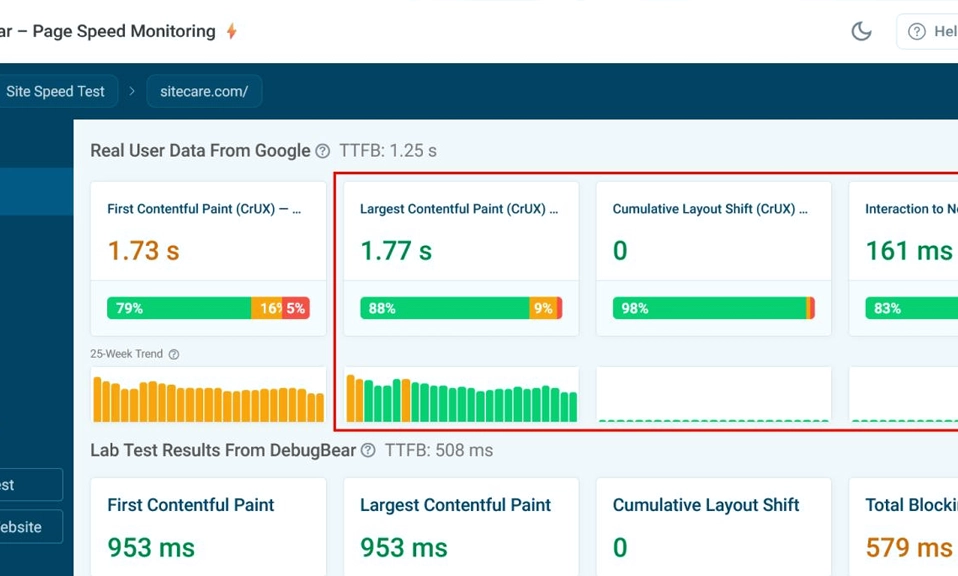
You’ve built a beautiful WordPress website. The design is stunning, the content is brilliant, and the products are ready to sell. But there’s a massive problem: it takes 8 seconds to load.
In the digital world, speed isn’t just a luxury; it’s a survival trait. Google’s Core Web Vitals algorithm actively penalizes slow sites in search rankings. More importantly, human beings are impatient. If your site takes longer than 3 seconds to load, over 50% of your visitors will hit the “back” button and go to your competitor.
A slow website is a leaking bucket. You can pour all the traffic and ad spend you want into it, but it won’t convert.
The good news? You don’t need to be a server administrator to fix this. Here are 15 proven, highly effective tricks to make your WordPress website load at lightning speed, ranked from foundational fixes to advanced backend tweaks.
🏗️ Phase 1: The Foundation (Where It All Starts)
1. Upgrade Your Web Hosting
- The Problem: You cannot out-optimize a bad server. If you are on a $3/month shared hosting plan, your site is sharing resources with hundreds of other websites. When one of them gets a traffic spike, your site slows to a crawl.
- The Fix: Upgrade to a managed WordPress host (like Kinsta, WP Engine, or Rocket.net) or a high-performance cloud host (like Cloudways). It costs more, but it is the single biggest speed upgrade you can make.
2. Ditch the Bloated Theme for a Lightweight One
- The Problem: Themes from the early 2010s (or even some popular ones today) come packed with hundreds of features, sliders, and animations you’ll never use. This adds massive amounts of unnecessary code.
- The Fix: Switch to a lightweight, performance-focused theme like Astra, GeneratePress, or Kadence. They are coded to be blazing fast and rely on page builders for design, keeping the core theme file size under 50KB.
🚀 Phase 2: Caching & Delivery (The Heavy Lifters)
3. Install a Premium Caching Plugin
- The Problem: By default, WordPress builds every page from scratch using PHP and database queries every time a user visits. That takes time.
- The Fix: Install a caching plugin like WP Rocket (premium) or LiteSpeed Cache / W3 Total Cache (free). Caching takes a “snapshot” of your fully built page and serves it as a static HTML file to future visitors, bypassing the heavy database work entirely.
4. Turn on a Content Delivery Network (CDN)
- The Problem: If your server is in New York, a visitor in Tokyo has to wait for data to travel across the world.
- The Fix: Use a CDN like Cloudflare (they have a great free tier). A CDN stores copies of your site’s static files (images, CSS) on servers all over the globe. When a user visits, the site loads from the server physically closest to them.
5. Implement Object Caching (For Dynamic Sites)
- The Problem: If you run WooCommerce or a membership site, page caching won’t work well because every user sees a different cart or dashboard.
- The Fix: Enable Object Caching (like Redis or Memcached) via your hosting control panel. This caches database queries in the server’s RAM, making dynamic, logged-in pages load exponentially faster.
🖼️ Phase 3: Media & Asset Optimization (Shrinking the Load)
6. Compress Images and Use Next-Gen Formats
- The Problem: Uploading a 5MB image straight from your camera is the #1 cause of slow WordPress sites.
- The Fix: Never upload unoptimized images. Use a plugin like ShortPixel, Smush, or Imagify to automatically compress images upon upload. More importantly, configure the plugin to convert them to WebP or AVIF formats, which are up to 50% smaller than standard JPEGs without losing quality.
7. Enable Lazy Loading
- The Problem: When a user lands on your homepage, the browser tries to download all 50 images on the page at once, even the ones at the very bottom.
- The Fix: Enable “Lazy Loading.” This tells the browser to only load the images that are currently visible on the screen. As the user scrolls down, the other images load just in time. (WordPress does this natively now, but ensure your caching plugin isn’t overriding it).
8. Minify CSS, JavaScript, and HTML
- The Problem: Code files contain spaces, line breaks, and comments that make them easy for humans to read, but unnecessarily increase file size.
- The Fix: Use your caching plugin (like WP Rocket or Autoptimize) to “minify” your files. This strips out all the unnecessary whitespace, shrinking the file sizes and speeding up download times.
9. Defer and Delay Render-Blocking JavaScript
- The Problem: When a browser reads your site’s code, it stops building the visual page whenever it hits a JavaScript file to download and execute it. This blocks the user from seeing the site.
- The Fix: In your optimization plugin, set JavaScript to “Defer” or “Delay.” This tells the browser to load the visual HTML and CSS first, and load the JavaScript in the background after the page is already visible to the user.
🧹 Phase 4: Plugin & Database Cleanup (Decluttering)
10. Audit and Delete Unused Plugins
- The Problem: Every active plugin adds code to your site’s header or footer, increasing load times. Deactivated plugins still sit on your server, posing a security risk.
- The Fix: Go to your Plugins menu. Deactivate and delete anything you aren’t actively using. If you have a plugin for a feature you only used once in 2023, delete it.
11. Replace Heavy Plugins with Lightweight Alternatives
- The Problem: Some plugins are notorious resource hogs. For example, heavy page builders, unoptimized slider plugins, or all-in-one SEO suites can add seconds to your load time.
- The Fix: Audit your plugin list. If a plugin is slowing you down, find a lighter alternative. (e.g., Swap a heavy slider for a simple CSS carousel, or replace a bloated form plugin with FluentForms).
12. Clean Up the WordPress Database
- The Problem: Over time, your database fills up with “junk” data: post revisions, spam comments, trashed posts, and expired transient options. A bloated database means slower queries.
- The Fix: Use a plugin like WP-Optimize or the database cleaning tool inside WP Rocket to safely clear out post revisions, spam, and transients. (Always backup your database before doing this!)
⚙️ Phase 5: Server & Backend Tweaks (Under the Hood)
13. Upgrade to the Latest PHP Version
- The Problem: WordPress runs on PHP. Older versions of PHP (like 7.4) are significantly slower and less secure than modern versions.
- The Fix: Log into your hosting control panel (cPanel, Site Tools, etc.) and check your PHP version. Upgrade it to PHP 8.2 or 8.3. It requires zero code changes on your end but can instantly boost your site speed by 10% to 20%.
14. Increase the PHP Memory Limit
- The Problem: By default, WordPress might only allocate 40MB or 64MB of RAM to PHP. If you have a complex site, it hits this ceiling and slows down or crashes.
- The Fix: Increase the memory limit to at least 256MB (or 512MB for WooCommerce). You can usually do this in your hosting control panel, or by adding
define( 'WP_MEMORY_LIMIT', '256M' );to yourwp-config.phpfile.
15. Control the WordPress Heartbeat API
- The Problem: The “Heartbeat API” allows WordPress to communicate with the server while you are working in the dashboard (saving drafts, showing post locks). It pings the server every 15 seconds. On the front end, this can cause high CPU usage.
- The Fix: Use a plugin like Heartbeat Control to restrict the Heartbeat API. You can disable it entirely on the front end and reduce its frequency in the dashboard to every 60 seconds, freeing up server resources.
Speed is a Continuous Journey
You don’t need to implement all 15 of these tricks in a single afternoon. Start with the foundation (Hosting and Theme), install a good caching plugin, and compress your images. Those three steps alone will solve 80% of your speed issues.
After you’ve made your tweaks, don’t just guess if it’s faster. Test it. Run your URL through Google PageSpeed Insights or GTmetrix. Look at your Core Web Vitals, see what the tools tell you is still slowing you down, and tackle the next trick on the list.
A fast WordPress site isn’t an accident; it’s the result of intentional optimization. Take control of your site’s performance today, and watch your traffic, SEO, and conversions soar.