Your keyboard is no longer just a keyboard. In 2026, it’s a writing assistant, a ghostwriter, and—if you want it to be—a tone-deaf robot that can turn “sounds good” into a three-paragraph email in seconds. The feature you’re looking for is already on your phone. You just have to know where to tap.
Whether you’re on a Pixel, a Galaxy, or something else entirely, there’s now a native or near-native way to generate, rewrite, and polish messages without ever leaving the text field. Here’s how it works, what it can actually do, and where it still falls short.
Gboard’s Writing Tools: The Gemini-Powered Assistant
If you’re on a supported device, Gboard is the most direct route to AI-written messages. The feature is called Writing Tools, and it’s powered by Gemini.
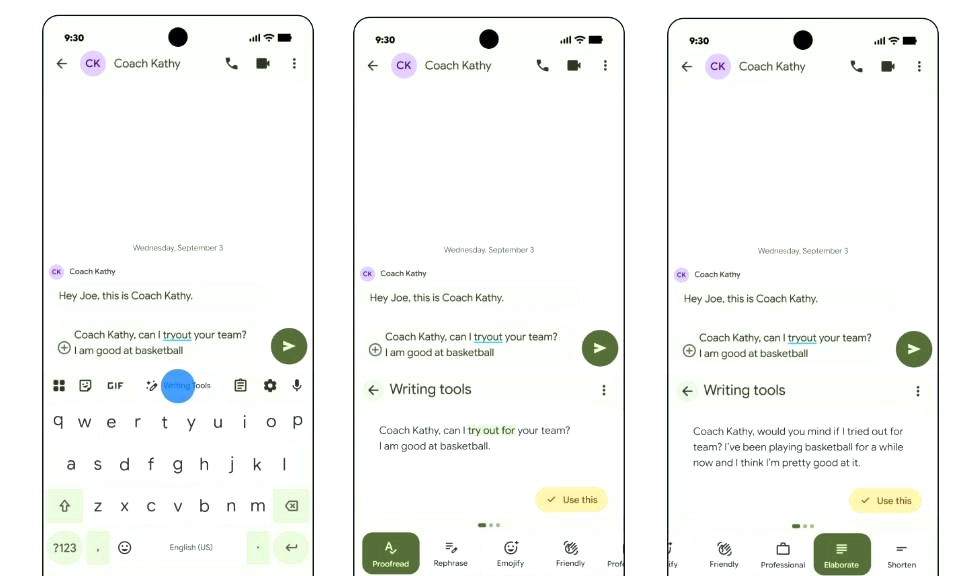
How to access it: Open any messaging app, tap into the text field so Gboard appears, and look for the Writing Tools icon—a small wand with sparkles—in the suggestion strip at the top of the keyboard. Tap it, and a carousel of options appears.
What it can do:
Proofread — checks and corrects grammar and spelling.
Rephrase — offers alternative phrasing for clarity.
Professional — adjusts the tone for formal communication.
Friendly — makes the tone more casual and approachable.
Emojify — adds emojis to the message.
Elaborate — expands the text with more detail.
Shorten — condenses the text.
Describe your edit — a manual prompt field where you can type your own instruction, like “make this sound more apologetic” or “turn this into a bulleted list”.
On the Pixel 11 series, Google has added a “Suggested” tab that goes further. It analyses your current conversation, your typing history, and a snapshot of your screen context to draft replies tailored to your personal style. If you type “7 PM Spanish restaurant?” it might suggest a full reply: “That sounds like a great plan! How about dinner on Thursday at 7 PM at the Spanish restaurant?”. There’s also a Smart Reply feature that offers quick response options based on what’s on your screen.
The catch: Writing Tools require Gemini Nano v2 or higher on your device, and the personalized suggestions are exclusive to the Pixel 11 series (and unavailable in the European Economic Area). If you’re on an older Pixel or a non-Google phone, you may still get the basic Writing Tools—but not the personalized drafting.
Samsung Keyboard’s Writing Assist: Galaxy AI on the Keyboard
Samsung has its own AI writing suite, and it’s arguably more integrated into the messaging experience than Google’s.
How to access it: Open a messaging app, type something (or leave the field blank), and tap the Writing Assist icon in the keyboard toolbar. The exact location varies by One UI version, but it’s typically in the toolbar above the keys.
What it can do:
Composer — generates a message from scratch. You provide a short prompt or a few keywords, and Galaxy AI drafts the text for you.
Suggested replies — when a message notification appears, Writing Assist can generate contextual responses automatically.
Style and grammar — adjusts the tone (formal, casual, social-ready) and polishes spelling and grammar.
Chat translation — translates messages in real time within the chat app.
The catch: Writing Assist is part of the Galaxy AI suite, and it’s available on One UI 8.5 and later—which means the Galaxy S26 series and newer flagships, plus select older devices that have received the update. If you’re on an older Galaxy, check Settings > Galaxy AI > Writing Assist to see if the feature is available.
The Third-Party Route: When Native AI Isn’t Enough
If your phone doesn’t have Gboard’s Writing Tools or Samsung’s Writing Assist—or if you want access to models beyond Gemini—third-party AI keyboards fill the gap. They work by replacing your default keyboard with one that routes your text through an AI model.
AI Keyboard (Gemini, GPT) is the most aggressive option. It gives you access to GPT-5.2, Claude Opus 4.5, Gemini 3 Pro, Grok 4.1, and DeepSeek R1 directly from the keyboard. It offers tone transformation (30+ tones), grammar correction in 45+ languages, email writing, content summarization, and even a blog generator. It works in 1000+ apps, including Gmail, WhatsApp, Slack, Instagram, and LinkedIn. The free version is limited; the premium tier unlocks unlimited AI requests and all models.
CharacterKey takes a different approach. Instead of a generic writing assistant, it lets you write in a specific character’s voice—Shakespeare, a pirate, “Corporate Speak,” or a custom persona you define yourself. It has 50+ pre-made characters and supports custom prompts. It works in any app with a text field and includes rewrite, reply, and grammar-fix functions.
FlirteR is a specialized tool for dating and chat apps. It reads the message you’re replying to and suggests three smart replies directly above your keys. You tap one, and it’s typed for you—no copying, no app-switching.
CherryPad and Deskdrop are open-source options. CherryPad runs an AI model on-device, meaning your text never leaves your phone. Deskdrop supports local AI via Ollama and Whisper, as well as cloud models like Gemini, Groq, and OpenAI, and includes 17 built-in tools like SMS sending and calendar access.
The catch: Third-party keyboards require you to grant full keyboard permissions, which means they can theoretically read everything you type. Privacy policies vary widely, and not all apps are transparent about what they do with your data. If privacy is a concern, on-device options like CherryPad are the safer bet.
How to Write an AI Message: Step by Step
If you want to generate a message from scratch—rather than just rewriting something you’ve already typed—the process is slightly different depending on your keyboard.
On Gboard (Pixel 11 with personalized suggestions): Tap into the text field, open Writing Tools, and either select a predefined style or tap “Describe your edit” to enter a prompt. The AI will generate a draft based on your instruction and your personal style.
On Samsung Keyboard: Open Writing Assist and select Composer. Provide a short prompt or keywords, and Galaxy AI will draft the message. You can then adjust the tone, length, or style before inserting it.
On a third-party AI keyboard: Most apps have a dedicated “Compose” or “Generate” button in the keyboard toolbar. Tap it, enter your prompt, and the AI will produce a draft. You can usually refine it with follow-up prompts before sending.
The Limitations: What AI Keyboards Still Can’t Do
The technology is impressive, but it’s not magic. There are real limitations you should know about before you trust your keyboard with your most important messages.
Context is limited. AI keyboards can see the current conversation and, on some devices, a snapshot of your screen. But they don’t know your relationship with the person you’re texting, the history of your conversation, or the emotional nuance of the situation. A “friendly” rewrite of a message to your boss might be catastrophically inappropriate.
Hallucinations happen. AI models can generate text that sounds plausible but is factually wrong. If you’re using an AI keyboard to draft a message with specific details—dates, figures, names—you need to verify everything before you hit send.
Privacy is a trade-off. Cloud-based AI keyboards send your text to remote servers for processing. If you’re typing sensitive information—passwords, financial details, personal health information—you should not use an AI keyboard. On-device options exist, but they’re less capable.
The “sounds like you” problem. Gboard’s personalized suggestions are designed to mimic your style, but they’re not perfect. The more distinctive your voice, the more likely the AI’s suggestions will feel like a pale imitation. For casual messages, it’s fine. For anything where your voice matters—a condolence message, a heartfelt apology, a professional negotiation—you’re better off writing it yourself.
Your Keyboard Is Now a Co-Writer
AI-written messages are no longer a novelty. They’re a native feature on the two biggest Android keyboards, and a growing ecosystem of third-party apps is pushing the capabilities further. Gboard’s Writing Tools give you a suite of rewriting options and, on the Pixel 11, personalized drafting that learns your style. Samsung’s Writing Assist offers Composer for generating messages from scratch and Suggested Replies for quick responses. And if you want access to GPT-5.2 or Claude Opus 4.5 from your keyboard, the third-party options are there.
The question is no longer whether your keyboard can write for you. It’s whether you should let it. Use it for the tedious stuff—the “running late” texts, the follow-up emails, the “sounds good, thanks” replies. But for the messages that matter, the ones where your voice is the point, put the AI away and write it yourself.
Your keyboard is smarter than it’s ever been. That doesn’t mean you should stop thinking.