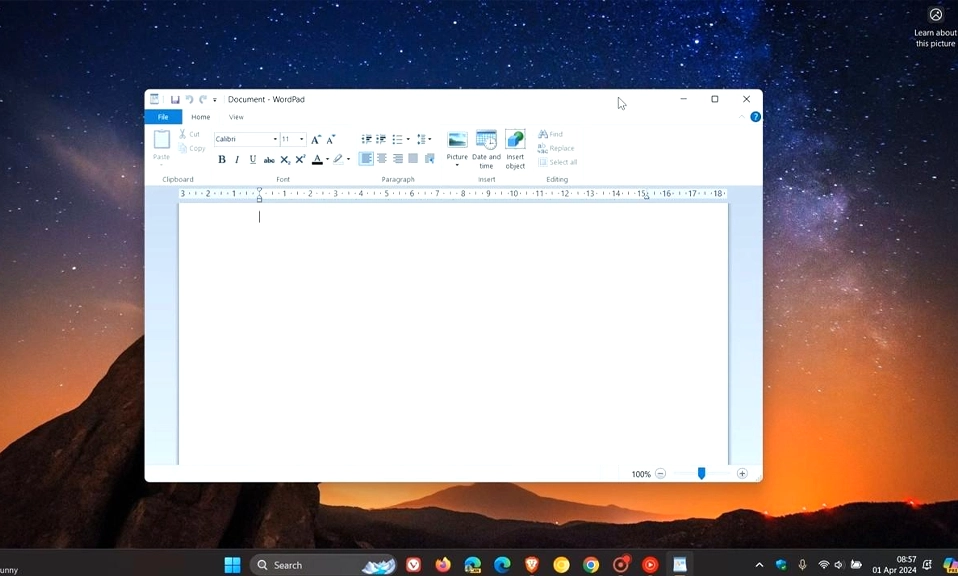
WordPad is gone from Windows 11, and Microsoft is not bringing it back. But if you are one of the many users who relied on its instant launch, simple ribbon interface, and no-nonsense RTF editing, you do not have to accept that quietly. There are legitimate ways to restore it—and a few genuinely bad ideas you should avoid.
The short version is this: WordPad was deprecated in 2024 and removed in Windows 11 version 24H2. The official restoration method is to reinstall it through Windows Optional Features or PowerShell. The unofficial method is to copy the executable from an older Windows installation. The dangerous method is to download a “WordPad installer” from an unknown website, which is a recipe for malware. And the sensible method, for many users, is to find a modern replacement that does the job without the nostalgia tax.
Here is what actually works, what does not, and what you should know before you try.
Why WordPad Was Removed
Microsoft formally deprecated WordPad on March 29, 2024, and the change shipped broadly with the Windows 11 24H2 feature update. The company’s official position is that Microsoft Word is the recommended replacement for rich-text documents such as .doc and .rtf files, while Notepad is the recommended replacement for plain text such as .txt.
The problem is that neither recommendation is a true like-for-like replacement. Word is heavy, subscription-based, and overkill for a quick RTF edit. Notepad has improved significantly—it now supports tabs, dark mode, and some formatting—but it still lacks rich-text capabilities. WordPad occupied a specific middle ground: instant launch, basic formatting, no cloud integration, no subscription. That middle ground is now empty on a clean Windows 11 install.
Method 1: The Official Restoration (Try This First)
Before you do anything else, check whether WordPad is available as an Optional Feature. Microsoft did not always remove it cleanly, and on some systems the component is still present but not installed.
Via Settings:
Press the Windows key, type Optional Features, and press Enter.
Look for WordPad in the list of installed features. If it is there but disabled, expand it and try to Add it.
If it is not listed, click View features at the top, scroll down to find WordPad, select it, and click Next to install it.
Via PowerShell (more reliable):
If the Settings route does not work, open Windows PowerShell as Administrator and run the following command:
Add-WindowsCapability -Online -Name "Microsoft.Windows.WordPad~~~~0.0.1.0"
This is the official Windows capability name for WordPad, and it can restore the app on systems where the Settings interface fails to list it.
The catch: This method only works if the WordPad capability is still available on your system. On many 24H2 installations, it is not—Microsoft has removed the component entirely from the image. If the command returns an error, you will need to move to Method 2.
Method 2: Copy the Files From an Older Windows Installation (Unofficial)
If the official route fails, the most widely used workaround is to copy the WordPad executable and its supporting files from a machine running Windows 11 23H2, Windows 10, or any earlier build that still includes the app.
What you need from the source machine:
Navigate to C:\Program Files\Windows NT\Accessories and copy the entire Accessories folder. In most cases, it contains just three files: wordpad.exe, WordpadFilter.dll, and a language resource folder (such as en-US or de-DE).
Where to put it on your machine:
Do not paste the folder back into the original Windows NT\Accessories path. That directory no longer exists on 24H2 and may be protected in future builds. Instead, paste it into a location outside the Windows folder—for example, C:\Users\YourName\Documents\WordPad or a dedicated folder under your user profile.
Make it launchable:
Right-click
wordpad.exeand choose Create shortcut. Move the shortcut to your Desktop or toC:\ProgramData\Microsoft\Windows\Start Menu\Programs\so it appears in the Start menu.To restore the classic behavior of RTF files opening in WordPad, go to Settings > Apps > Default apps > Choose defaults by file type, locate
.rtf, and assign it to your restoredwordpad.exe.
The critical caveat: This is not supported or endorsed by Microsoft. The binary you are running is the last maintained version Microsoft shipped before deprecation. It is a normal Win32 application, subject to the same security boundaries as any other desktop tool, but it will never receive another security update. Past vulnerabilities in WordPad—including malformed RTF heap overflows—show that the attack surface is not zero. If you use this method, do not open untrusted RTF or DOCX files from unknown sources, and keep a backup of the three files in case a future Windows update removes them again.
Method 3: Third-Party “Classic WordPad” Installers (Proceed With Extreme Caution)
There are community-packaged installers that claim to restore WordPad, including packages hosted on sites like win7games.com. These packages copy wordpad.exe and its language resources into %ProgramFiles%\Windows NT\Accessories and create a Start-menu shortcut. In principle, they replicate Method 2 without requiring a second Windows machine.
The risk is significant. Downloading “WordPad installers” from random websites is dangerous: unofficial copies can contain malware, modified files, or outdated system binaries, and the hosting site is not affiliated with Microsoft. If you go this route, hash-check the download (for example, with Get-FileHash in PowerShell) against a known-good copy, decline any optional offers during installation, and keep a zipped backup of the files.
The safer version of this method is to create your own installer: copy the three files from a trusted older machine, zip them yourself, and store them in a safe location. You are then running the same binary as Method 2, but without trusting an unknown third party.
The Sensible Alternative: Find a Replacement That Fits
For many users, the honest answer is that WordPad’s specific combination of features—instant launch, basic RTF editing, no cloud—is better served by a modern lightweight editor than by a decade-old binary that will never be patched.
LibreOffice Writer is the strongest free replacement for rich-text editing. It opens and saves RTF, DOC, and DOCX files, is actively developed, and has a portable version that does not require installation. It is heavier than WordPad, but it is a genuine word processor rather than a stripped-down editor.
Notepad++ is the best choice if your WordPad use was mostly plain text with occasional formatting. It is fast, free, open-source, and has a massive plugin ecosystem.
Notepad itself has improved substantially in Windows 11. It now supports tabs, dark mode, and some basic formatting, and it is already on your system. If your needs are simple, it may be enough.
TinyRetroPad and similar micro-editors are worth a look if you want the smallest possible footprint. TinyRetroPad is a 2.72 KB notepad replacement built by a former Microsoft engineer, using the RichEdit control for text editing and offering open, save, print, find-and-replace, font selection, and word wrap. It is not WordPad, but it occupies the same “instant, minimal, local” niche.
WordPad is gone,
and Microsoft is not bringing it back. The official restoration method (Optional Features or PowerShell) is the safest first step, but it only works if the capability is still present on your system. The unofficial method (copying the three files from an older Windows installation) is the most reliable workaround, but it comes with a permanent security trade-off: no more patches, no more updates, and no support from Microsoft. The third-party installer route is the riskiest, and should only be attempted with hash verification and a healthy dose of skepticism.
If you genuinely need WordPad’s specific workflow—instant RTF editing without the weight of a full office suite—restoring it is a reasonable, low-risk choice for documents you create yourself or receive from trusted sources. If you regularly open attachments from strangers, a modern, actively maintained editor is the safer path. The choice is yours again—but it comes with responsibilities that Microsoft no longer carries for you.
Have you restored WordPad on your Windows 11 machine—and if so, which method worked for you?